How to Send a Follow-Up After a Class or Appointment
Time an automation around a class or appointment start and review its audience.
How to Send a Follow-Up After a Class or Appointment
Use Before/After Class or Before/After Appointment to start an automation around a scheduled start time. For example, you might send a follow-up after a session starts.
Configure the Trigger
- Go to Marketing > Automations > New Workflow and choose Start from Scratch, or open an existing draft.
- Choose Before/After Class or Before/After Appointment in the trigger list.
- Choose Any Class or Any Appointment Type, or select the specific classes or appointment types you want.
- Under Direction, choose After. Enter the offset in days, hours, and minutes.
- Close the settings. Select + beneath the trigger and connect an action such as Send Email, Send SMS, or Create Task. Configure the action and recipient.
- Review the flow and use Save options > Save draft while preparing it. Publish when ready.
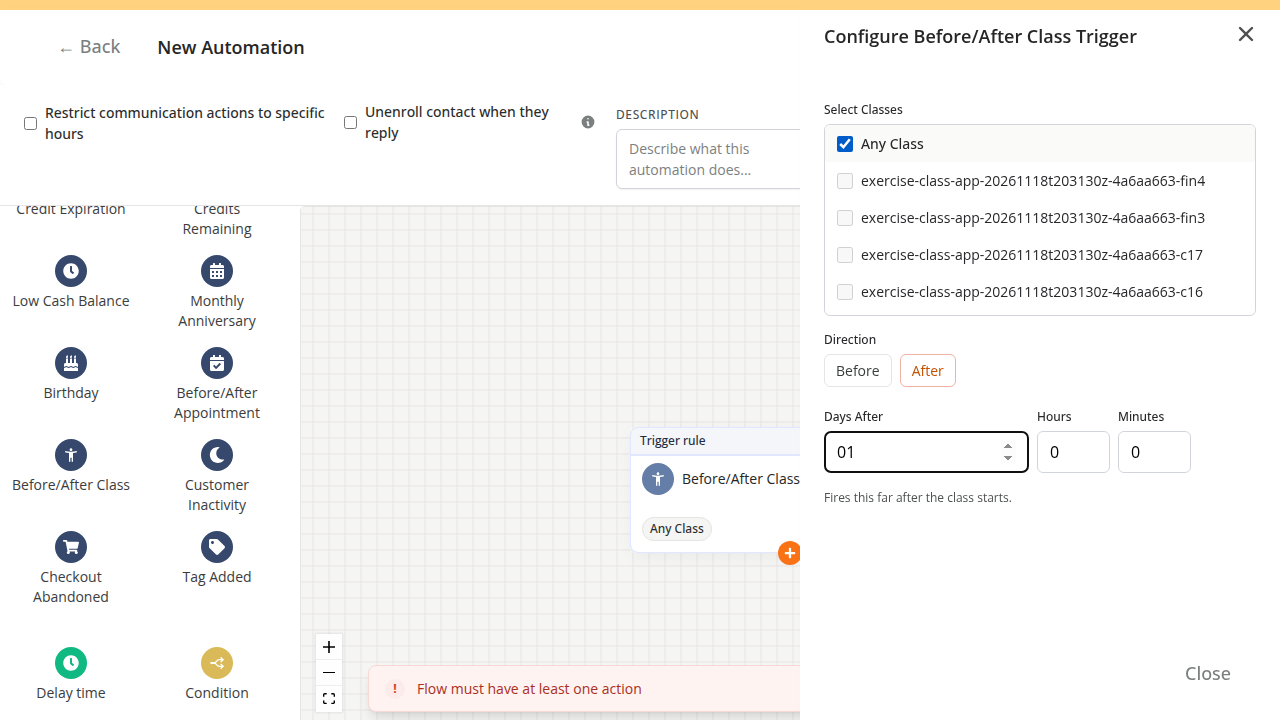
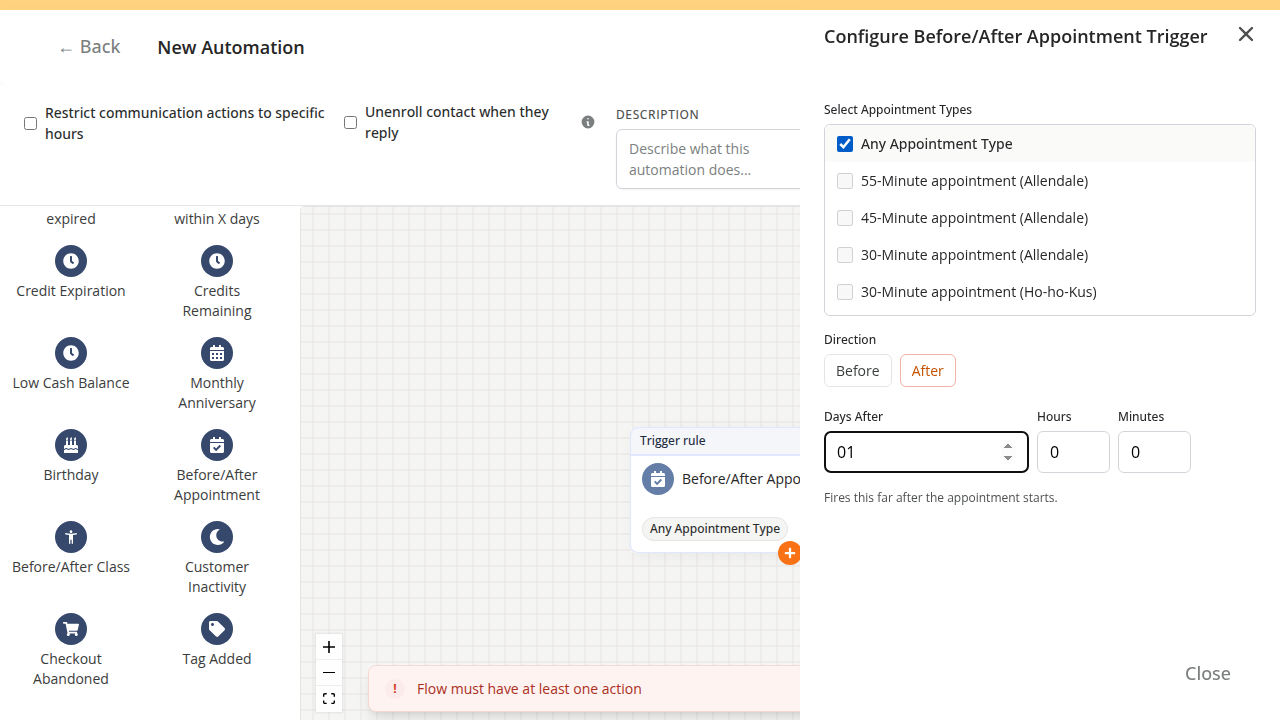
Both examples show a trigger before an action is added; the builder requires an action for the flow.
Choose the Timing Carefully
After is measured from the class or appointment start, not its end. A one-hour offset on a 90-minute class can occur while the class is still in progress. Choose an offset that fits your schedule and leave room for processing and delivery time.
The class trigger uses active registrations and the appointment trigger uses active appointments. An active booking is not proof the person attended, so avoid wording that assumes attendance unless you have checked it separately.
For an advance reminder, choose Before instead; see How to Set Up Custom Appointment and Class Reminder Emails. A Delay Time step is a separate wait after the flow has started.
Test and Review
Automation tests can send real messages to the test destination; use contact details you control. A message test does not prove the scheduled trigger matched a real booking. Review automation history, the booking status, selected class or appointment type, timing, and recipient if a follow-up is missing.
Need a hand?
Email our team at support@joinzipper.com and we'll usually reply within a few hours.
Was this article helpful?
Thanks for your feedback.