How to Add a Delay to an Automation
Wait a fixed time or time an automation step around a customer’s next booking.
How to Add a Delay to an Automation
Add Delay Time when a workflow should wait between steps. You can wait a fixed duration or time a later step around the customer’s next qualifying booking.
Add the Delay
- Open Marketing > Automations and select a workflow, or create one.
- Select + beneath the last node in the workflow, then choose Delay Time.
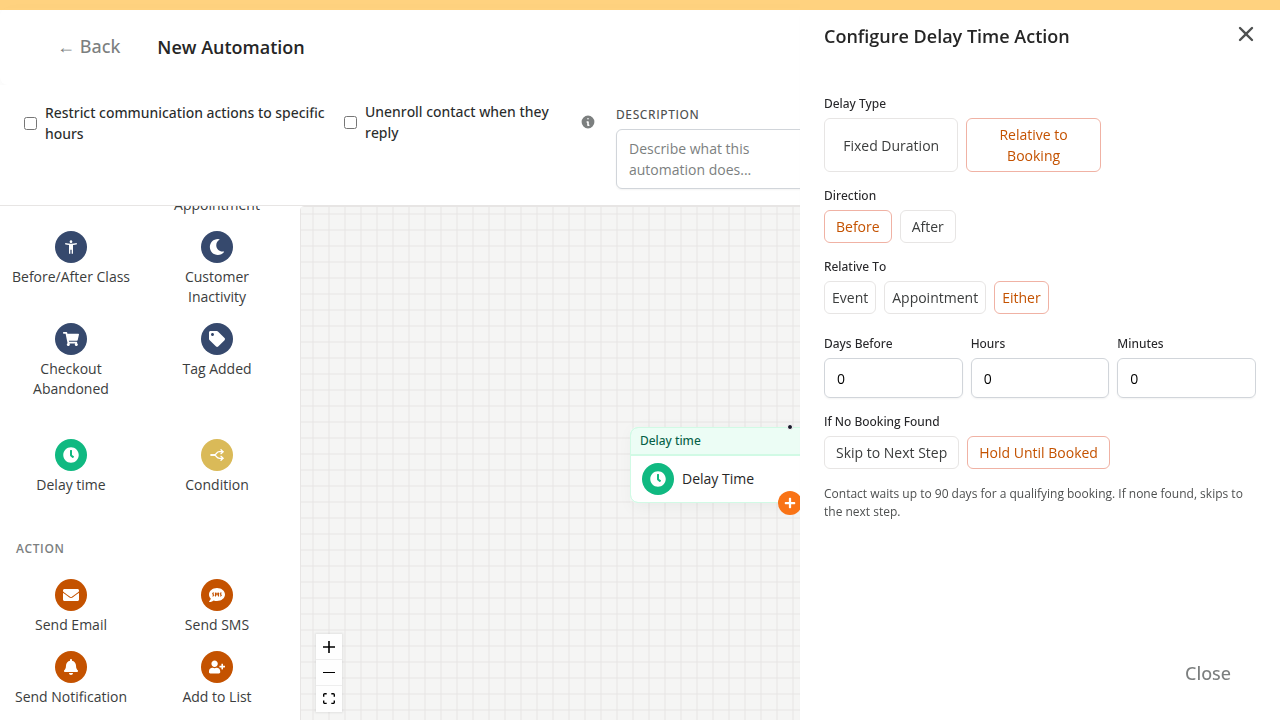
- Choose Fixed Duration or Relative to Booking, and configure the settings below.
- Close the panel and connect the next action. Review the canvas for disconnected steps.
- Use Save options > Save draft while preparing the workflow. Publish when ready.
Wait a Fixed Duration
Choose Fixed Duration and enter Days, Hours, and Minutes. The wait begins when the run reaches this step; all zeros continue without a delay. The builder warns that delays run on a daily schedule and short delays may execute up to 24 hours after their target time. Do not rely on minute-exact delivery.
Wait Relative to a Booking
Choose Relative to Booking, then select Before or After, the booking type (Event, Appointment, or Either), and the days, hours, and minutes offset. The action looks for the next qualifying upcoming booking. If the calculated time has already passed, the run can continue without waiting.
Under If No Booking Found, choose:
- Skip to Next Step to continue when there is no upcoming match.
- Hold Until Booked to wait up to 90 days for a qualifying booking. If none is found during that time, the workflow continues to the next step.
A booking-relative delay needs a customer record in the run. If there is no matching customer context, it can skip to the next step even when the hold option is selected. Check the trigger and intended audience before relying on a hold.
Review Timing and Tests
A delay is separate from the trigger’s own timing. For example, adding a delay after an inactivity trigger waits after the inactivity condition is met. Sending hours can add another wait before an email or SMS.
Automation tests can skip delays and can send real messages. Use contact details you control; an immediate test does not prove real scheduling. Check automation history to review actual runs and later actions.
Need a hand?
Email our team at support@joinzipper.com and we'll usually reply within a few hours.
Was this article helpful?
Thanks for your feedback.