How to Set Up Custom Appointment and Class Reminder Emails
Configure when reminder emails send, what they say, and (for classes) apply them per class type.
How to Set Up Custom Appointment and Class Reminder Emails
Configure when reminder emails send, what they say, and (for classes) apply them per class type.
Appointment Reminders
Step 1: Open appointment type settings
- Navigate to: Sidebar → Schedule → Appointments
- Open the appointment type to edit. For a shared type, open Details & forms.
Step 2: Configure reminder settings
- Find the Reminder notifications field (in the Customer app integration section)
- Click Add notification, enter the number and choose days before or hours before under Send notification, then click Add (for example, 24 hours before or 1 hour before).
- In Appointment reminder additional notes, choose Email and add your rich-text instructions. This content accompanies the standard reminder email. Use the separate SMS field for SMS instructions; this reminder editor does not offer a Push-note field.
- Save
Class/Event Reminders
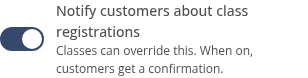
Schedule > Calendar Settings includes registration-notification defaults. These are separate from reminder timing and message notes; check the relevant reminder’s notification preferences as well.

Step 1: Open the class settings
- Navigate to: Sidebar → Schedule → Classes → open a class → edit
- Find the Reminder notifications field
Step 2: Set reminder timing
- Choose when reminders send relative to class start time (e.g., 24 hours before, 1 hour before)
- Multiple reminders can be set (e.g., 24h + 1h before)
- Add email instructions in Class reminder additional notes or Event reminder additional notes. Choose Email for rich text and SMS for separate SMS instructions. Older email-only reminder notes can appear as converted SMS text, so review both channels.
- Save
Using Automations for Custom Reminders
For fully customized reminder content (HTML emails, specific messaging per class type), use the Automations builder:
- Marketing → Automations → New Workflow
- Trigger: Before/After Class (or Before/After Appointment) → select the intended classes or appointment types, choose Before, and set the lead time (for example, 1 day before).
- Action: Send Email → select Use Template and an existing email template, or choose Custom Message and write its subject and body.
- Publish
This lets you write different reminder emails for different class types (e.g., a yoga class gets a different reminder than a personal training session).
Tips
- Include the location or virtual link: Reminders are most valuable when they include where to go or how to join.
- Keep it short: A good reminder has the essentials: date, time, location/link, and how to cancel.
Troubleshooting
Reminders aren’t sending. Check: (1) reminder intervals are configured on the class/appointment type, (2) email delivery is enabled for the relevant reminder in notification settings, and (3) the customer’s email is valid and their notification preferences allow it. Adding reminder notes does not enable a delivery channel.
Need a hand?
Email our team at support@joinzipper.com and we'll usually reply within a few hours.
Was this article helpful?
Thanks for your feedback.