How to Follow Up When a Subscription Is Ending
Choose an upcoming-cancellation or ended-subscription automation trigger and review its timing.
How to Follow Up When a Subscription Is Ending
Use a subscription lifecycle trigger to follow up before a scheduled cancellation or after a subscription actually ends. Choose the trigger that matches when you want the workflow to start.
Choose a Trigger
- Subscription will be canceled within X days looks for a scheduled upcoming cancellation. Set a window from 1 to 60 calendar days.
- Subscription canceled or expired applies when the subscription actually ends. An end caused by nonpayment counts only when the subscription’s status is canceled; a subscription still in the unpaid status does not match this trigger. A pause, replacement, or external renewal-period rollover does not count as an end for this trigger.
The upcoming-cancellation check uses your studio’s local calendar dates. The builder says it is evaluated daily at 08:00 UTC; cancellations entering the window after that scan are checked at the next daily scan. It is not an exact-time message guarantee.
Build the Workflow
- Go to Marketing > Automations > New Workflow and choose Start from Scratch, or open an existing draft.
- Select the appropriate subscription trigger. Under Products (optional), leave Any product selected or choose the products you want.
- For the upcoming-cancellation trigger, enter a whole number in Within calendar days. Review the builder’s timing and recipient note.
- Close the trigger settings. Select + below the trigger, add an action such as Send Email or Create Task, and configure it.
- Review the connections and recipient. Use Save options > Save draft while preparing the workflow, then publish when ready.
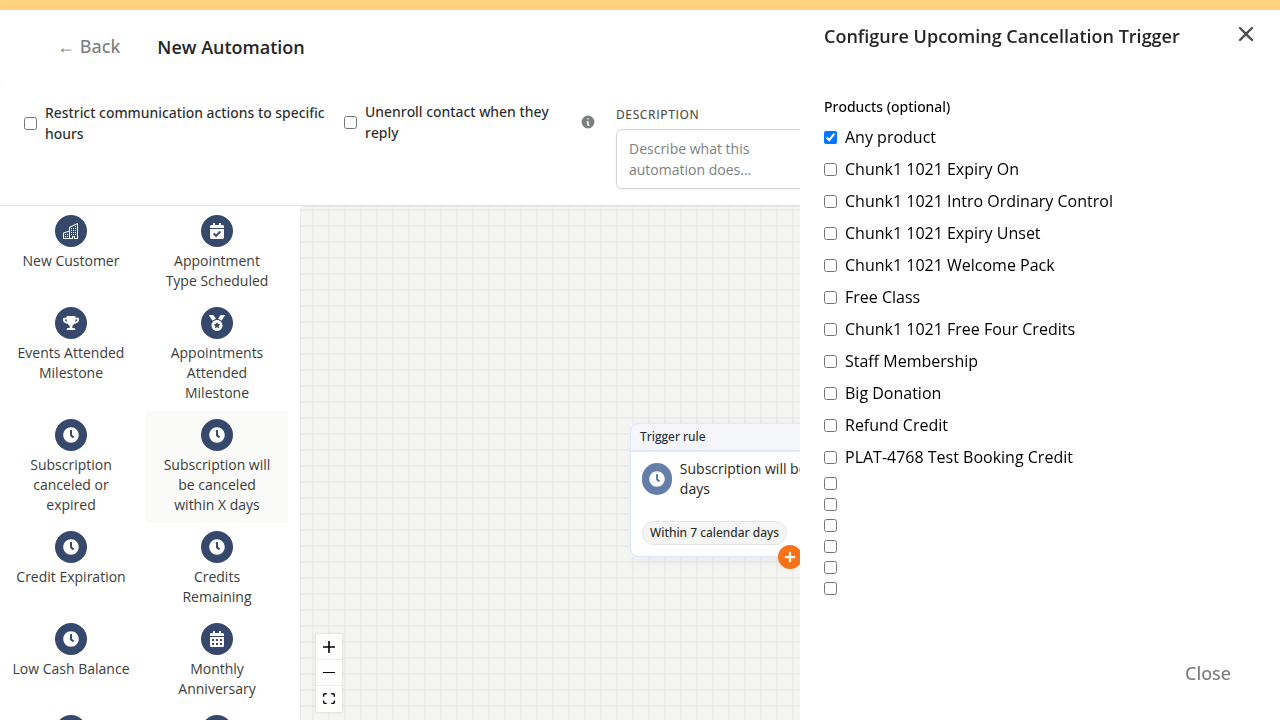
The builder describes these triggers as running once per subscription for the automation and contacting the purchaser for family memberships. Check the recipient and message before publishing.
Test and Review
Automation tests can send real messages to the test destination; use contact details you control. A message test does not prove an actual cancellation was detected. Review Execution History and the subscription’s status and cancellation date when investigating a missing follow-up.
For the subscription controls themselves, see How to Cancel a Subscription and How to Place a Hold on a Membership.
Need a hand?
Email our team at support@joinzipper.com and we'll usually reply within a few hours.
Was this article helpful?
Thanks for your feedback.