How to Place a Hold on a Membership
Pause an eligible membership, review billing and booking conflicts, and understand customer self-pause and resume controls.
How to Place a Hold on a Membership
A hold pauses the chosen membership’s billing and freezes its affected membership credits for the hold. Other eligible products and independently paid permanent credits can remain available.
Before You Start
- Ensure the membership is active (not already paused, not canceled)
- Have access to Contacts > Customers and to the customer’s financial information in Billing & Payments.
Steps
Step 1: Open the customer’s profile
- Go to Contacts > Customers → search for the customer → click their name
- Click the Billing & Payments tab
Step 2: Click “Pause subscription”
- Find the active membership in the Subscriptions section
- Click the actions menu (three dots) on the subscription card
- Click: Pause subscription
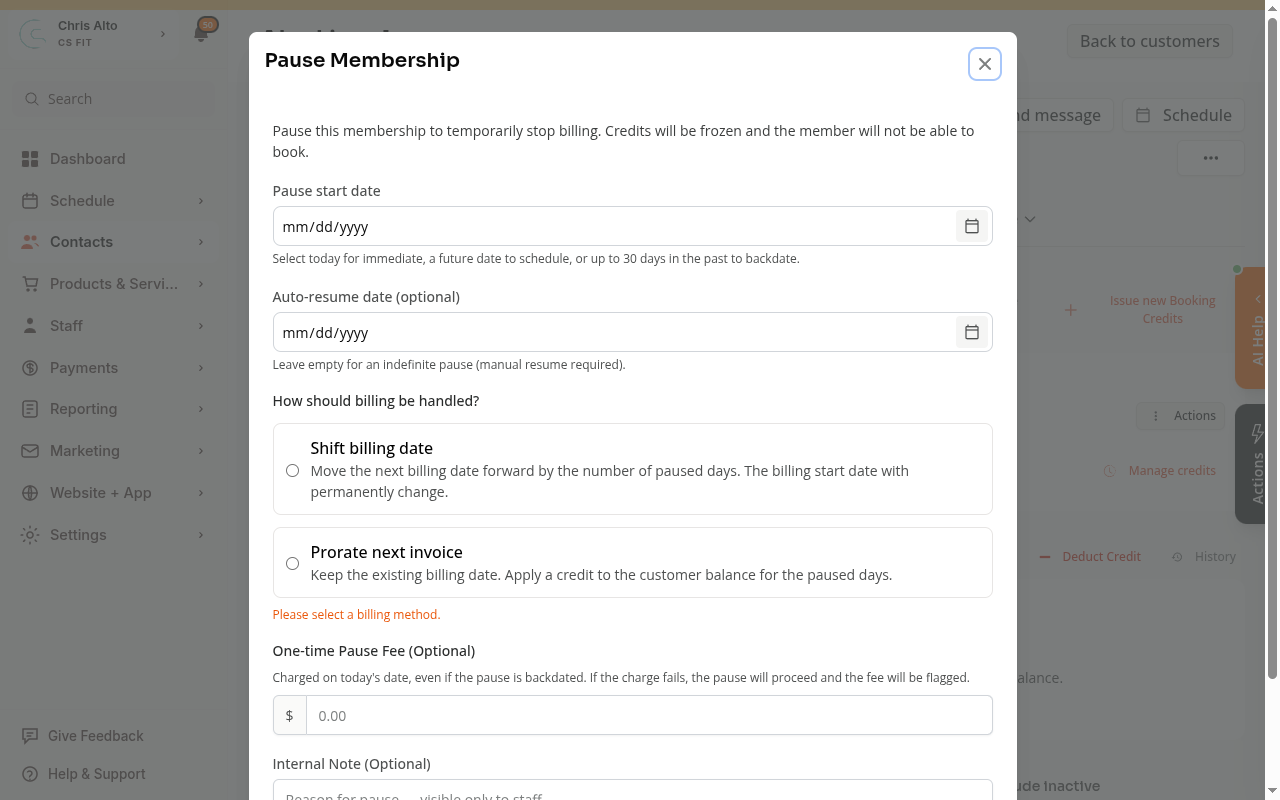
Step 3: Set the pause start date
- Immediate pause: Select today’s date
- Scheduled pause: Select a future date — the pause will begin automatically on that day
- Backdated pause: Select a date up to 30 days in the past (note: no refunds are issued for the backdated window)
Step 4: Set an auto-resume date (optional)
- Enter a date if you want the membership to restart automatically
- Leave blank for an indefinite pause — you’ll need to manually resume it later
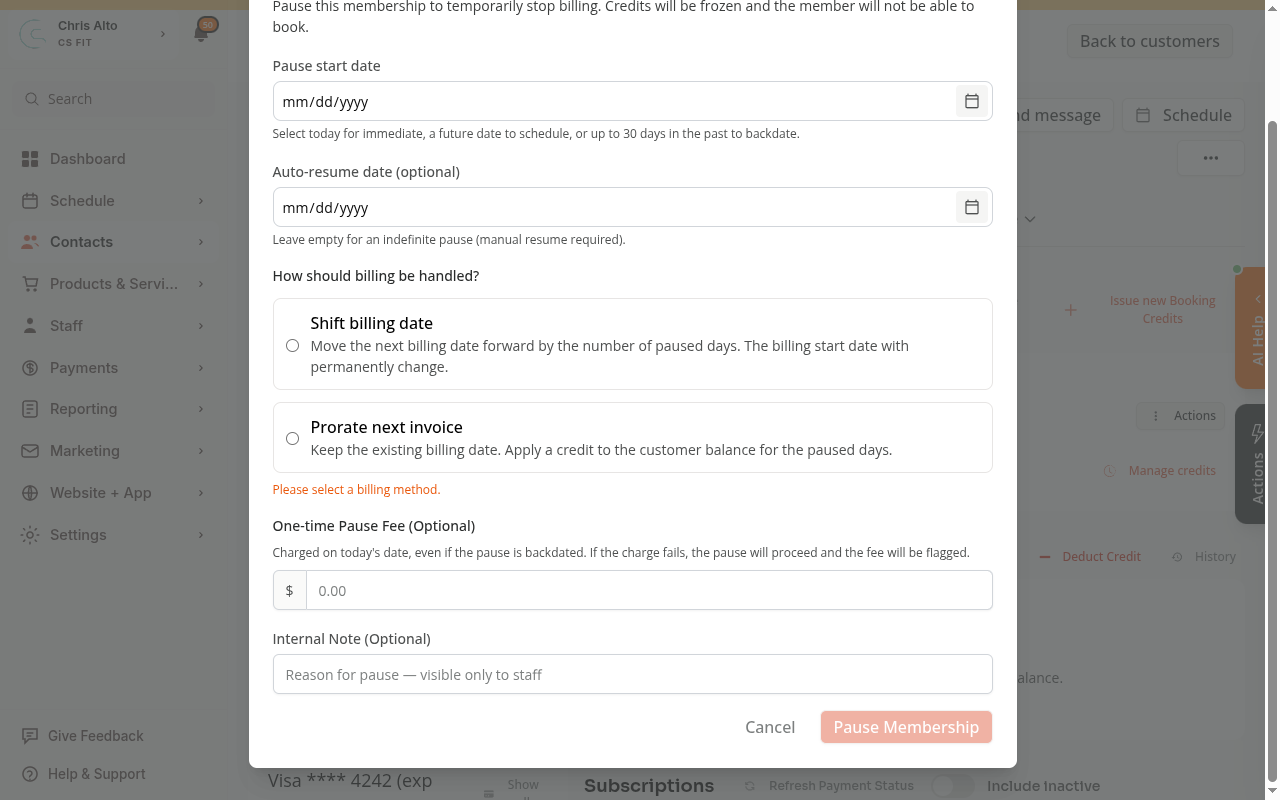
Step 5: Choose how billing is handled
Select one option:
- Shift billing date — moves the next billing date forward by the number of paused days. Best for: giving the member the full value of their membership without changing the billing cadence
- Prorate next invoice — keeps the billing date unchanged and applies a credit to the member’s Stripe balance for the paused days. Best for: when the billing date should stay fixed
Step 6: Review and handle booking conflicts
If bookings paid with this membership’s credits conflict with its pause window, a warning lists those conflicts. Bookings paid through a different eligible source are left intact. You must check “I understand. Cancel these bookings and proceed.” to continue.
Credits used for those booked sessions will be returned to the member’s account and then frozen for the pause duration.
Step 7: Optional — add a pause fee or internal note
- Pause fee: A one-time charge for Stripe-billed memberships. For an immediate or backdated pause, the fee is attempted when you submit. For a scheduled pause, it is attempted when the pause starts.
- Internal note: Staff-only note for the reason (e.g., “Member traveling for 6 weeks”)
Step 8: Submit
- Click: Pause Membership (or Schedule Pause if you selected a future date)
Canceling a Scheduled Pause (Before It Starts)
If you set a future pause date and change your mind:
- Go to the customer’s billing tab
- Find the subscription showing the scheduled pause
- Click Cancel scheduled pause
Resuming a Paused Membership
Once paused, the Pause subscription option is replaced by Resume subscription. Staff click it to open Resume Subscription, review the billing explanation, and click Resume Subscription to confirm. Review the success or error result. For an external payment membership, this updates Zipper’s status; it does not change the external payment provider.
The resume dialog explains the saved billing method: a shifted billing date or prorate credit may already have been applied. Check that explanation rather than assuming resuming always creates a new charge or resets the billing date.
Customer Self-pause
Self-pause is a separate customer flow that the studio must enable. It is off by default.
An Admin or Manager with access to Products & Services > Membership Settings can enable Allow clients to pause memberships, set Minimum pause and Maximum pause in days, then click Save Settings. The default range is 14–60 days; the studio can configure a different range. Both limits must be whole numbers from 1 to 365 days, and the maximum must be at least the minimum.
When self-pause is enabled:
- The customer opens Purchase history > Subscription history and finds an eligible membership tied to their account.
- From that membership’s actions, choose Pause membership.
- Choose a required Resume date within the studio’s displayed range.
- Review the date and billing explanation, then click Confirm Pause.
- Check the confirmation or error before assuming the pause succeeded. If it cannot be completed, contact the studio.
Customer self-pause uses Shift billing date automatically and starts from the current date. It does not offer the staff choices for backdating, an indefinite pause, a pause fee, or prorating the next invoice.
Self-pause is available for eligible active or trialing Stripe memberships. It is unavailable when a cancellation is scheduled, a pause is already pending or applied, or the membership is past due or unpaid. Seeing another family member’s subscription does not by itself authorize a self-service change; Zipper checks the account’s relationship to the subscription.
Customer Resume Instructions
A paused customer can choose Resume membership to see instructions to contact the provider. That action does not resume the membership immediately. The customer should contact the studio to resume early and confirm billing-date changes. A self-pause otherwise resumes automatically on its selected resume date.
On Mobile
Use the relevant staff or customer flow above in the mobile browser. Scroll through the modal to review its dates and confirmation controls.
Tips
- Auto-resume vs. indefinite: Set an auto-resume date when the return date is known (injury, travel). Leave blank if uncertain — you can always resume manually.
- Shift vs. prorate: Shift billing date is more common for extended holds. Prorate is better for short pauses when the billing date needs to stay fixed.
- Backdated pauses don’t issue refunds: Credits already used during the backdated window are not reversed.
Troubleshooting
“Pause subscription” isn’t showing on the subscription card. Check that the membership is active. The pause option is hidden if the membership is already paused, canceled, scheduled to cancel, or has a pending scheduled pause.
The pause fee failed to charge. The pause still succeeded. The system logs a warning. Follow up manually to collect the fee if needed.
Member can still book after being paused. Check whether the booking uses this paused membership or a different eligible payment option. Confirm the pause dates and status. A pause scheduled for a future date has not started yet.
Need a hand?
Email our team at support@joinzipper.com and we'll usually reply within a few hours.
Was this article helpful?
Thanks for your feedback.