AI Product Drafts Explained
Describe products in plain language, then review their settings before creating them.
AI Product Drafts Explained
Create products with AI turns a description into product candidates you can review. Generating a candidate and creating a product are separate steps. Review the settings before customers can buy the result.
Start with a Clear Description
- Open Products & Services > Manage Plans to reach the Products page.
- Click Create products with AI.
- Describe each product’s name, price, billing schedule, included access and policies.
- Click Generate when your description is ready.
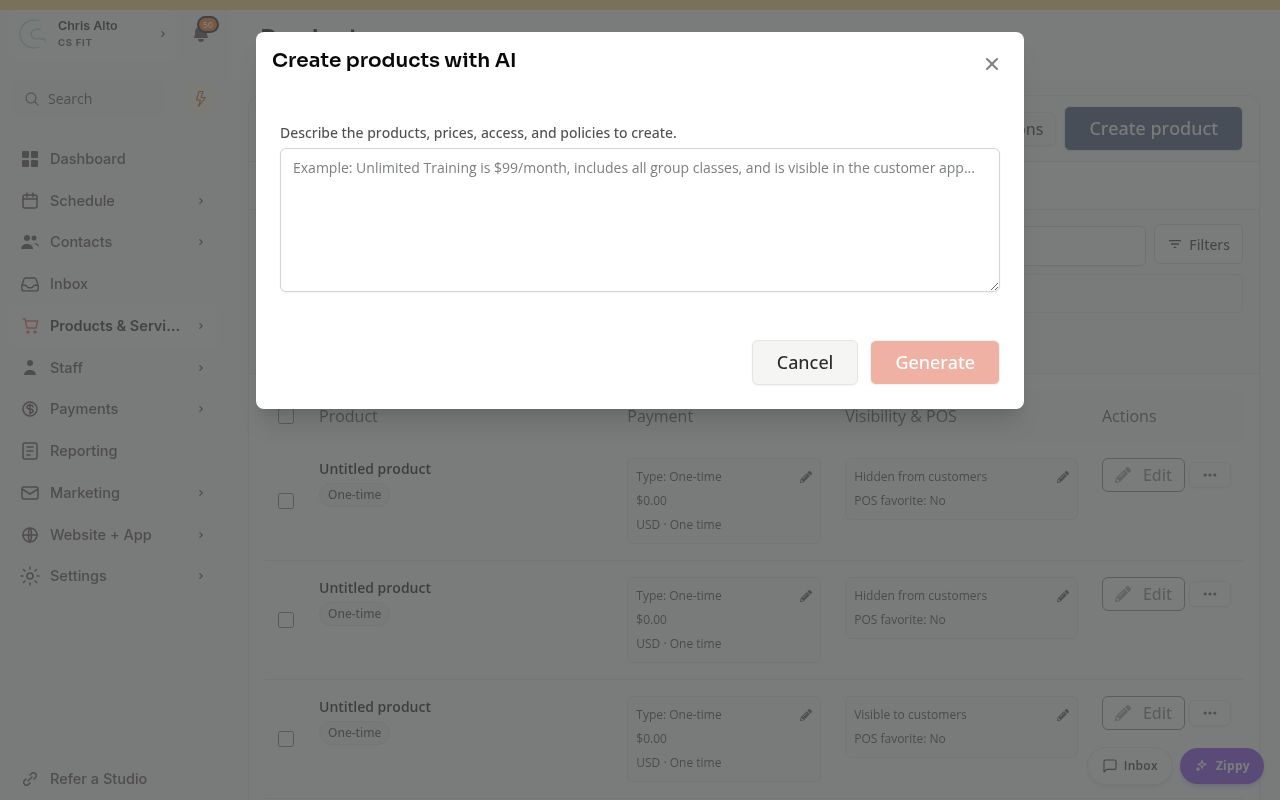
For example: “A 10-class pack costs $80, includes ten group-class credits and expires 60 days after first attendance. A monthly membership costs $99, includes unlimited group classes and appears in the customer app.”
Include details the AI should not guess, such as required forms, permitted classes, appointment access, introductory pricing, cancellation policy and whether the product should be shown to customers.
Review the Candidates
In Review AI-created products, review each candidate’s name, type, price and settings. Open its Review action to inspect the product controls. Resolve validation errors and read review reminders. A plausible description is not proof that the access and billing rules are correct.
Pay particular attention to:
- One-time versus recurring billing, price and billing frequency.
- Booking Credits versus All Access, included classes or appointments, and credit expiration.
- Required forms, customer visibility and purchase restrictions.
- Introductory pricing and membership-start settings.
Choose the ready candidates to include and use Review creation set. The next confirmation states how many products will be created. Confirm only when that set is correct, then check Product creation results for each row. Candidates left in the draft can be resumed later with Resume AI draft.
Do not retry creating a product just because another row failed. Check the result for each candidate first, and follow the row’s guidance.
On Mobile
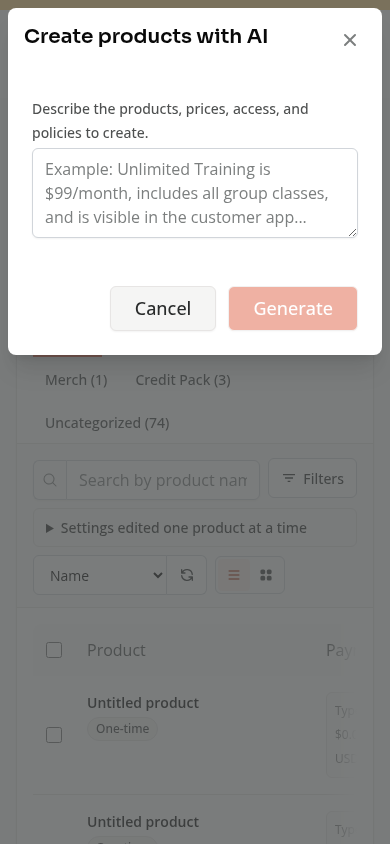
Use the same description form. Scroll through candidate settings and the final confirmation before creating the products.
Related Guides
- Booking Credits and All Access Explained
- Membership Billing and Access Explained
- Bulk Product Editing Explained
Bulk editing changes existing products. AI product creation prepares new candidates.
Need a hand?
Email our team at support@joinzipper.com and we'll usually reply within a few hours.
Was this article helpful?
Thanks for your feedback.