Bulk Product Editing Explained
Change selected product settings with a preview, final confirmation and per-product results.
Bulk Product Editing Explained
Bulk editing lets you change one supported setting on several products. Zipper shows what will change before applying it.
Before You Start
You need permission to manage products. Check which products you intend to edit. A bulk change can affect many customer-facing offerings.
Choose Products and a Field
Open Products & Services > Manage Plans. Select the products’ checkboxes, then choose Bulk edit.
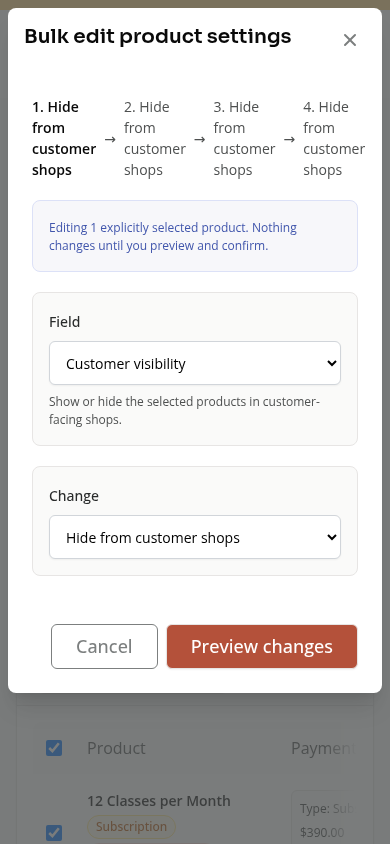
Choose a Field and Change in Bulk edit product settings. Supported fields include shop visibility, POS favorites, descriptions, purchase forms, sharing settings, booking credits and manual sales tax.
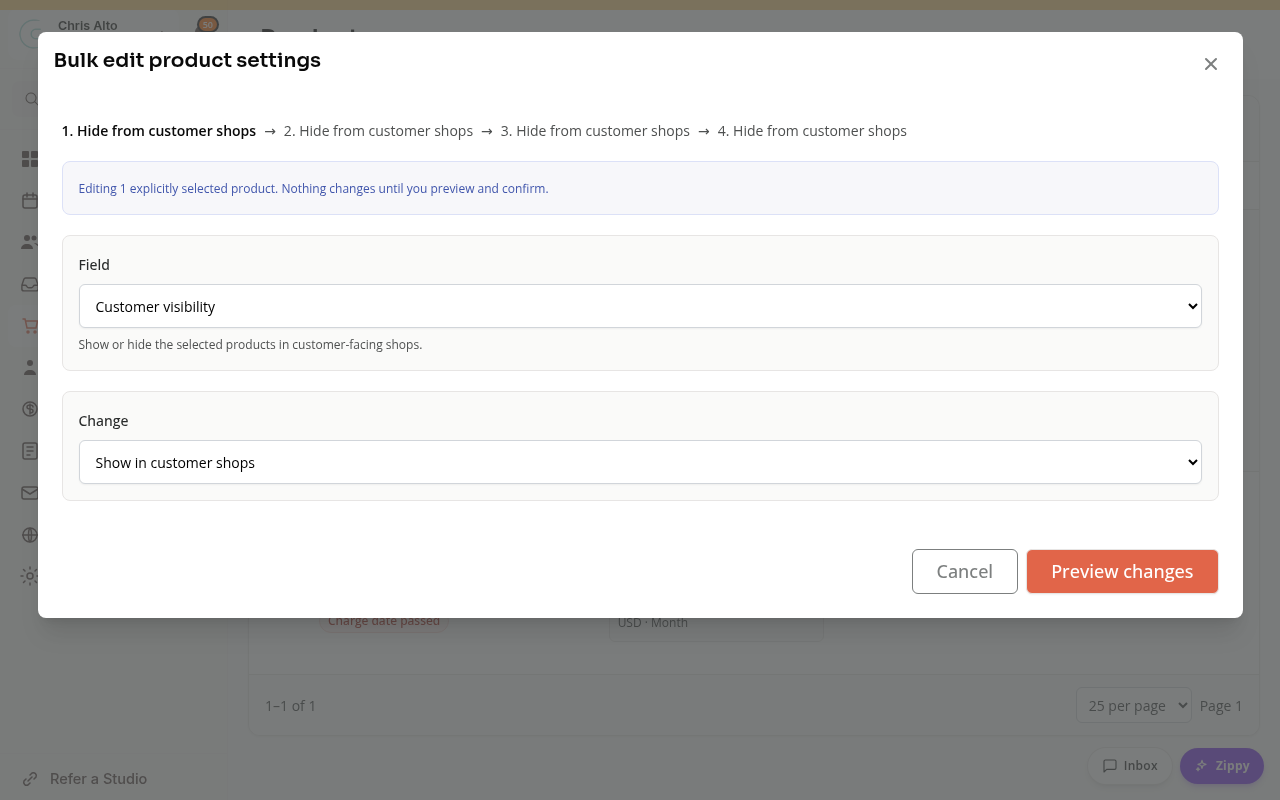
The available operation depends on the field. Read its description, especially for shared forms, credit groups and receipt notes.
Preview Each Product
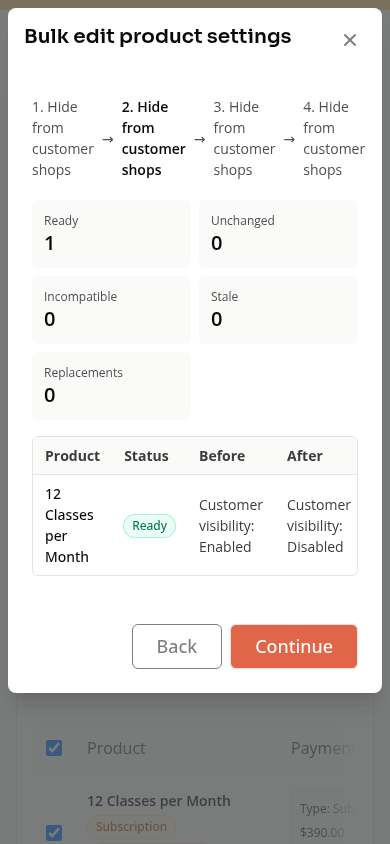
Choose Preview changes. Review Before, After, Status and Notes for each product.
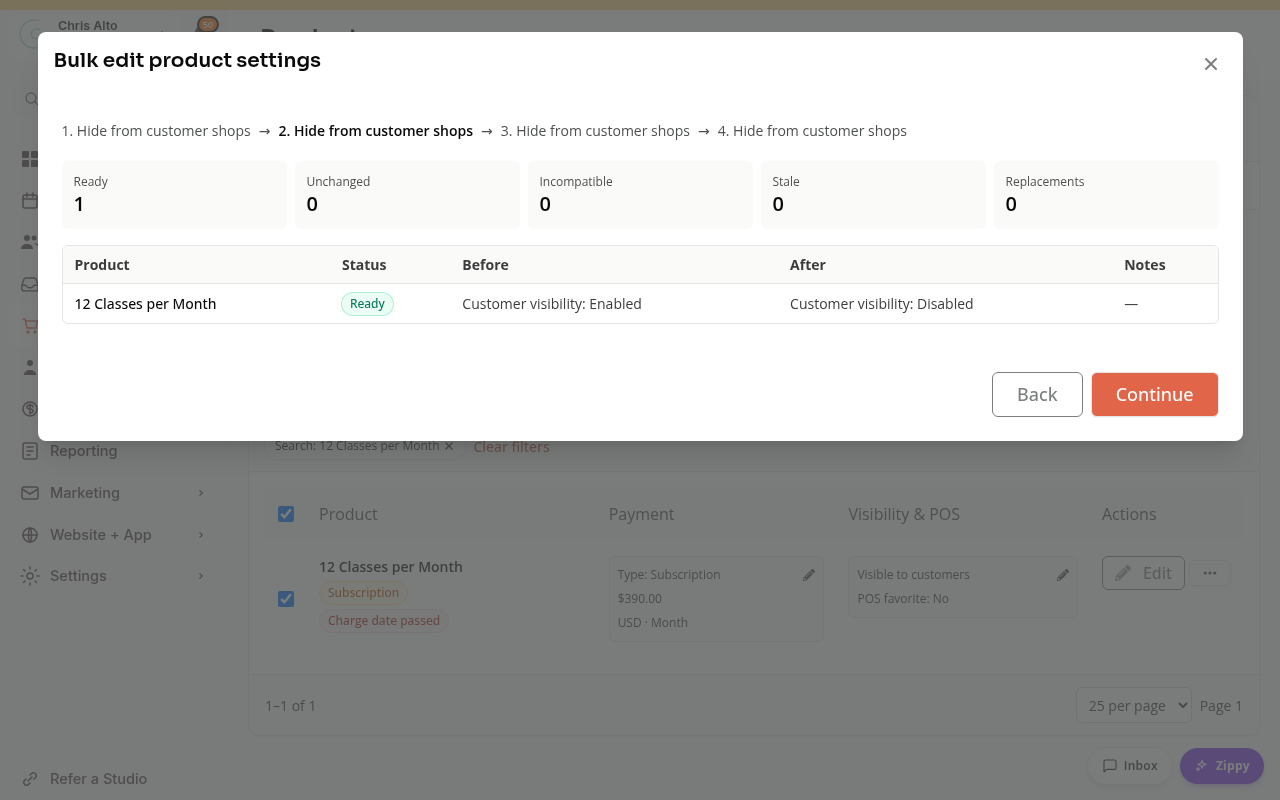
- Ready means the product can receive this change.
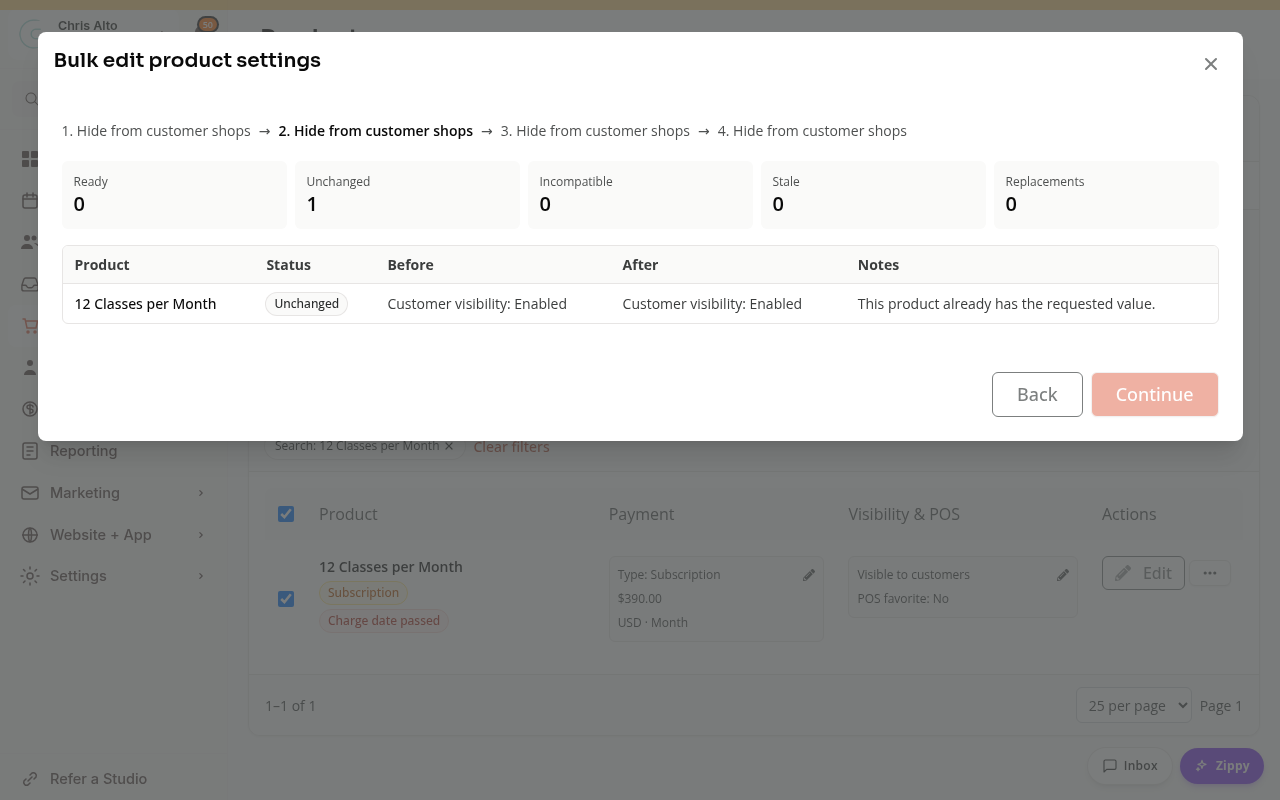
- Unchanged means it already has the requested value.
- Other notes explain conflicts, missing permission or settings that do not fit that product.
If every product is unchanged, there is nothing to apply and Continue stays disabled.
Confirm and Apply
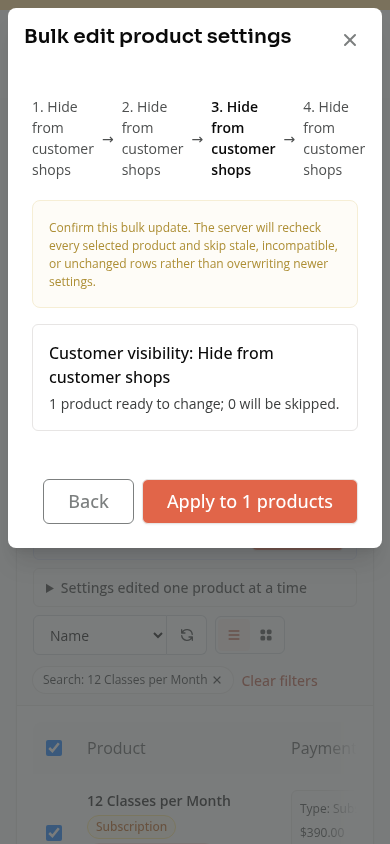
Choose Continue to review the final operation and affected count. Choose Apply to … products only when the scope is correct.
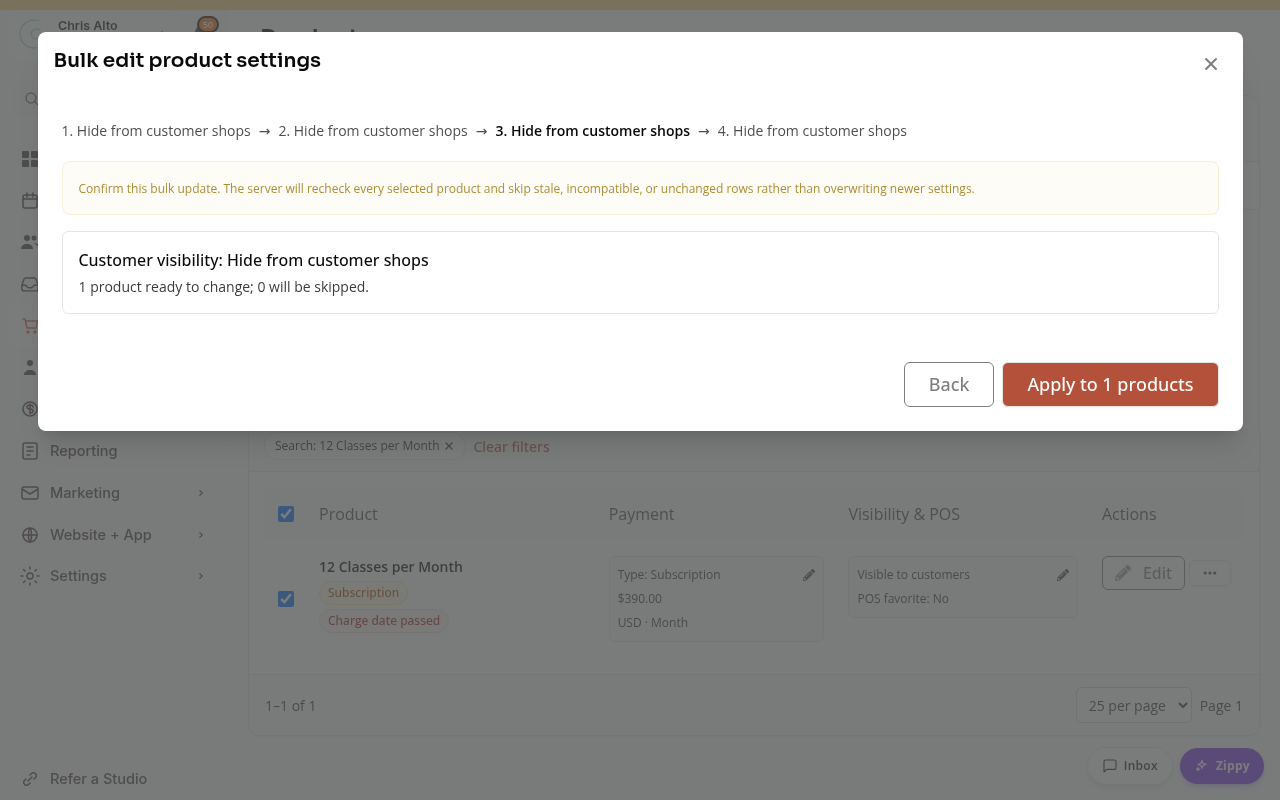
Zipper checks the products again when applying. A product changed by someone else since the preview may be skipped. Read the results for each product rather than assuming all selected products changed. Use Done when finished.
Existing Purchases
Editing product settings does not rewrite every earlier purchase. For example, changing booking-credit settings controls future purchases; it does not replace credits customers already bought.
On Mobile
The same configure, preview and confirm steps appear in a stacked dialog. Scroll the preview table to check its before and after values.
Troubleshooting
Continue is disabled. Check whether any products are ready. Unchanged products do not need an update.
A selected product was skipped. Read its result. Refresh and build a new preview after checking the product’s current settings.
Need a hand?
Email our team at support@joinzipper.com and we'll usually reply within a few hours.
Was this article helpful?
Thanks for your feedback.