Membership Billing and Access Explained
Understand billing frequency, deferred first charges, booking credits and cancellation choices.
Membership Billing and Access Explained
A membership has two parts: when a customer pays, and what they can use. Billing dates, booking credits and access rules work together, but changing one does not always change the others.
Billing Frequency
Open a subscription product in Products & Services > Manage Plans, then choose Pricing. Payment frequency sets how often the recurring price is charged.
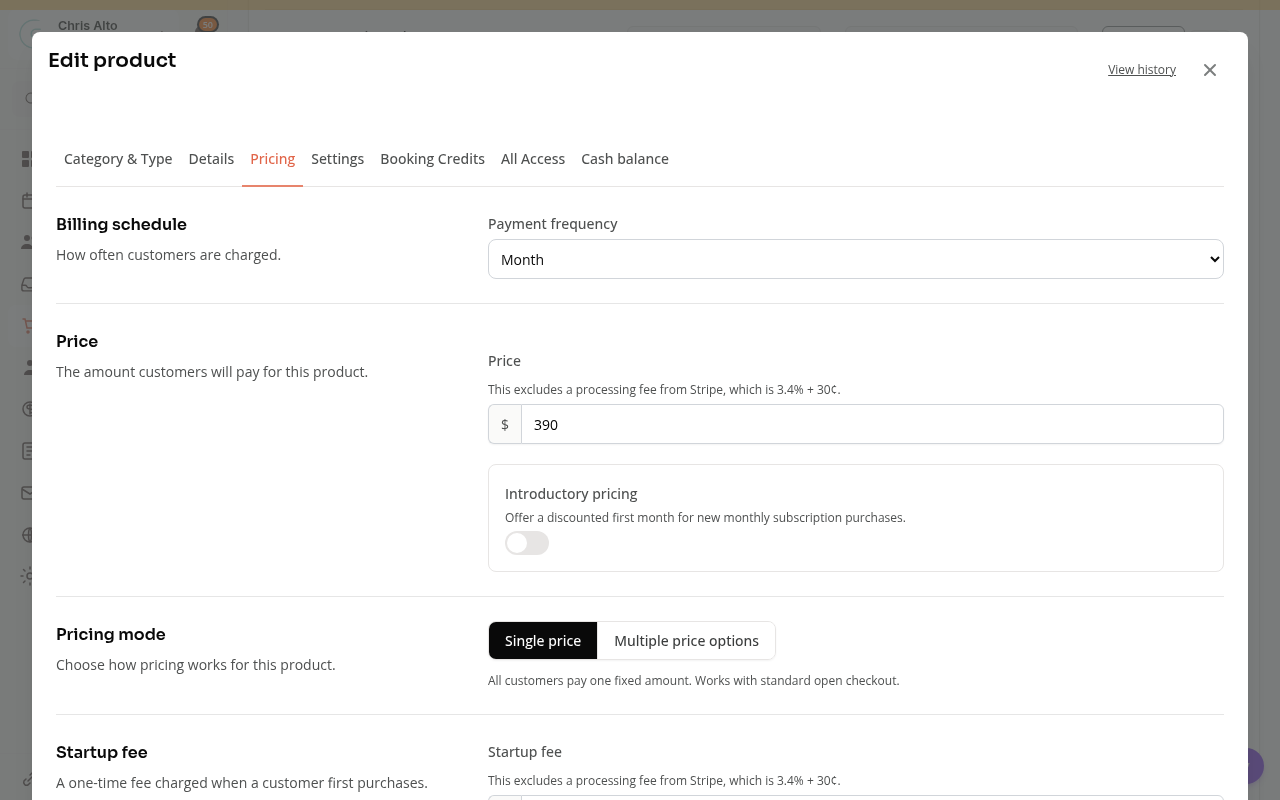
Choose a listed schedule, or Custom to set Charge every and its Unit. For example, 30 Days means every thirty days. It does not mean the same day of each calendar month.
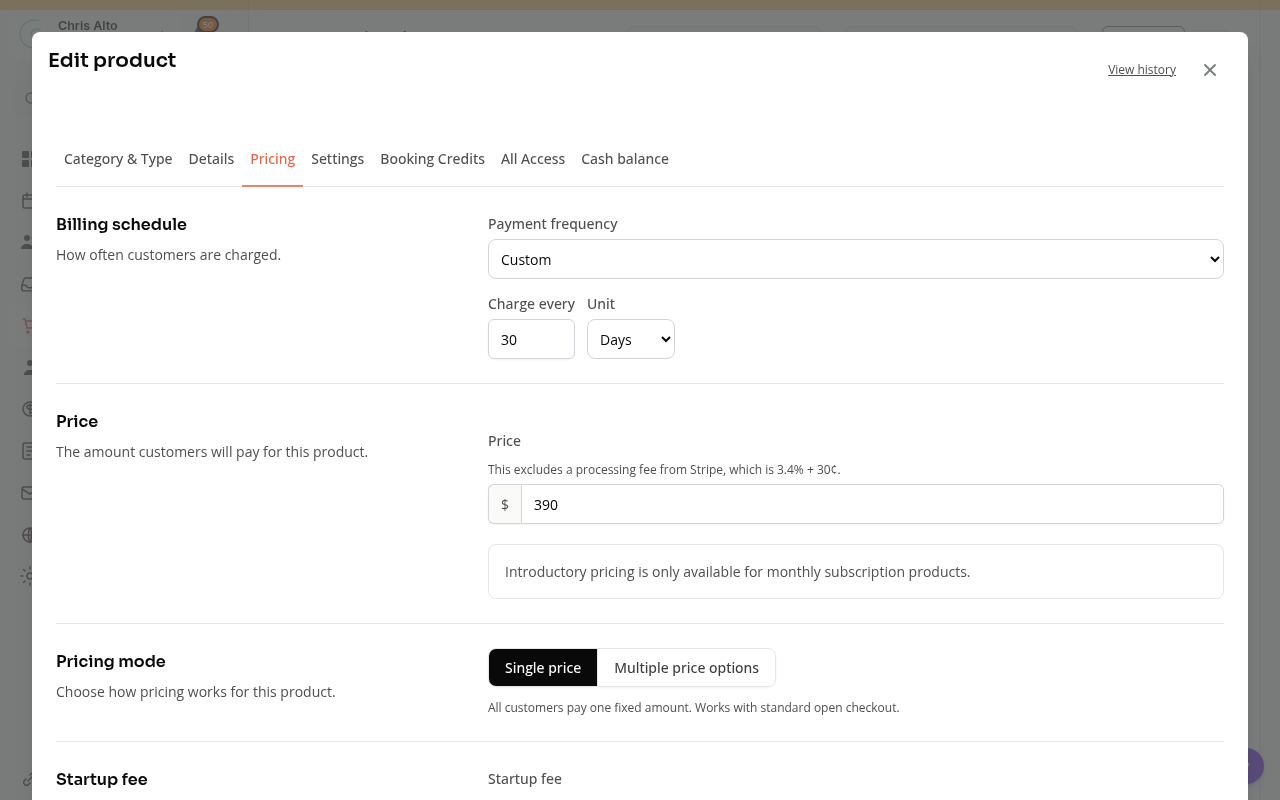
A Startup fee is separate from the recurring price. Changing the product’s price does not automatically change existing subscribers’ prices. Review existing subscriptions separately.
Deferring the First Charge
Defer first charge delays the first recurring charge until a chosen date or the first booking, depending on the product’s settings. First-booking activation requires at least one eligible class or appointment through Booking Credits or All Access. It cannot be combined with an introductory offer that also starts on the first booking.
Deferring payment does not remove purchase limits, approval requirements or booking rules. Check those settings when deciding what the customer can do before the first charge.
Unified Monthly Billing
Eligible monthly products can use Enable unified billing to align billing to a day of the month. The setting accepts days 1 through 28. This is a different choice from a custom number of days between charges.
Booking Credits and Book-ahead
In Booking Credits, choose the services the membership covers and how many visits it issues.
An eligible membership can allow booking into its next billing period before renewal is paid. Those credits are tied to the future period. They are not proof that payment succeeded. Enabling book-ahead for an existing product can require a review of affected memberships.
See Booking Credits and All Access Explained for expiry, sharing and unused visits.
Canceling a Membership
Staff cancellation offers choices about the end date and final billing. Depending on the membership, the choices can include Immediately, End of this pay period, End of next pay period, or a Custom date.
For a future cancellation, check the final-cycle billing choice. Prorating a final cycle is different from refunding a payment already made.
Staff also review paid and unpaid bookings separately. After cancellation, a separate choice can revoke current unused credits or leave them active. Read the effect before confirming; revoking credits is not undone from that confirmation screen.
Customer Self-cancellation
Membership settings can require a minimum commitment and a notice period. The customer sees the allowed cancellation date. Staff can still handle exceptions through the admin app.
Canceling one family member’s membership is not permission to cancel another person’s membership. Check the owner shown on the subscription.
On Mobile
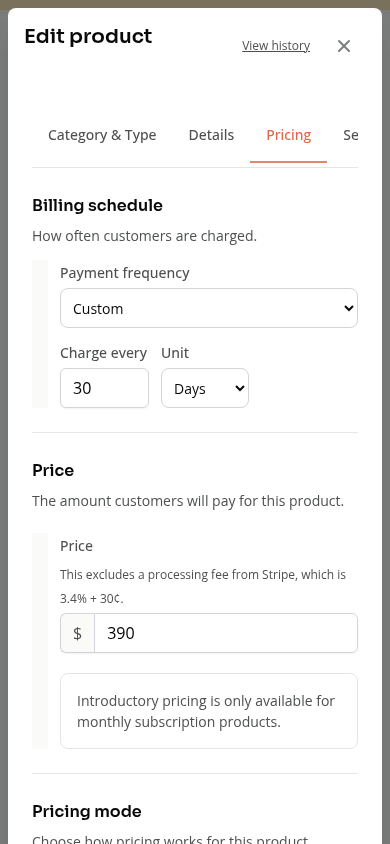
The product editor stacks its fields. Scroll in Pricing to see the billing settings.
Troubleshooting
The customer paid but cannot book. Check the membership’s access dates, included services, available credits and the service’s booking window.
The price changed only for new buyers. Product pricing and existing subscription pricing are separate. Review the subscriber’s price before expecting the next invoice to change.
The customer cannot cancel yet. Check the minimum commitment and notice period shown in membership settings.
Need a hand?
Email our team at support@joinzipper.com and we'll usually reply within a few hours.
Was this article helpful?
Thanks for your feedback.