Ask ChatGPT or Claude about your actual studio
Connect your AI assistant to Zipper and ask about schedules, clients, and reports using your studio's real information.
An AI assistant can suggest ways to improve retention. It becomes more useful when it can help you understand the retention questions specific to your studio.
Which members have stopped booking? What does next week’s schedule look like? Where should you start investigating a change in revenue?
Zippy’s MCP connection brings permitted Zipper information into compatible AI clients, including ChatGPT, Claude, and Codex. You can ask questions in the conversation you already use, with actual studio context behind the answer.
What the connection does
MCP is the connection format that lets an AI client use tools supplied by another service. You do not need to understand the protocol to use it. In practice, you connect your assistant to Zippy, authorize access to the appropriate organization, and ask a business question.
The assistant can use the available tools to look up permitted information about your schedule, customers, bookings, and reports. It is a different starting point from pasting a generic description of your studio into a chat.
Ask questions you can act on
Useful prompts start with a real decision and a clear period. For example:
- “Show me the classes on next week’s schedule, grouped by instructor.”
- “Which clients have not booked recently? Tell me which period you checked.”
- “Help me investigate this month’s class revenue using the available reports.”
- “What information should I review before changing our quietest class time?”
Treat the answer as a way into the evidence. Ask which report, dates, and records support it, especially when a decision depends on a total. The Reporting workspace remains a useful place to inspect the supporting detail.
Connect from your own account
Open Settings > Integrations > Zippy MCP and follow the setup instructions for your client. Use the server address shown in your own organization, rather than copying a staging address from a screenshot.
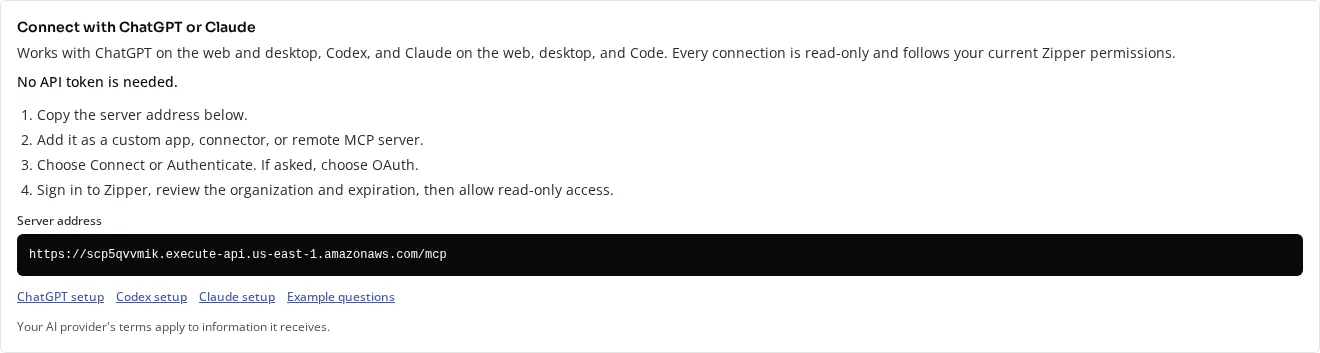
Current setup panel in staging01. Use the address supplied in your own account.
An administrator manages the organization’s connection. The available information follows that person’s current permissions, and access can be revoked. Client setup and account requirements vary, so use the instructions shown for the client you are connecting.
Your assistant can look, without changing your account
External connections are read-only. Asking a question does not send a client message, charge a card, change a booking, or publish a post. If the conversation gives you an idea for a change, carry it out through the appropriate Zipper workflow.
That distinction also applies to the new marketing tools: creating and approving content inside Zipper is a separate capability from an external AI connection reading studio information.
Start with one question you would otherwise answer by opening several screens. You can broaden the conversation once you understand the information the connection makes available.
Explore Zippy and the AI-assisted front desk, or read the September 1-14 release notes.