Member Appointment Rates Explained
Offer eligible members a fixed appointment price while keeping drop-in prices and All Access separate.
Member Appointment Rates Explained
A member rate gives customers who own an eligible product a fixed appointment price. It is useful when a membership gives a discount rather than including the appointment for free.
Three Ways a Product Can Pay
| Setting | What the customer gets |
|---|---|
| Member drop-in rates | A fixed cash price for an eligible appointment. |
| Booking Credits | A visit paid with an eligible credit. |
| All Access | Included access to selected services. |
A discounted price does not give the customer a booking credit. These options have different rules.
Set a Member Rate
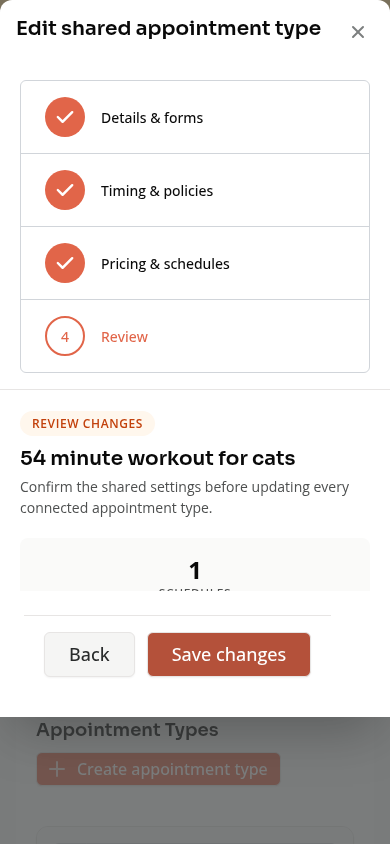
Open Schedule > Appointments > Appointment Types and edit the type. For a shared type, use Pricing & schedules.
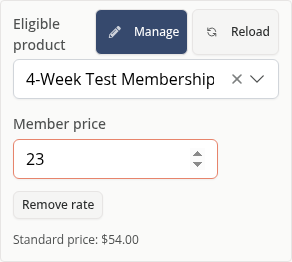
In Member drop-in rates, choose an Eligible product and enter its Member price. For example, an appointment with a $54 standard price can cost $23 for customers with the chosen membership.

Use Add member rate for another eligible product. Review changes and save the appointment type when ready. A shared type’s rates affect its connected offerings, so check that scope.
Which Price Wins?
If the customer qualifies for several member rates, the lowest eligible price wins. A product that already grants All Access keeps its free access.
Eligibility is checked for the attendee who is booking. Being in the same family does not by itself give every attendee the same membership rate.
Member rates are inactive while the appointment’s drop-in fee is disabled. A rate must use an available product and a valid price. Remove or replace a deleted product before saving.
On Mobile
The rate fields stack vertically. Check the selected product and price, then review the scope before saving.
Troubleshooting
A member sees the standard price. Check the attendee, product ownership and eligibility for the booking date.
The customer expected a free appointment. A member rate is a discounted cash price. Check whether their product grants All Access or usable booking credits instead.
The rate cannot save. Read the field error. Check that the product still exists and that its price is valid for the standard appointment price.
See Shared Appointment Types Explained and Booking Credits and All Access Explained.
Need a hand?
Email our team at support@joinzipper.com and we'll usually reply within a few hours.
Was this article helpful?
Thanks for your feedback.