Shared Appointment Types Explained
Offer the same service across staff schedules while keeping its details, prices and booking rules together.
Shared Appointment Types Explained
A shared appointment type keeps one service’s settings together. You choose the staff availability schedules where that service is offered. Each schedule keeps its own staff member and available hours.
For example, several trainers can offer the same personal-training service. You maintain its description and prices once, rather than editing a separate copy for each trainer.
Where to Find Shared Types
You need permission to manage the schedule, and shared appointment types must be enabled for your studio.
Open Schedule > Appointments > Appointment Types. The Shared appointment types section appears above the schedule-specific list.
Open Edit on a shared type to review its four sections.
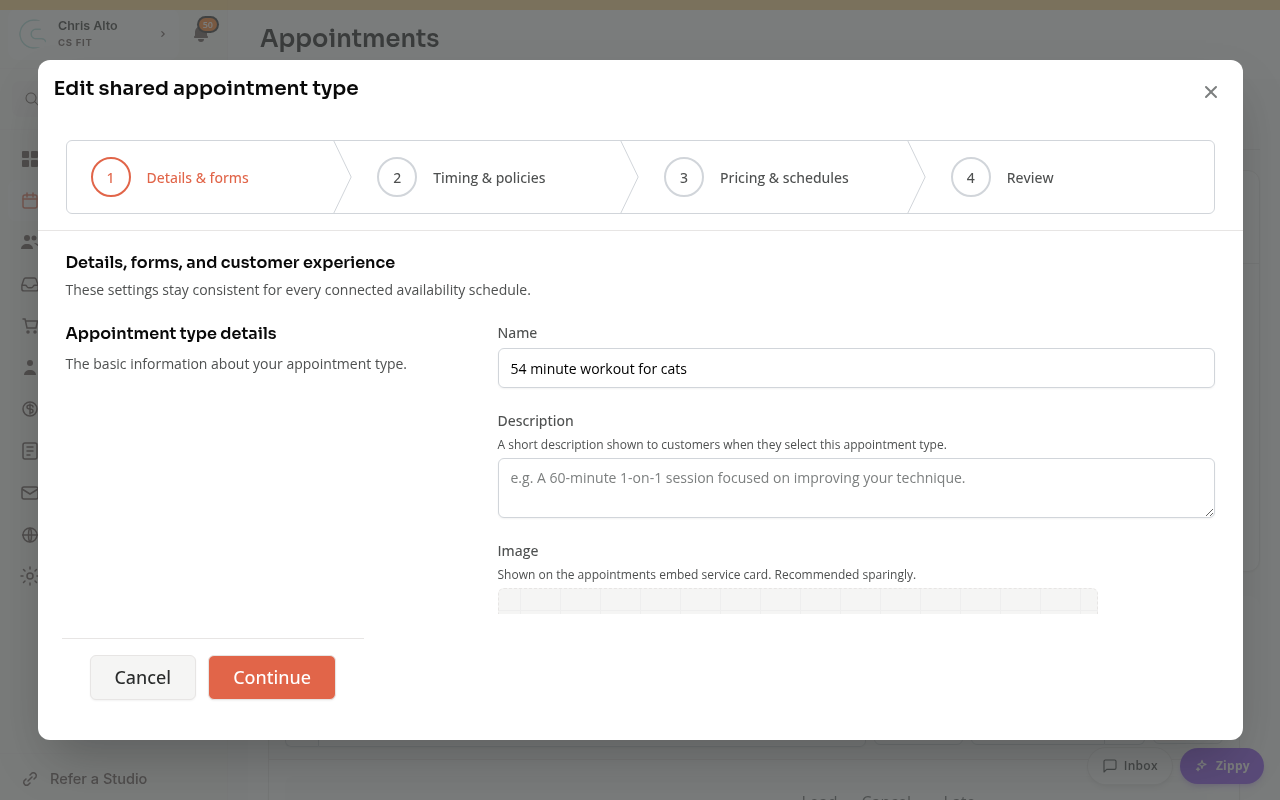
1. Details and Forms
Choose the name, description, required forms, location and customer-facing settings. These details apply across the connected schedules.
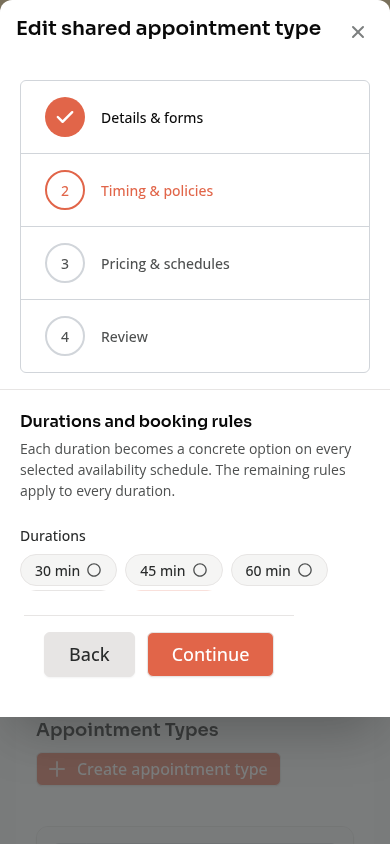
2. Timing and Policies
Choose the durations you offer. Review buffers, cancellation rules, no-show fees and booking windows.
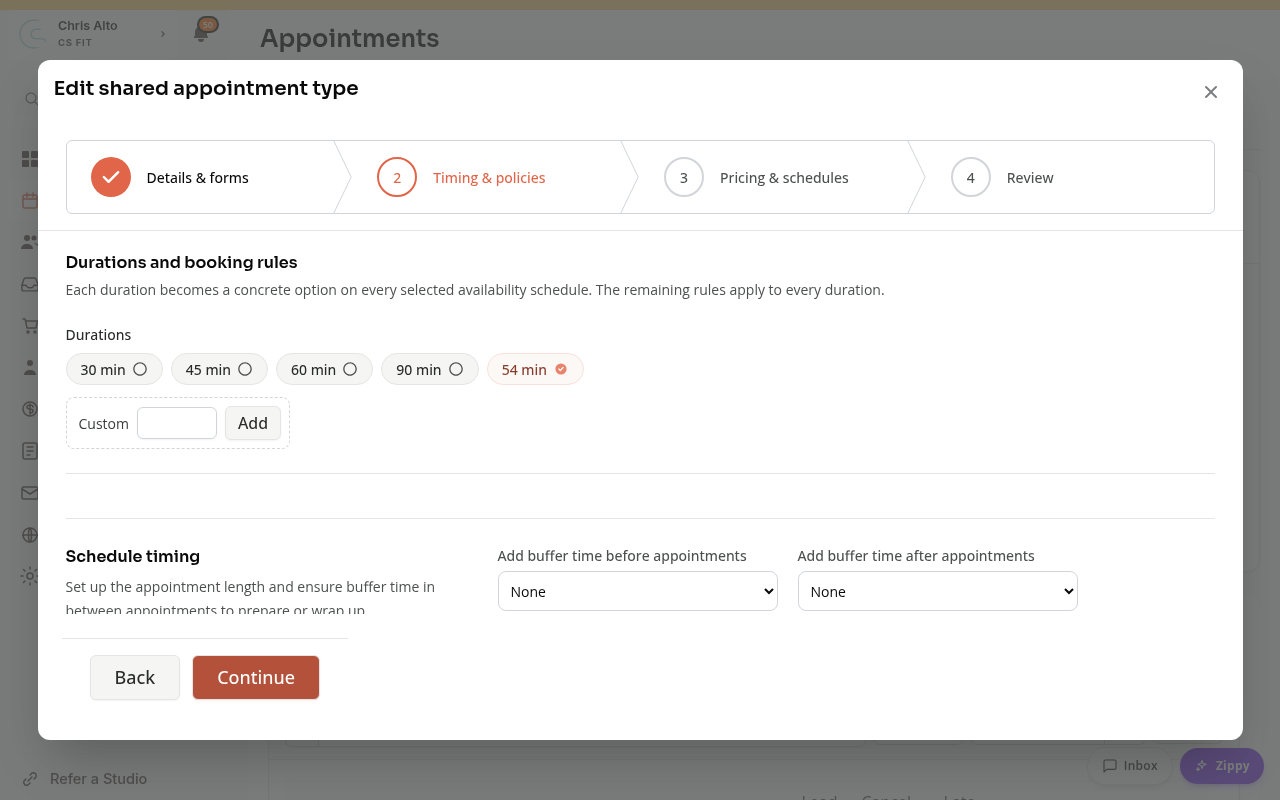
A booking window controls how early a customer can book. A product-specific window can let eligible members book earlier than the default window.
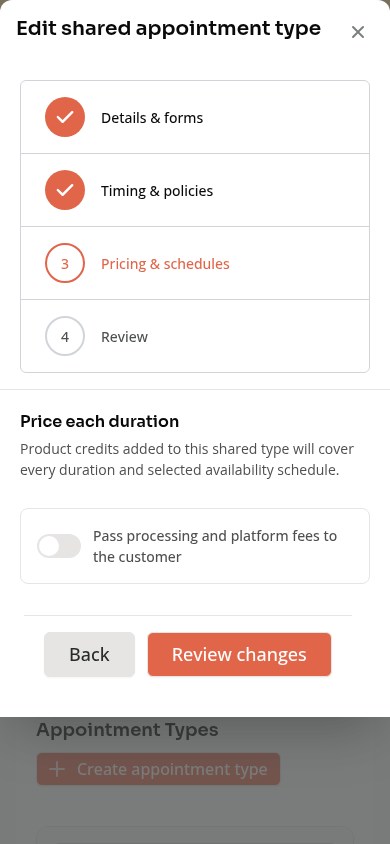
3. Pricing and Schedules
Set each duration’s price and choose the availability schedules that offer it. The owner of each schedule is the staff member customers book.
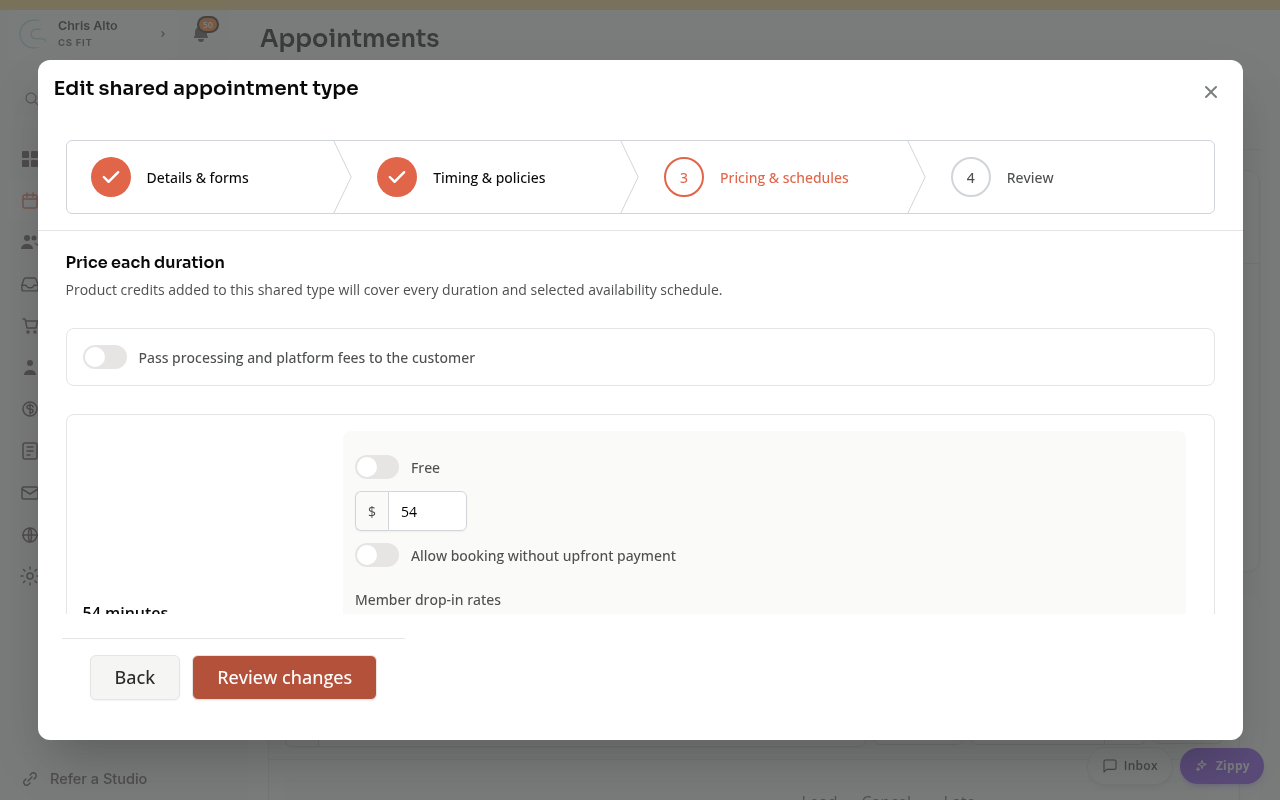
You can also set Member drop-in rates for eligible products. The lowest eligible rate wins. Products that already give All Access keep their free access.
Booking credits added to a shared type cover its durations and selected schedules. Booking Credits and All Access Explained explains the difference between credits and included access.
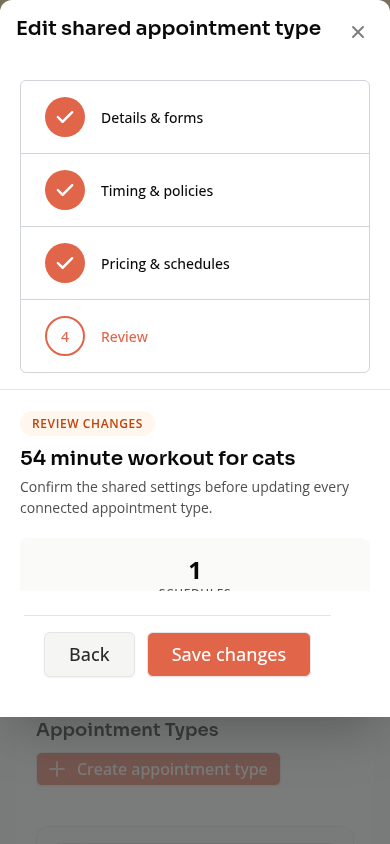
4. Review Changes
Use Review changes to check the number of schedules, durations and appointment options affected. Read any warnings before choosing Save changes or Create shared type.
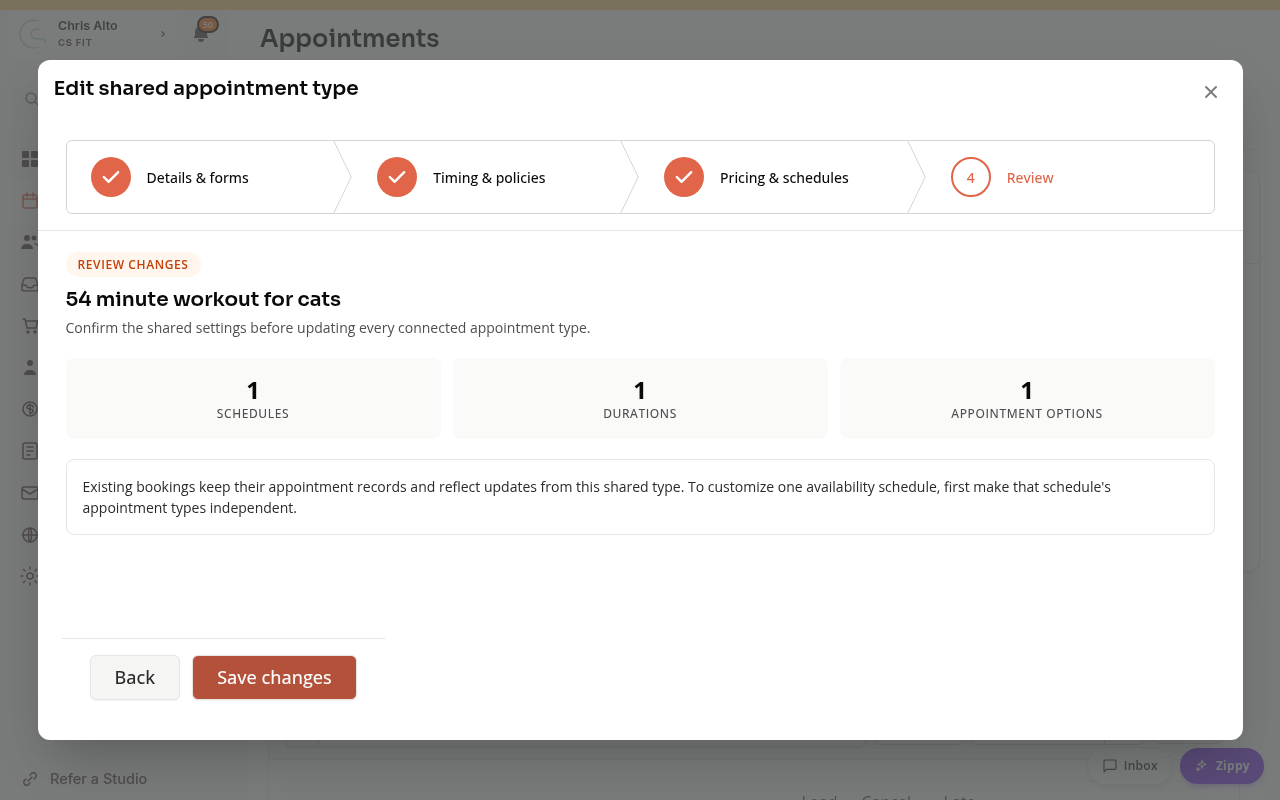
Changing a shared type can affect several schedule-specific offerings. Review the scope rather than assuming you are editing only one staff member’s service.
Existing Bookings
Detaching an offering from a shared type keeps its current settings and existing bookings. It stops receiving future shared changes and removes access inherited from the shared type. Review the access warning before confirming, and check which products still cover the independent offering. Retiring a shared type stops new bookings while keeping existing bookings and financial history available.
On Mobile
The same wizard stacks its fields. Use Continue and Back at the bottom to move between sections.
Troubleshooting
The service has no times to book. Check its selected schedules, staff availability, location and booking window.
One staff member has different settings. Check whether their offering is still connected to the shared type or was detached.
Changes cannot be saved. Read the highlighted fields and the review’s blocking errors. Your draft stays available to correct.
Need a hand?
Email our team at support@joinzipper.com and we'll usually reply within a few hours.
Was this article helpful?
Thanks for your feedback.