How to View and Export Product Purchases and Subscribers
Find the purchasers or subscribers for one product and download the matching CSV in Zipper.
Open the purchases or subscribers list for a specific product, or download its records as a CSV.
-
Go to Products & Services → Products.
-
Find the product and open its Actions menu.
-
For a one-time product, choose View purchases. For a recurring product, choose View subscribers.

Find a purchase or subscription
Use Search purchasers or Search subscribers to narrow the list. In Subscribers, open Filters and choose a Status when you need a specific group, such as Active, Past Due, or Canceled. Sort by Next billing or Price to review that group.
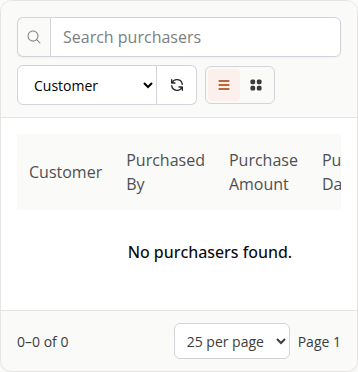
- Purchasers shows the customer, who paid, the purchase amount, and the purchase date.
- Subscribers shows the customer, who paid, the subscription type, status, current price, and next billing date.

Download the CSV
Return to Products, open the same product’s Actions menu, and choose Export purchases or Export subscribers. The CSV covers the selected product. Searching or sorting on its list page affects the screen view.

The export can include customer names and email addresses. A product with zero records can produce a blank CSV.
Manage subscriptions for this product
From Subscribers, you can also start subscriptions for existing customers, import subscriptions from CSV, update subscription prices in bulk, or cancel subscriptions in bulk.
To check one member’s billing dates or payment source, open their subscription details.
Need a hand?
Email our team at support@joinzipper.com and we'll usually reply within a few hours.
Was this article helpful?
Thanks for your feedback.