How to Update Existing Subscription Prices in Bulk
Review and change the price and discount for selected Stripe subscriptions on one product.
Use Update subscription prices to set a new amount for selected Stripe subscriptions on the same product.
-
Open Products & Services → Products. Find the recurring product and select Actions → View subscribers.
-
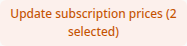
Select the checkboxes next to the subscribers you want to update. Choose Update subscription prices and check the selection count.
-
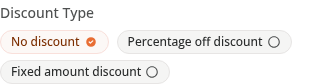
Enter the New Amount. Under Discount Type, choose No discount, Percentage off discount, or Fixed amount discount. Enter the discount amount when needed.
-
Choose Next. On Review Changes, compare the current and proposed prices and discounts for each customer.

-
Select Confirm Update. Check the confirmation and review any failures before retrying.
Zipper skips external subscriptions in this workflow. The Stripe change does not prorate the amount for the current billing period. To update the listed price for future purchases, edit the subscription product.
Need a hand?
Email our team at support@joinzipper.com and we'll usually reply within a few hours.
Was this article helpful?
Thanks for your feedback.