How to Cancel Subscriptions in Bulk
Choose cancellation timing and review future bookings before ending selected subscriptions on one product.
Use Cancel subscriptions on a product’s Subscribers screen to end selected memberships together.
-
Open Products & Services → Products. Find the recurring product and select Actions → View subscribers.
-
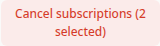
Select the checkboxes beside the subscriptions you want to end, then choose Cancel subscriptions. Check the count on the button.
-
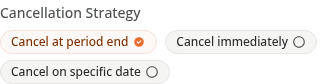
Choose a Cancellation Strategy and select Next.
- Cancel at period end uses the subscription’s current period end.
- Cancel immediately ends the subscription now.
- Cancel on specific date lets you choose a future date.
-
On Review Cancellations, check the selected customers, subscription types, and cancellation timing. When Zipper finds future bookings paid with the selected memberships, choose whether to keep them and clear their payment methods, keep them with their existing payment, or cancel the bookings and return the credits.

-
Select Confirm Cancellation. Check the confirmation and review any failures before retrying. If the future bookings preview fails to load, use Retry preview.
For a subscription paid outside Stripe, the cancellation updates the Zipper record. Manage any charges separately with the payment provider. For timing and payment choices on one customer’s membership, see How to Cancel a Subscription.
Need a hand?
Email our team at support@joinzipper.com and we'll usually reply within a few hours.
Was this article helpful?
Thanks for your feedback.