How to Follow Up on an Abandoned Checkout with an Automation
Configure a checkout abandonment trigger, connect a follow-up, and review the result.
How to Follow Up on an Abandoned Checkout with an Automation
Use Checkout Abandoned to start a follow-up when a tracked checkout remains incomplete for the configured time. Add the message action you want; choosing the trigger alone does not send a message.
Set Up the Trigger
- Go to Marketing > Automations > New Workflow. Choose a suitable template or Start from Scratch.
- Add Checkout Abandoned from the Trigger rule list and open its settings.
- Set Minutes Until Abandoned. The field starts at 30 minutes; choose the interval that fits your studio.
- Close the settings panel and connect the trigger to your intended action.
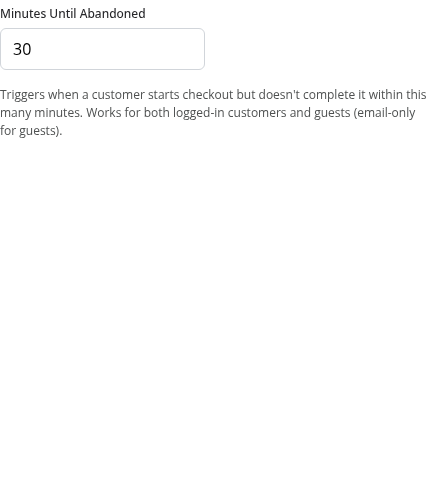
The trigger supports signed-in customers and guests. The builder describes guest follow-up as email-only. A checkout must be recorded and eligible for the workflow; do not assume every visitor who leaves a page has created a tracked checkout.
Add and Review the Message
Add Send Email and configure the sender, recipient and content. If you add another communication action, check that the recipient and channel are available for the people you expect to reach. Explain how customers can contact your studio if they need help; verify any link you include before sending.
Use Save draft while working. Review the trigger, timing, connected steps and message, then publish when ready. See How to Create an Automation for the save controls.
Automation tests can send real email or SMS to the test destination you enter. Use contact details you control and review each action result. A test of the message does not by itself prove an actual abandoned checkout was detected.
Check Results
Open Execution History to inspect runs and action results. The threshold is not a promise that a message arrives at that exact minute. If an expected follow-up does not appear, check that the workflow is published, the checkout was tracked and still incomplete, the threshold has passed, and the selected recipient and sender are valid. Check history before triggering another test or sending a duplicate.
For the separate gift-card checkout queue, see How to Manage Abandoned Gift Card Checkouts.
Need a hand?
Email our team at support@joinzipper.com and we'll usually reply within a few hours.
Was this article helpful?
Thanks for your feedback.