How to Manage Abandoned Gift Card Checkouts
Find unfinished gift card purchases and remove them from the list or record a confirmed payment.
Use Include abandoned to review gift card purchases that stopped during checkout.
-
Open Products & Services → Gift Cards.
-
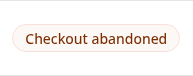
Clear any Status filter, then turn on Include abandoned. Look for Checkout abandoned in the Status column. Until payment is confirmed, the Code column shows Shown after payment instead of a code.

-
Check the payment before choosing a row action.
- Delete removes the abandoned checkout from the list. If its payment arrives later, Zipper restores the record automatically.
- Complete marks the gift card’s payment as completed and sends the notification email. Use it only after you have confirmed the payment.

-
Read the message and choose Confirm only if it describes the action you intended.
If a card shows Processing payment, check the underlying payment in Stripe before taking action. For a card already marked Purchased, see How to Update a Gift Card Recipient and Resend the Email.
Need a hand?
Email our team at support@joinzipper.com and we'll usually reply within a few hours.
Was this article helpful?
Thanks for your feedback.