How to Create and Reuse Email and Text Templates
Save reusable email and text messages, find them in Templates, and apply them to a new message.
How to Create and Reuse Email and Text Templates
Use templates for email or text content you plan to reuse. In Marketing > Email or Marketing > SMS, the Templates tab has search and groups for Drafts, Sent, and Pre-built.
Save a Template
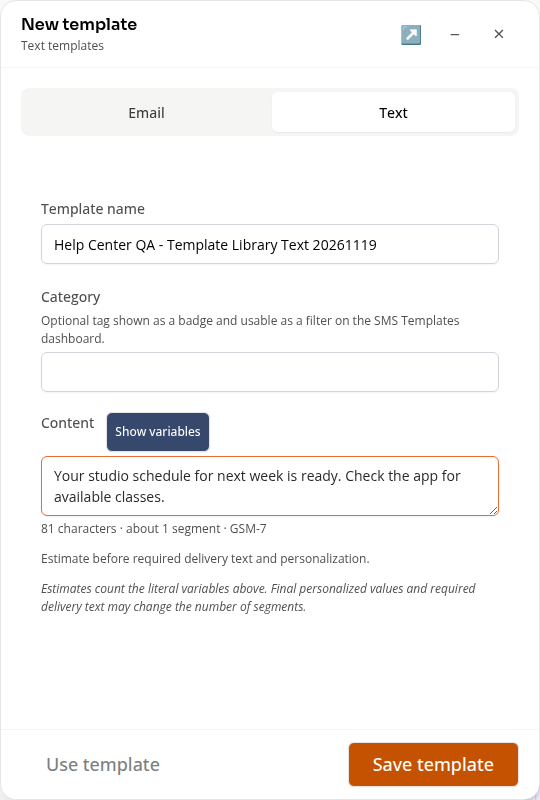
- Select Create email or Create SMS message. Check that Email or Text is selected in the editor.
- Enter a Template name. For email, add a Subject. If you leave the email template name blank, the subject becomes its name.
- Write the message. For text, you can add a Category to help filter the template list. Use Show variables to see the personalization you can insert.
- Select Save template and look for the saved confirmation. Find the template by name in Templates.
Use or Update an Existing Template
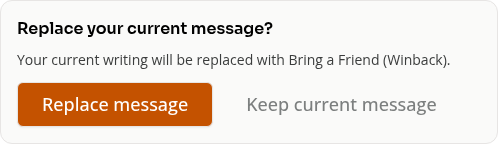
Choose Use template in the message editor and search for the message you want. Choose Use template next to it. If you already entered content, review Replace your current message? and choose Replace message or Keep current message.
To update a template in the library, open Open options on the template card, choose Edit, and use Save changes when finished. Choose Manage when you’re ready to set recipients for an email campaign or an SMS campaign.
Need a hand?
Email our team at support@joinzipper.com and we'll usually reply within a few hours.
Was this article helpful?
Thanks for your feedback.