How to Create a Dynamic Contact List for Email and SMS
Save audience rules that keep an email or text-message list up to date.
How to Create a Dynamic Contact List for Email and SMS
A dynamic list finds contacts who match rules you choose. Members enter or leave the list as their data changes. You do not need to add each person by hand.
Before You Start
- Use a staff account with permission to manage contact lists.
- Make sure your customer profiles, tags, or memberships are up to date.
Steps
1. Create the list
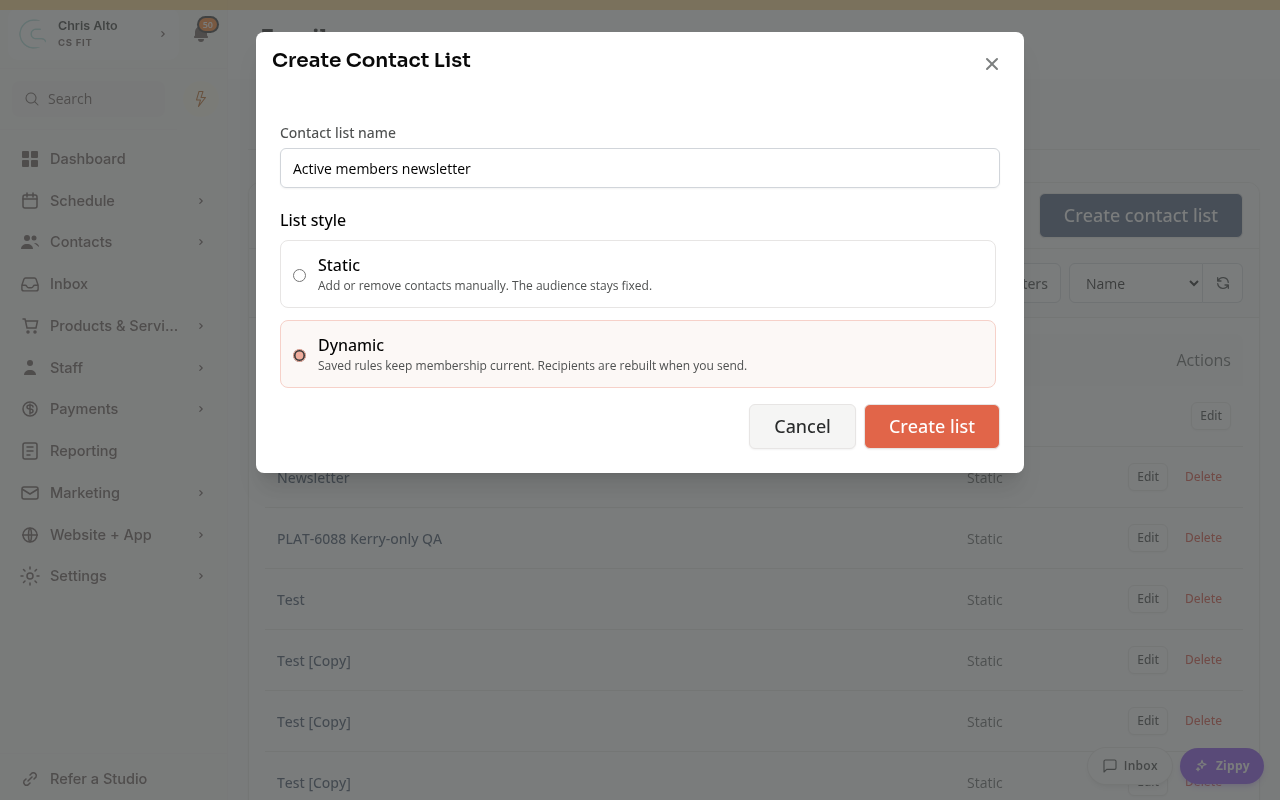
For email, open Marketing > Email > Contact lists. For SMS, open Marketing > SMS > Contact lists. Click Create contact list, enter a name, choose Dynamic, and click Create list.
Each list belongs to one channel. Create separate lists if you need both email and SMS. The screenshots below show an email list.
2. Choose who belongs on it
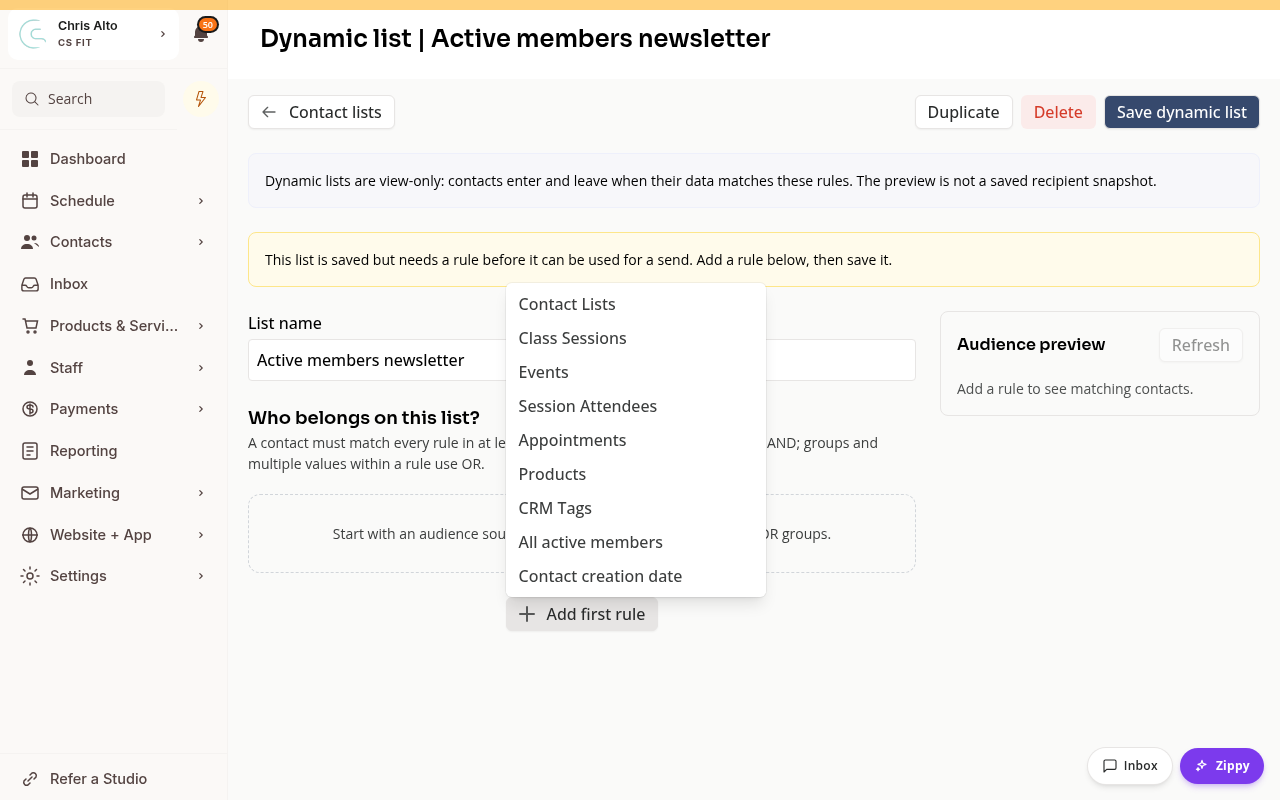
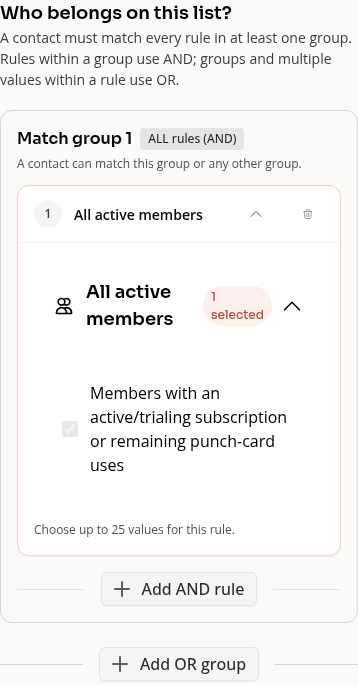
Click Add first rule. Choose a source such as Products, CRM Tags, or Class Sessions. Email lists also offer All active members; that source is not available for SMS lists.
For example, All active members includes people whose active or trialing subscription still qualifies for access, or who have available, unexpired pack credits.
3. Check the audience and save
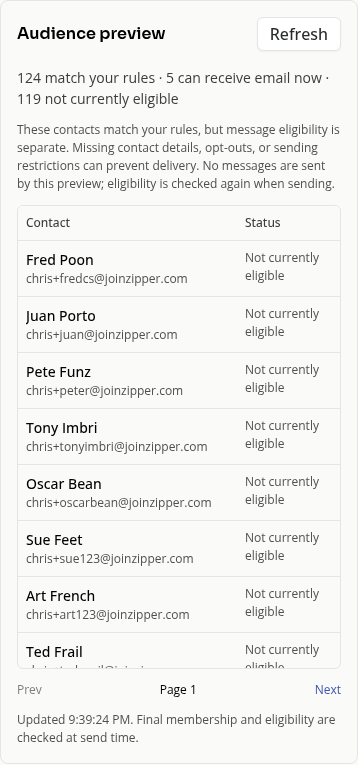
Review Audience preview, then click Save dynamic list. The message List saved confirms the change.
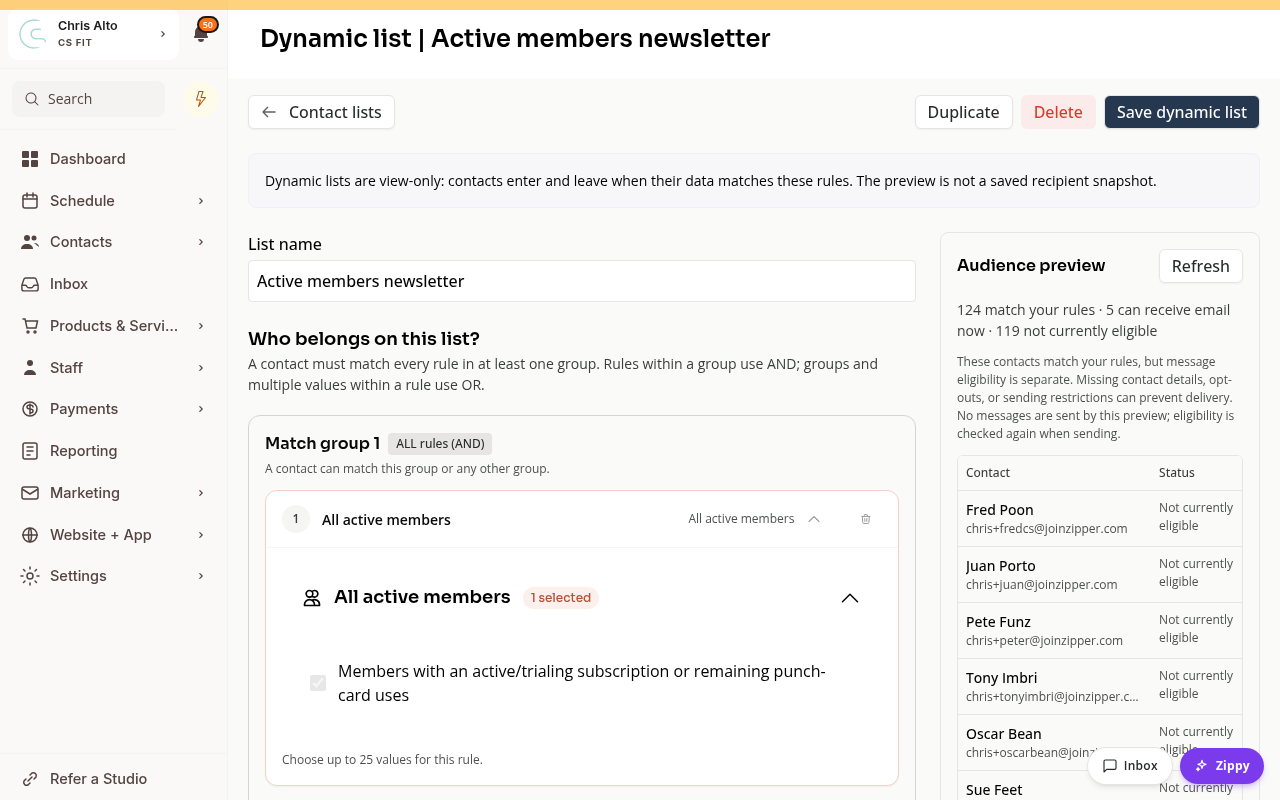
The preview shows who matches now. Delivery rules, such as email or SMS permission, can make a contact ineligible for that channel.
When You Are Ready to Send
Use an email list in an email campaign, or an SMS list in an SMS campaign. Lists cannot switch channels. Zipper checks the saved rules again when the message sends. Creating a list does not send a message.
How Rules Work
- Add AND rule narrows a group. A contact must match every rule in that group.
- Add OR group adds another way to qualify. Matching either group is enough.
- Several values in one rule act as alternatives. A contact can match any selected value.
For example, use a Products rule and an AND tag rule to find members of one plan who also have a certain tag.
On Mobile
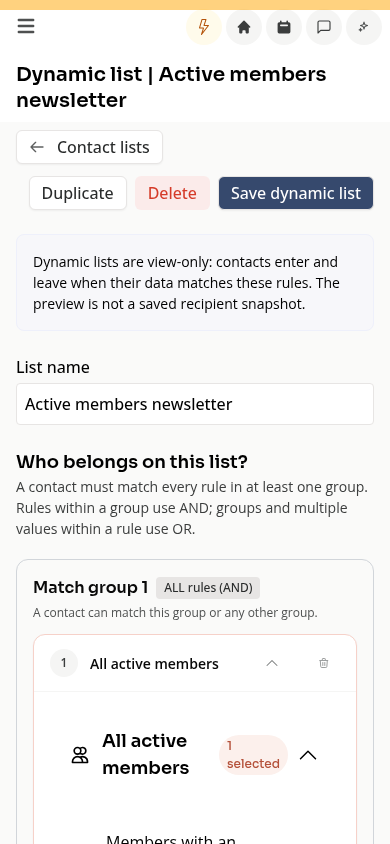
Use the same steps. The rules and audience preview stack vertically, so scroll below the rules to check your audience.
Troubleshooting
The list has no contacts. Check the rules and the source data. Two AND rules may be too narrow.
I cannot add one person directly. Dynamic lists use rules. Choose a Static list if you want to manage individual contacts.
A scheduled email has different recipients than my preview. Membership is checked at send time. Editing the rules can change recipients of a pending scheduled email.
Need a hand?
Email our team at support@joinzipper.com and we'll usually reply within a few hours.
Was this article helpful?
Thanks for your feedback.