How to Create a Customer Coupon with an Automation
Configure a customer-specific coupon action and deliver its code in an automation.
How to Create a Customer Coupon with an Automation
Add Create Coupon to an automation to generate a customer-specific promotion code when the action runs. Connect a later message if you want to deliver the code; creating it does not send it automatically.
Before You Start
Your studio needs a connected Stripe account. The customer in the run needs a matching customer record and a Stripe customer account for your studio. If a product restriction is selected, the product must have a corresponding Stripe product. Check the intended offer and product before publishing.
Configure the Coupon
- Go to Marketing > Automations and open or create a workflow.
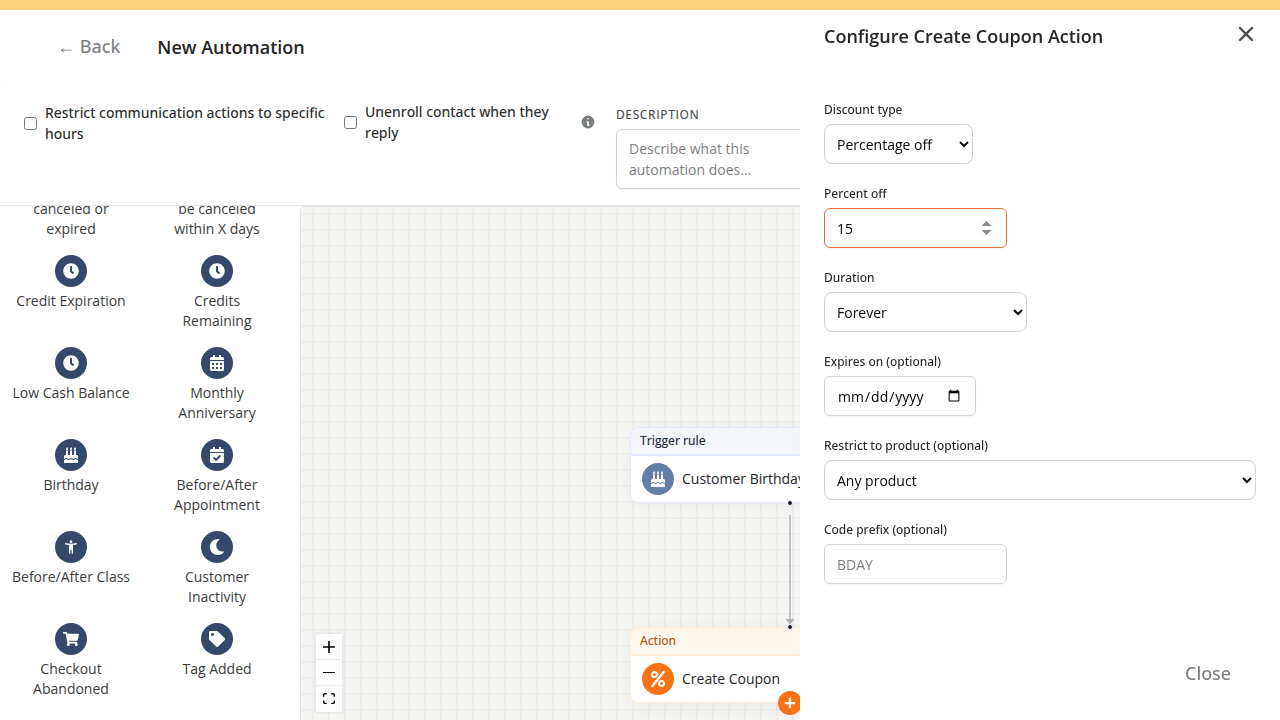
- Select + beneath the trigger or preceding step and choose Create Coupon.
- Choose Percentage off or Fixed amount off, and enter the discount amount.
- Explicitly choose a Duration: Once, Repeating (subscriptions), or Forever. For a repeating discount, enter the number of months. If the builder still asks you to configure the action, check the amount and duration.
- Optionally set Expires on, Restrict to product, Code prefix, and Coupon name. The expiration is a specific date, so review it before reusing the workflow later.
- Close the settings and check that the action is connected to the trigger and any following steps.
Deliver the Code
Add a connected Send Email or Send SMS action after Create Coupon. Put {{couponCode}} in the message where the code should appear. The builder also offers {{couponName}} and {{couponExpires}}; the expiration value is empty when no expiration was set. Review the recipient, content, and offer terms before sending.
The generated promotion code is limited to the matching customer and one redemption. The duration controls how the discount applies; it is separate from the code’s redemption limit.
Save, Test, and Review
Use Save options > Save draft while preparing the workflow and publish only when ready. Automation tests simulate coupon creation with a placeholder code, but email or SMS steps can still send real messages. Use contact details you control. A simulated coupon is not proof that a real code can be created or redeemed.
Use automation history to inspect a run. If coupon creation fails, check the Stripe connection, customer and Stripe customer records, discount settings, expiration, and any product restriction. For manually managed offers, see How to Create Coupon Codes and Discount Rules.
Need a hand?
Email our team at support@joinzipper.com and we'll usually reply within a few hours.
Was this article helpful?
Thanks for your feedback.