How to Create Coupon Codes and Discount Rules
Create coupon codes customers enter at checkout, set up tag-based discount rules that apply automatically, or discount a single in-person sale.
How to Create Coupon Codes and Discount Rules
Video Walkthrough
Zipper has two kinds of discounts, both under Products & Services > Coupons:
- Coupon codes: a code you share and customers enter at checkout. Best for sales and promotions, like a Black Friday code.
- Discount rules: a standing discount that applies automatically to customers with a certain tag. Best for ongoing discounts, like student or military pricing.
To discount a single in-person sale instead, use the Point-of-Sale discount.
Create a Coupon Code
Step 1: Open Coupons
- Navigate to: Products & Services > Coupons
- Click: New Coupon (top right)
Step 2: Fill in the coupon
- Promo code: what customers enter at checkout, e.g.
BLACKFRIDAY30. Make it easy to remember and share. Codes aren’t case-sensitive. Leave it blank to generate one. - Max redemptions (optional): limits how many times the code can be used. For a new-customer special, set it to 1. Leave blank for unlimited.
- Label (optional): an internal note to help your team identify the coupon, e.g. “Holiday Promotions 2026”.
- Duration: only matters for memberships.
- Once: the discount applies to the first payment only (default).
- Forever: the discount applies to every membership payment while the membership is active.
- Multiple months: the discount applies for the number of months you enter, e.g. 3.
- Discount: choose Percentage off (e.g. 30%) or Fixed amount off (e.g. $10).
- Applies to: All products, or Specific products to limit it to the products you pick, e.g. only 10 Packs.
Step 3: Create and share it
- Click: Create Coupon
Share the code by email, social media or in person. Customers can redeem it at checkout on your website embeds and in your customer app.
Turn off a coupon when the promotion ends
Coupons don’t expire automatically. When a limited-time promotion ends, click the three dots next to the coupon and choose Deactivate. You can also Delete a coupon that hasn’t been used.
Create a Discount Rule
Discount rules give customers with a specific tag a discount on every eligible purchase, without a code. Use them for:
- Student or military discounts
- Discounted drop-ins for people enrolled in a league
- Discounted drop-ins or class packs for teacher-training enrollees
Step 1: Tag your customers
Each discount rule is tied to a customer tag, e.g. “Military discount”. Create the tag and add it to the customers who should get the discount first.
Step 2: Create the rule
- Navigate to: Products & Services > Coupons > Discount Rules
- Click: New Rule
- Rule name: e.g. “Military discount”
- Customer tag: the tag that qualifies a customer
- Percentage off: e.g. 10
- Applies to: all purchases, specific products, or specific class/event drop-ins
- Click: Create Rule
Tagged customers now get the discount automatically at checkout.
Remove the discount when it no longer applies
Tags don’t expire automatically. When the discount should end, like when a league or training program wraps up, remove the tag from those customers. To stop the rule for everyone, click Deactivate next to it on the Discount Rules page.
When several discounts apply
Discounts don’t stack. At checkout, Zipper compares the best discount rule, member pricing, promo codes and the regular price, then charges the lowest one.
Discount a Single Point-of-Sale Purchase
Use this to give a one-time discount while checking out a customer in person. No code is needed.
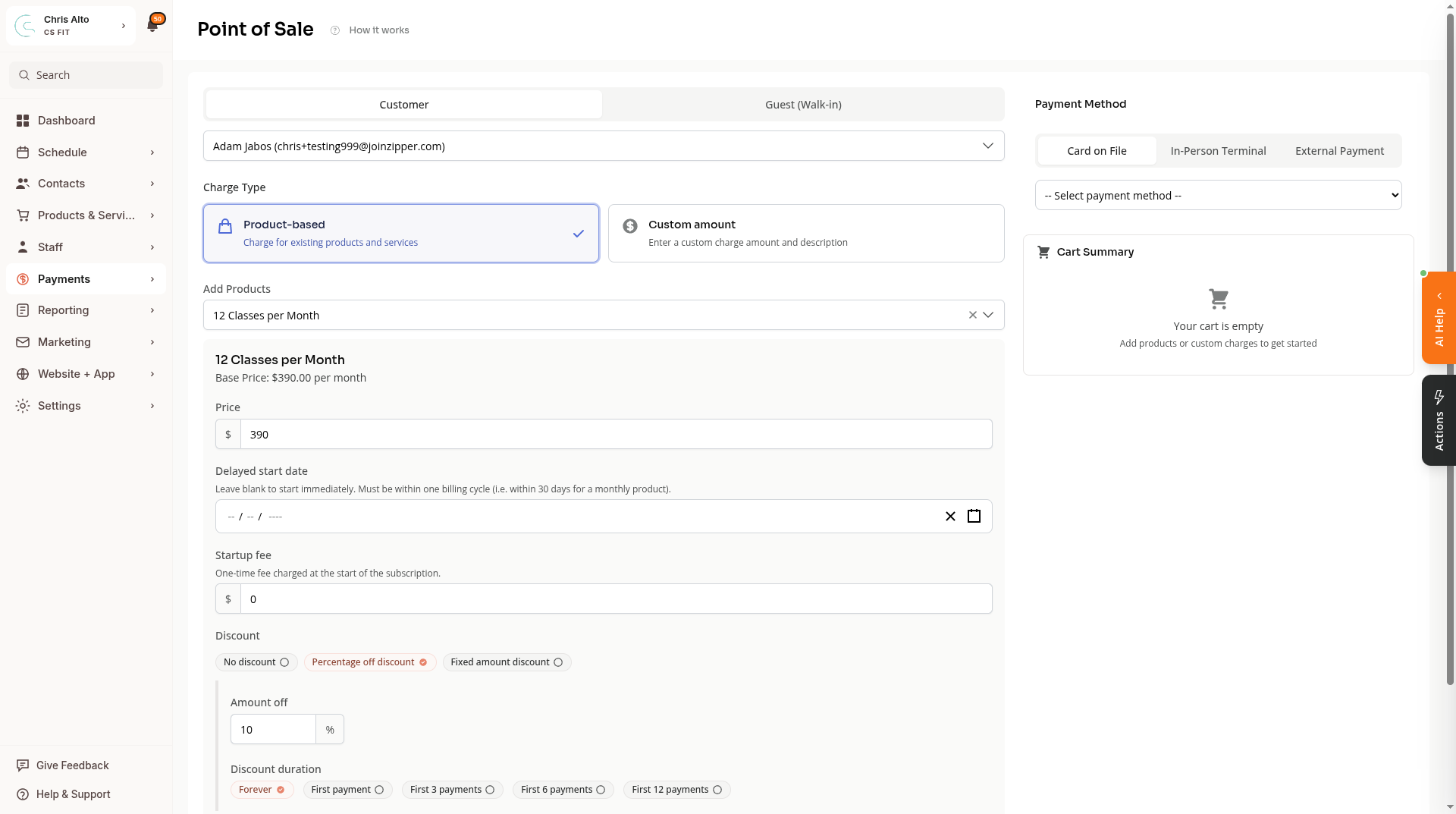
- Navigate to: Payments > Point-of-Sale
- Select the customer and add the product
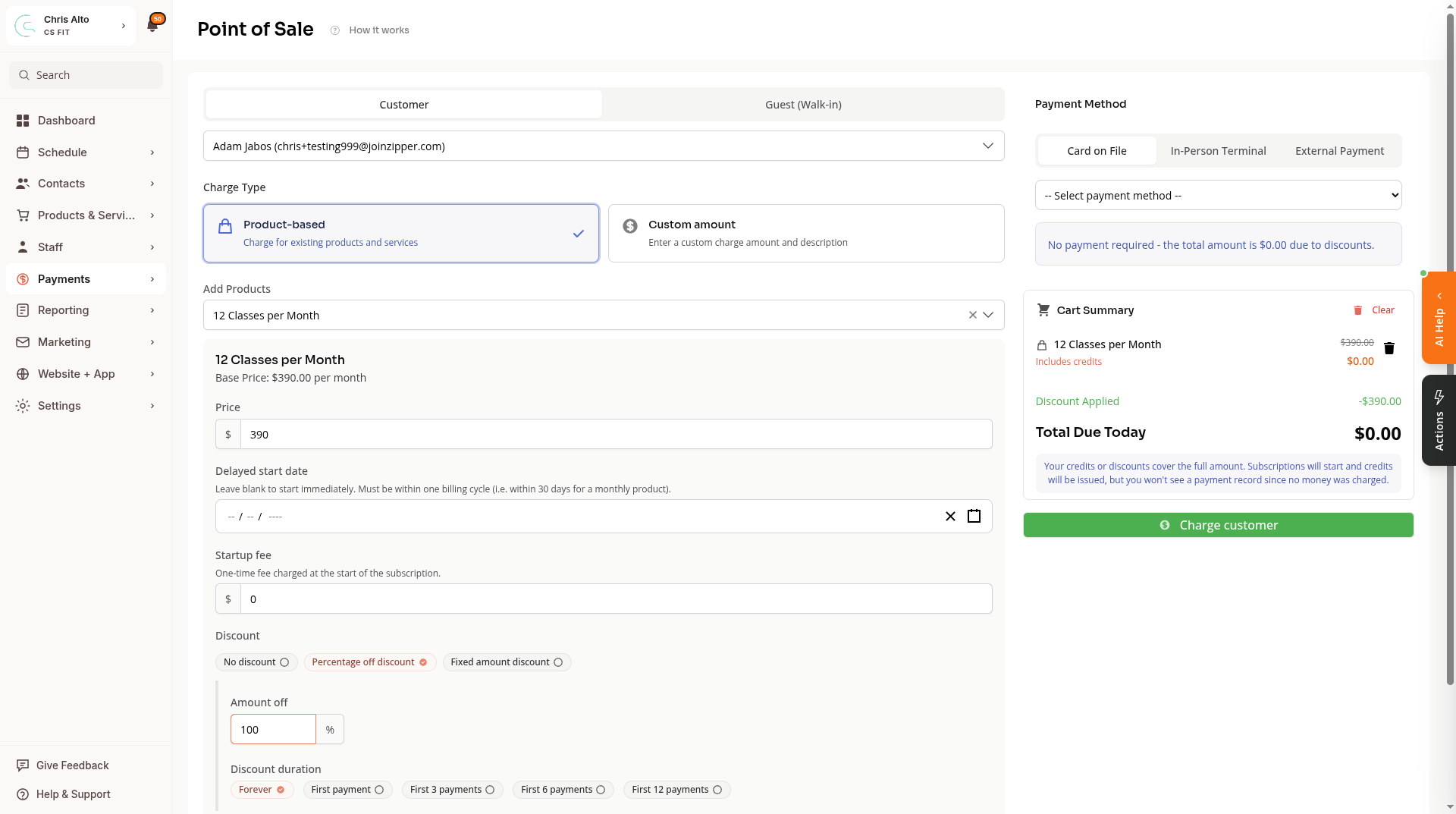
- Under Discount, choose Percentage off discount or Fixed amount discount, then enter the Amount off
- For a membership, choose a Discount duration: Forever, First payment, or a set number of payments
- Click: Add to Cart and complete checkout
A 100% discount brings the total to $0, and no payment method is needed.
Troubleshooting
A coupon code doesn’t work. Check that the coupon is Active, hasn’t hit its max redemptions, and applies to the product the customer is buying.
A tagged customer isn’t getting their discount. Confirm the customer has the exact tag the rule uses, the rule is Active, and it applies to what they’re buying. If another discount gives a lower price, checkout uses that one instead.
The Point-of-Sale discount section isn’t showing. It appears after you select a product.
Need a hand?
Email our team at support@joinzipper.com and we'll usually reply within a few hours.
Was this article helpful?
Thanks for your feedback.