Required Forms and Family Waivers Explained
Choose when forms must be completed and keep answers attached to the right attendee.
Required Forms and Family Waivers Explained
A waiver is one kind of form. Requirements decide when it must be completed and whether valid answers can be reused.
Purchase and Booking Are Separate
A product has one Required pre-purchase form. A class, event or appointment has separate booking requirements. Choosing another product form replaces the first; it does not add a second product form.
For a red-light session, the normal waiver can belong to the session. A special free first-visit product can have its own residency form. Someone buying that product and booking the session can need both different forms. Other buyers do not acquire the free product’s requirement.
A residency question records an answer. It does not automatically verify residency or enforce eligibility. The forms need not appear on the same page.
Set the Booking Requirement
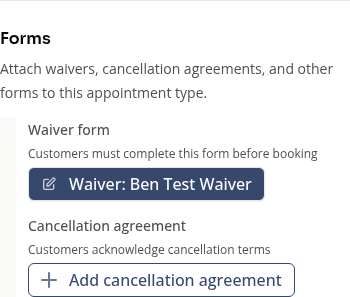
Open the service’s form settings. For a shared appointment type, use Details & forms. For a class or event, open Registration details and choose Edit if needed.

Choose the appropriate requirement:
- No form required: no requirement for this service.
- Require for every registration: another response for each registration.
- Require once, then re-use: reuse a valid response for the correct person.
Select the form, save the selector and save the parent service when ready. Configure the product separately if a form is required before purchase.
What Counts as Valid?
The response must be submitted, belong to the right person and answer the current required questions. A draft or another attendee’s response does not satisfy the requirement.
New required questions, invalidation or incompatible customer details can require another response. Text changes alone are not a promise that every earlier signer must submit again.
Staff can enter actual answers through Responses > Add submission > Submit on behalf of. Required fields still need answers; there is no general completion bypass. Use Request submission when the customer should answer.
See How to Record a Form Response for a Customer.
Family Bookings
Check the attendee as well as the payer. A parent’s own form should not be treated as the child’s answers just because the parent paid.
On Mobile
The same requirement choices appear. Save the selected form and parent service.
Need a hand?
Email our team at support@joinzipper.com and we'll usually reply within a few hours.
Was this article helpful?
Thanks for your feedback.