How to Record a Form Response for a Customer
Add a real form submission on a customer's behalf and reuse valid answers without bypassing required fields.
How to Record a Form Response for a Customer
Staff with form access can enter a real response for a customer. There is no general checkbox that makes an unanswered health form complete.
Add the Submission
- Open Products & Services > Forms and the form.
- Open Responses and choose Add submission.
- Under Submit on behalf of, select the correct customer.
- Enter the actual answers to every required question. Choose Save when the response is valid.
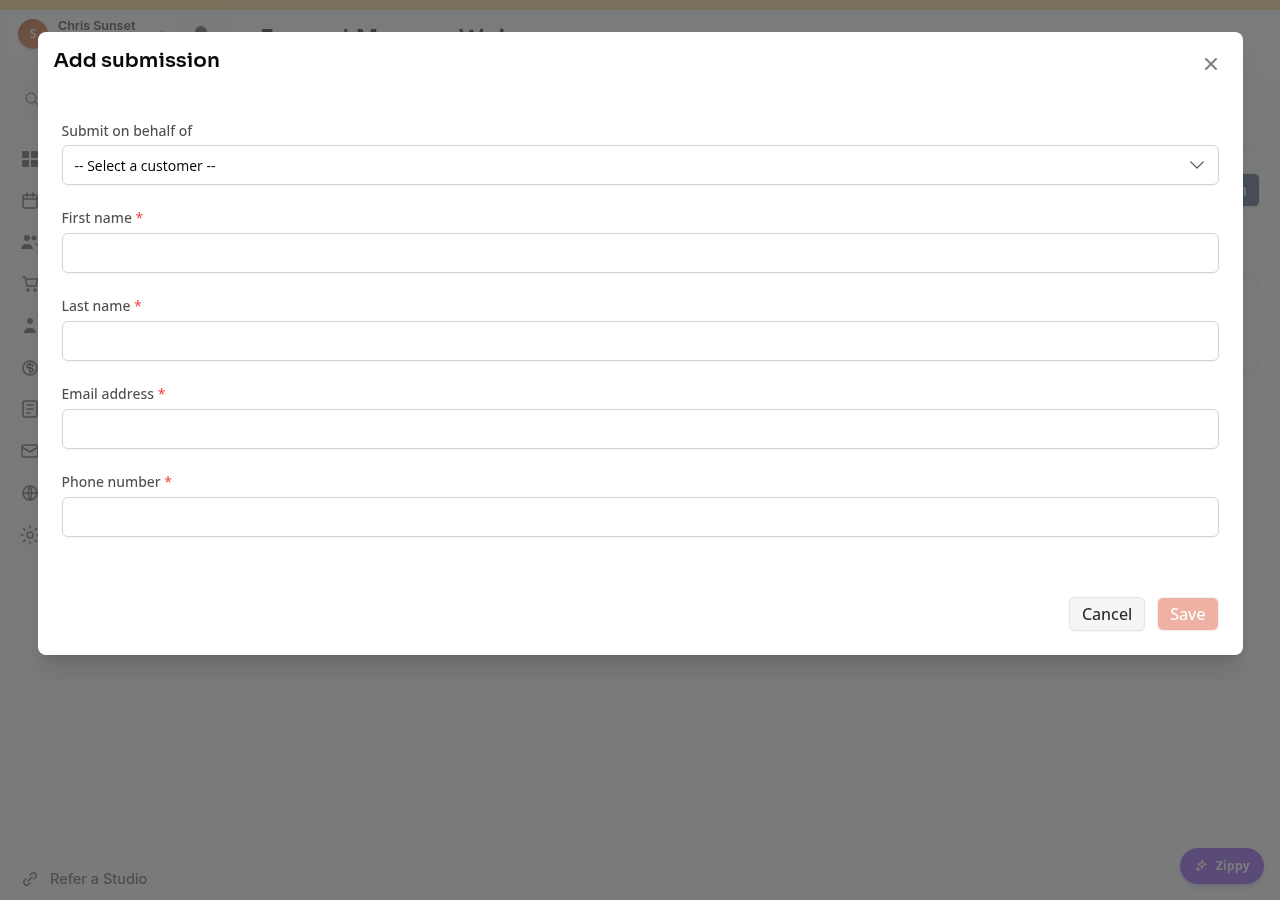
If the customer needs to answer or sign personally, use Request submission instead. Do not invent answers or enter someone else’s signature.
Stop Asking for the Same Valid Form
For a booking requirement, choose Require once, then re-use. The bulk editor calls this Require once. On a product, choose Users must complete the form only once, not on subsequent purchases.
A reusable response must be submitted, belong to the correct customer and answer the current required questions. Changed requirements, invalidated responses or incompatible customer details can require another submission.
Require for every registration and the product’s every-purchase setting still require another response. An unfinished draft or a response for another attendee is not a valid substitute.
On Mobile
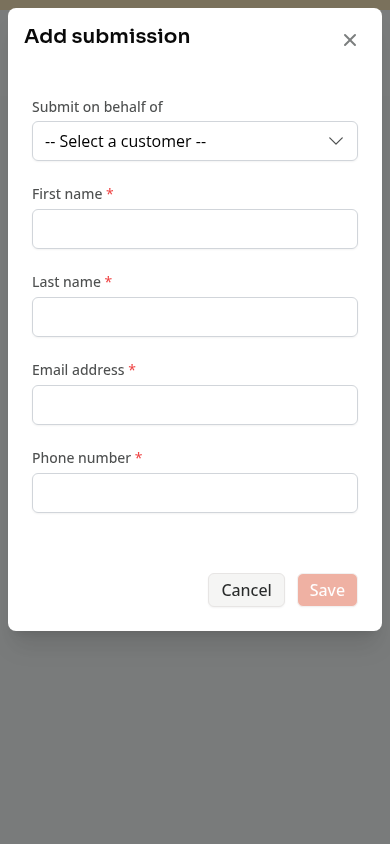
The same customer selector and form appear in the dialog. Check the customer and all required answers before saving.
Troubleshooting
Save is disabled. Select a customer and complete the required answers.
The form keeps appearing. Check the requirement, response owner and validity. Changing the requirement and adding a response are separate actions.
Need a hand?
Email our team at support@joinzipper.com and we'll usually reply within a few hours.
Was this article helpful?
Thanks for your feedback.