How to View or Change Spots for a Class Session
Open the room layout on a class roster and use the spot editor to assign, move, or remove attendee spots.
Use a class roster to view a room map and manage spot assignments for the session.
Open the room map
-
Open Schedule → Calendar and choose the class session.
-
Expand Spot selection. Use Fit room, zoom, or Full screen to see the layout. Print is available when the session has a room layout.
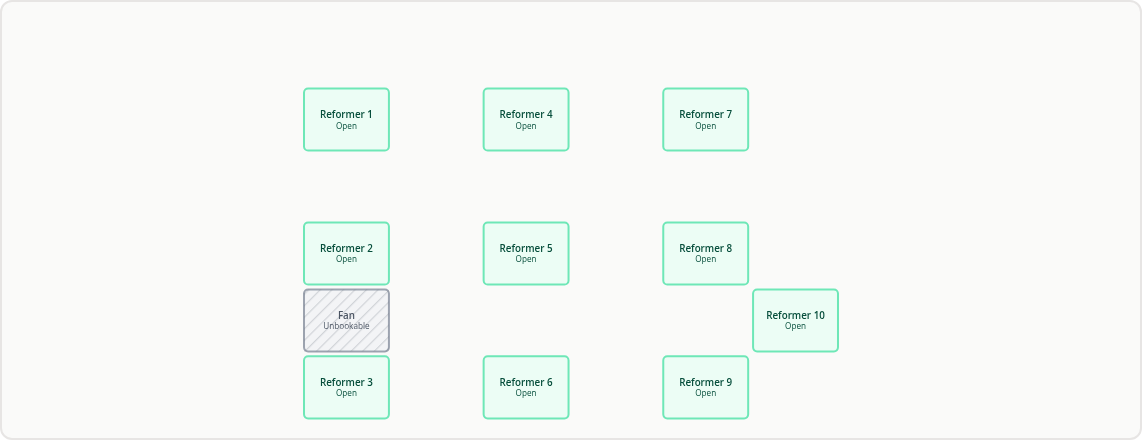

Assign or change an attendee’s spot
-
In Spot selection, choose Edit spots and use Choose an attendee.

-
Choose an open spot to assign it or move the attendee there. Selecting an occupied spot swaps two assigned attendees. If your selected attendee was unassigned, selecting an occupied spot moves them there and unassigns its previous holder. Check the action shown on the spot before selecting it, then check both attendees’ positions.
-
The editor saves when you choose a spot. Check the Saved message and the attendee’s new position in the roster. Use Remove from followed by the spot name to free the position while keeping their registration. Spot changes can send an update to affected attendees.
For creating or changing the studio’s room map itself, see Room Layouts and Booking Spots Explained.
If the customer has already paid and is waiting for a spot, see How to Finish a Paid Registration That Needs a Spot.
Need a hand?
Email our team at support@joinzipper.com and we'll usually reply within a few hours.
Was this article helpful?
Thanks for your feedback.