Room Layouts and Booking Spots Explained
Design the bookable positions in a room and understand how saved layout changes affect bookings.
Room Layouts and Booking Spots Explained
A location is your studio address. A room is a space inside that location. A spot is a position a customer can choose, such as a bike, reformer or mat.
An obstruction shows something in the room that cannot be booked, such as a column or fan. Adding an obstruction does not add a customer place.
Open the Room Designer
You need access to organization settings, and spot booking must be enabled for your organization.
- Open Settings > Locations.
- Find the location and click Manage Rooms.
- Find the room and click Manage Spots.
Change the Layout
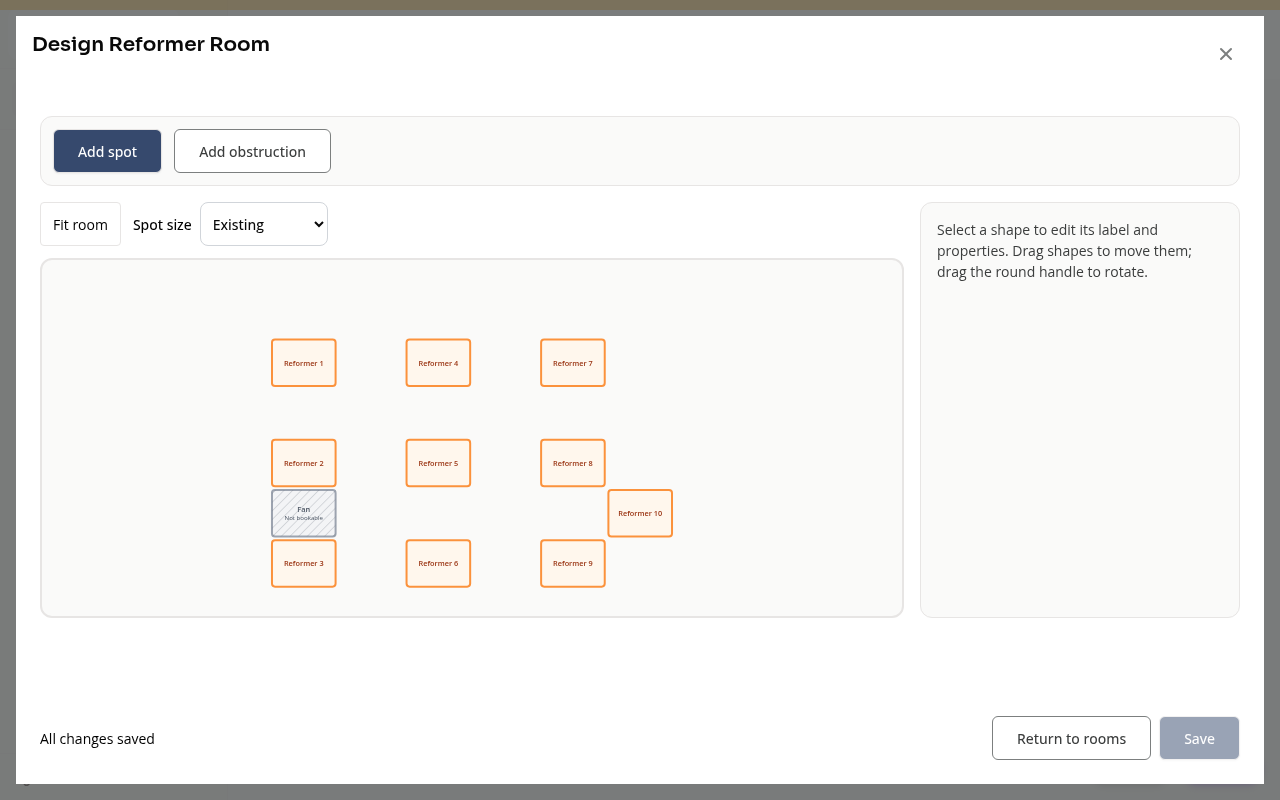
- Use Add spot to add a bookable position, or Add obstruction for a non-bookable object.
- Select an object to edit its label, shape and available properties.
- Drag an object to move it. Use its round rotation handle to rotate it.
- Copy spot creates another spot you can place and label.
- Fit room brings the layout into view. The Spot size control changes how large spots appear in the designer; it is not a class-capacity setting.
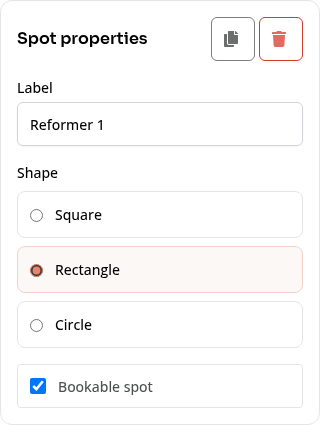
Use clear, distinct labels so staff and customers can recognize positions. Check that bookable spots and non-bookable objects match the real room.
Save and Review Removals
Layout changes stay in a draft until you click Save. Wait for the saved status before leaving. If Zipper cannot confirm a save, use the offered save-status or retry controls before making a different change.
Removing a spot can affect an existing spot assignment. Read the removal review and any affected assignments before confirming and saving. Clearing a spot assignment does not itself cancel its registration or appointment or issue a refund. Do not assume a deleted spot moves its occupants into another spot.
Class capacity and room layout are separate settings. Check the class or appointment’s room and capacity as well as the number of bookable spots.
On Mobile
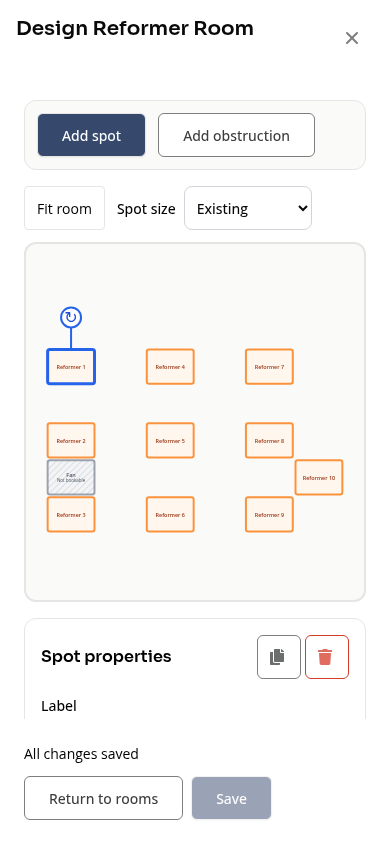
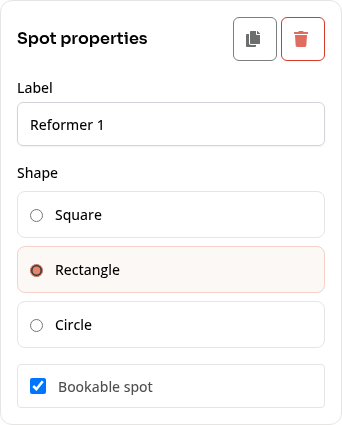
The same controls are available on a phone. Select a spot to show its properties and scroll to reach the save controls.
If Something Looks Wrong
The layout change is missing. Check that you saved it and the save was confirmed.
An object cannot be booked. Check whether it is an obstruction or a spot marked non-bookable.
A customer’s assigned spot was removed. Review that booking with the customer and choose an appropriate available spot. The booking and its payment are separate from the spot assignment.
Need a hand?
Email our team at support@joinzipper.com and we'll usually reply within a few hours.
Was this article helpful?
Thanks for your feedback.