How to Use Churn Prevention and Win-back
Find members who may need follow-up and review private email or text messages before sending.
How to Use Churn Prevention and Win-back
Open Reporting > Do > Actions. Choose Churn Prevention for active members in the inactivity window or Win-back for members who haven’t visited recently. The Reporting page requires the Manage Org Reports permission, and the Actions tab also requires View Org Financials.
Find Members to Follow Up With
- In Churn Prevention, review At-risk active members and their days since last visit. Monthly Revenue at Risk adds up the known recurring value of the members in that list. To change the inactivity threshold, use Member alert thresholds.
- In Win-back, review the members listed under Warm Leads and Cold Leads. Expand a member’s card with View message or Write message, depending on whether a suggested message is available.
Review a Private Message
- Click Reach out for the member.
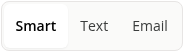
- Choose Smart, Text, or Email. Smart uses text when a phone number is available and email otherwise. Review the recipient and sender details for the selected channel.
- Select Edit writing to write or revise the message, then click Apply writing. Review the message and make sure each intended recipient is included.
- When you’re ready, click Send with the displayed private-message count. Each included recipient gets a separate message.
To customize the hints for generated writing, open Business Setup > Message templates. Expand an outreach type such as Win-back, then set its Tone, Goal, or Email subject hint.
Need a hand?
Email our team at support@joinzipper.com and we'll usually reply within a few hours.
Was this article helpful?
Thanks for your feedback.