How to Set Provider and Member Alert Thresholds
Set provider scorecard fill rates and decide when Zipper flags members or classes for follow-up.
Set the fill-rate target that provider scorecards show, and choose the rules that flag members or classes for follow-up.
Set provider scorecard targets
-
In the staff dashboard, open Settings → Thresholds & Milestones.
-
Select Provider thresholds.
-
Enter your Fill-rate target as a percentage. Set the minimum percentages for Excelling, On-track, and Needs-coaching. The scorecard does not use these three minimums yet, so providers are not labeled with them.

-
Select Save.
Set rules for member and class follow-up
In Thresholds & Milestones, select Member alert thresholds. Choose what the dashboard should flag for staff to review:
-
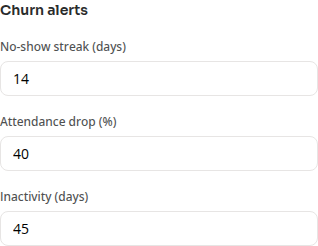
Churn alerts: Set how many days of no-shows, how large an attendance drop, or how many days of inactivity should draw attention.
-
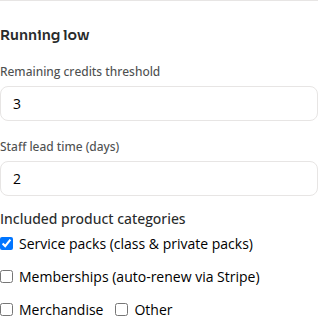
Running low: Set a remaining credit count and staff lead time. Choose which product categories to include.
-
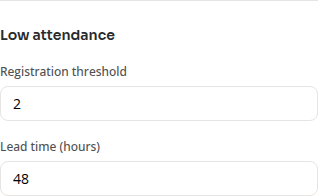
Low attendance: The registration count and lead time fields save, but the dashboard does not use them yet. It flags classes that start 12 to 24 hours from now and have two or fewer registrations.
Select Save after reviewing the rules.
Need a hand?
Email our team at support@joinzipper.com and we'll usually reply within a few hours.
Was this article helpful?
Thanks for your feedback.