How to Turn Off Instructor Appointment and Class Notifications
Stop receiving email, SMS, or push notifications when appointments are booked or class registrations change.
Turn Off Supported Staff Alerts
Open Settings > Organization Notifications to change studio-wide allowed channels, or Settings > My Notifications for your own staff preferences. Review the relevant event and available Email, Push or SMS channel, then Save.
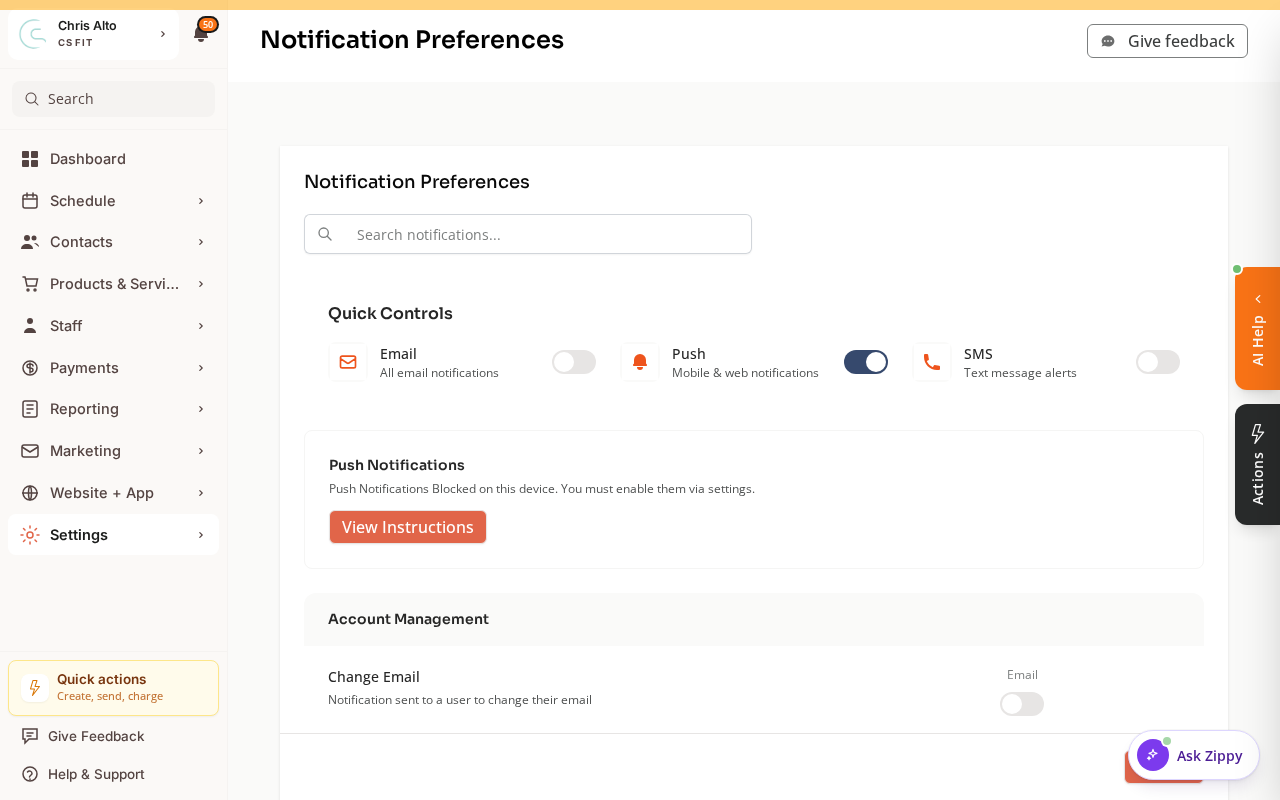
A personal opt-out can stop an allowed staff alert. You do not need to turn off both layers. A personal setting cannot enable an event or channel the organization has disabled.
Choose the Actual Cancellation Event
Appointment Cancelled (Team) is an appointment cancellation alert. Registration Cancelled (Team) is a customer canceling a class or event registration. In My Notifications, these team rows omit the audience suffix.
There is currently no team preference for cancellation of the entire class. Event Cancelled (Customer) targets registered customers. Notify assigned instructors manually when canceling the whole session; registration-cancellation preferences do not create that alert.
Troubleshooting
An email still arrives. Check the actual event, recipient and saved settings. A blank channel cell is not an available switch, and required account/security messages may remain enabled.
Only some staff receive alerts. Check their personal preferences and the supported event’s Calendar Settings > Team members to notify recipients. These settings do not add a whole-class team alert.
See How to Configure Notification Settings for the full distinction between events, channels and staff recipients.
Need a hand?
Email our team at support@joinzipper.com and we'll usually reply within a few hours.
Was this article helpful?
Thanks for your feedback.