How to Track an Automation Conversion Goal
Choose an automation conversion goal and understand its results.
How to Track an Automation Conversion Goal
A conversion goal lets you measure selected customer activity after an automation run starts. Choose a goal and a time window that match the outcome you want to watch.
Set a Goal
- Go to Marketing > Automations and open the workflow.
- Select Track Conversion Goal near the top of the builder.
- Choose a Goal: Made a Purchase, Booked an Event, Booked an Appointment, Had a Visit, or Returned Within Window.
- Enter a positive number in Within (days). The initial setting is Had a Visit within 30 days; adjust it for your workflow.
- Save the workflow. On a draft, the main Save button also publishes and activates it. Select Save options > Save draft while preparing it, and Save when it is ready to run.
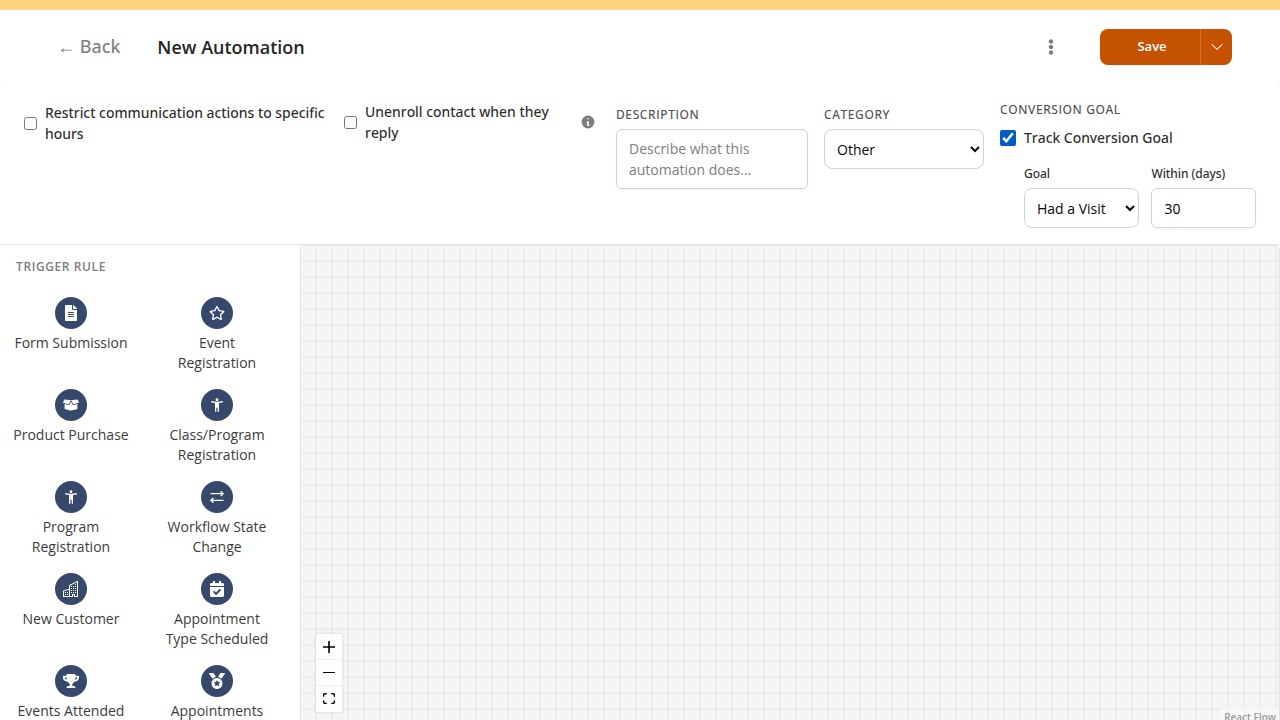
To stop tracking a goal on the workflow, clear Track Conversion Goal and save. Review other workflow settings and messages before publishing; see How to Create an Automation.
Understand the Result
The window starts when the automation run is created. On the Automations list, Conv. shows a conversion rate when there is at least one eligible result. The date-range buttons filter the runs included in the list metrics. Test runs are excluded.
The rate uses converted runs and runs whose window has ended without a recorded conversion. Runs still waiting for their window to end are not yet counted as non-conversions. A dash can mean there is no eligible result to calculate yet. A recorded conversion shows matching activity in the window; it does not prove the automation caused that activity.
Had a Visit can be recorded from an event registration or scheduled appointment. It is not a substitute for an attendance report. Returned Within Window can be recorded from a product purchase, event registration, or scheduled appointment. Check the relevant attendance or payment reports when you need to verify the underlying outcome.
Use automation history to investigate runs. Automation tests can send real messages, so use contact details you control.
Need a hand?
Email our team at support@joinzipper.com and we'll usually reply within a few hours.
Was this article helpful?
Thanks for your feedback.