How to Set Up Automatic Class No-Shows
Mark eligible missed classes after the studio day ends and queue fees for staff review.
Use automatic class no-shows to record eligible missed class bookings after the studio’s local day ends. Review class check-ins before the end of the day so the roster reflects who attended.
- Open Schedule → Calendar Settings.
- Under Class attendance, turn on Automatically mark class no-shows at end of day.
- Choose Save attendance settings.
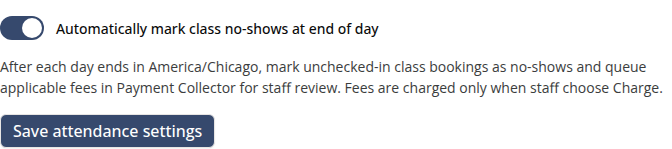
After the day ends in the time zone shown, Zipper marks eligible active bookings for completed classes as no-shows if the attendee is still unchecked-in. Check the No-show tab in the class roster.
Review any fees
Applicable fees go to Payments → Payment Collector → Unpaid Fees for staff review. A staff member chooses Charge to collect a queued fee. Staff can also review or waive a fee.
To return to manual class attendance, turn the switch off and choose Save attendance settings. To record a missed appointment, follow How to Mark an Appointment as a No-Show.
Need a hand?
Email our team at support@joinzipper.com and we'll usually reply within a few hours.
Was this article helpful?
Thanks for your feedback.