How to Message Customers From Inbox
Send an individual email or text from Inbox and reply to conversations on connected channels.
How to Message Customers From Inbox
Use Inbox to start a one-to-one email or text or to reply on an existing conversation.
Start an Email or Text
- Go to Inbox and choose New > Message a customer.
- In New Inbox message, choose Email or Text. Available senders depend on your organization’s messaging setup.
- Enter the recipient’s email address or phone number in To and check the sender in From.
- Write your message. For an email, add a Subject and use Preview email to check how it looks.
- Review the recipient and message, then choose Send.

Reply to an Existing Conversation
- Open the conversation in Inbox. If the customer has several conversations grouped together, choose the channel or thread you want to reply on.
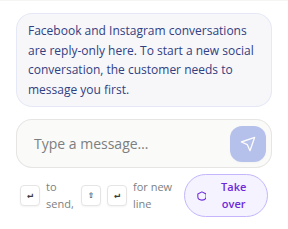
- Write the reply in the composer and use the send button. If Take over appears and you want your team to handle the conversation, select it to pause automatic AI replies for that conversation.
For Facebook or Instagram, the customer starts the conversation by messaging you first. Open their existing thread in Inbox to reply.
See how to manage Inbox conversations for search, filters, and archiving.
Need a hand?
Email our team at support@joinzipper.com and we'll usually reply within a few hours.
Was this article helpful?
Thanks for your feedback.