How to Manage Inbox Conversations
Find conversations, group them by customer, and mark, archive, or restore them in the shared Inbox.
How to Manage Inbox Conversations
Open Inbox in the dashboard to see conversations across your connected channels. The page is headed Chat.
Find a Conversation
- Choose Inbox for active conversations or Archived for conversations your team has archived.
- Use Search conversations or choose a channel filter such as SMS, Email, or Site Chat. Choose All to see every available channel. If a search turns up nothing, use Clear search to remove the search term.
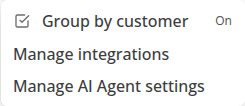
- Open Inbox settings and turn Group by customer on to see a linked customer’s conversations together. Turn it off to browse each channel thread separately.
Mark, Archive, or Restore Conversations
- To update one conversation, open its three-dot Conversation actions menu. Choose Mark as unread to flag it for follow-up (a conversation that is already unread shows Mark as read instead), or Archive to move it out of the active Inbox. In Archived, choose Unarchive to return it to the Inbox.
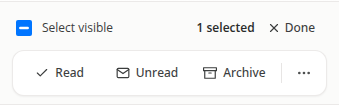
- To update several conversations, choose Select and tick the conversations you want. Select visible selects the conversations shown in the list. Choose Read, Unread, or Archive. In Archived, use Restore. Choose Done to exit selection.
If you choose Delete and confirm, the conversation disappears from both Inbox and Archived. Zipper retains its history, and messages stay in the source channel.
To work with a conversation, reply or start a message or connect it to a customer profile.
Need a hand?
Email our team at support@joinzipper.com and we'll usually reply within a few hours.
Was this article helpful?
Thanks for your feedback.