How to Manage Promo Codes for a Coupon
Add or deactivate an individual promo code for an existing coupon.
A coupon holds the discount and eligible products. The promo codes attached to it are what customers enter at checkout. Admins can give the same coupon additional codes with their own redemption limits.
Add a code
-
Open Products & Services → Coupons.
-
Find the coupon by its label or an existing code. Choose Actions → Manage coupon.
-
In Promo Codes, select Add Code.

-
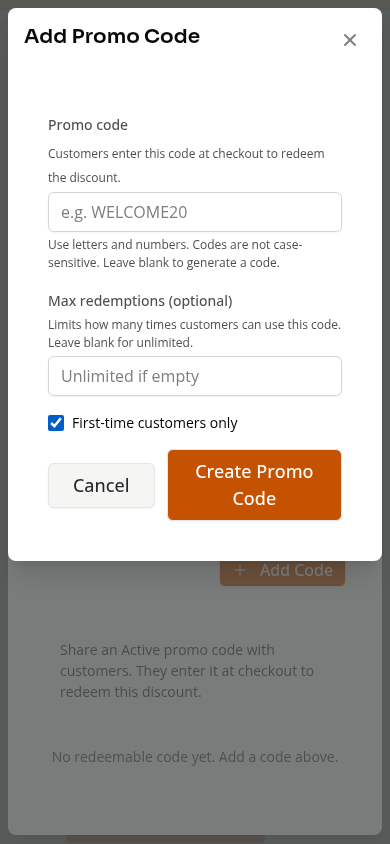
Enter a code using letters and numbers, or leave the field blank to generate one. Enter Max redemptions to set a usage limit for this code. Select First-time customers only if you want to limit eligibility.
-
Select Create Promo Code. Check that the code appears as Active before sharing it.
Stop one code
In Manage Coupon → Promo Codes, find the code and select Deactivate. Check the code shown in the confirmation, then choose Deactivate again. Other active codes on the coupon remain available.

To stop the entire promotion, see How to Deactivate or Delete a Coupon.
Need a hand?
Email our team at support@joinzipper.com and we'll usually reply within a few hours.
Was this article helpful?
Thanks for your feedback.