How to Export Your Customer Roster and Find Import Tools
Download the full customer roster and find the correct bulk tool for your customer data.
How to Export Your Customer Roster and Find Import Tools
Go to Contacts > Customers > Tools > Import/Export. If the menu item is missing, you need the Manage Roster Imports permission. An admin can turn it on under Staff > Staff Members > Edit roles and permissions.
Download the Customer Roster
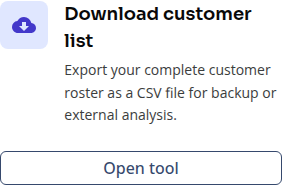
Find Download customer list and choose Open tool. Zipper downloads RosterExport.csv for the full studio roster. The file includes names, contact details, gender, date of birth, the latest active subscription where available, tags, and your studio’s custom fields.
Choose an Import Tool
| To do this | Open this tool |
|---|---|
| Prepare a spreadsheet for import | Convert data to CSV |
| Add or update profiles from a file | Create/update customers |
| Prepare customer records and product invitations for a separate welcome email | Customer invite import |
| Start memberships for people on the roster | Create subscriptions for customers |
| Email selected customers on the roster | Send welcome emails |
| Add past visits or bookings | Import class registrations or Import appointments |
| Add booking credits to existing customers | Issue credits to customers |
| Add guardian and dependent relationships | Create families of customers |
| Migrate customer records from a connected Stripe account | Import customers from Stripe |
Prepare files for a migration
Start with customer records. Use Create/update customers for roster details or Customer invite import if you also need to prepare invitations. Check that the rows matched before using tools that depend on an existing roster.
For balances, prepare a Booking Credits CSV with the customer email, product, number of credits, and an expiration date column (values can be blank). For memberships, choose the multiple-product CSV to list a product on every row. Choose the single-product import if the rows are for one product and you need an external-payment option.
Preview each file and fix row errors before processing. The validation step in Customer invite import lets you check the file before creating records or sending welcome emails.
The tools have different file requirements. Use each tool’s upload instructions for the data you are moving.
Need a hand?
Email our team at support@joinzipper.com and we'll usually reply within a few hours.
Was this article helpful?
Thanks for your feedback.