How to Convert Spreadsheets to Import CSVs
Use Zipper’s AI CSV Generator to turn spreadsheets into import files for customers, memberships, booking credits, and families.
How to Convert Spreadsheets to Import CSVs
Use Convert data to CSV to prepare import files from spreadsheets of customer lists, memberships, booking credits, or family relationships. The converter creates files you can review before uploading them to the relevant import tool.
Add Data and Check the Detected Columns
- Go to Contacts > Customers > Tools > Import/Export and open Convert data to CSV. The Import/Export item appears only for users with the Manage Roster Imports permission. An admin can turn it on under Staff > Staff Members > Edit roles and permissions.
- Choose Upload CSV or paste the spreadsheet as CSV or tab-separated text. Use Add another spreadsheet to include up to five spreadsheets.
- Wait for column detection, then select Continue to Processing. Check the column meanings and row counts in Review Detected Schemas. If the columns were misread, go Back, correct the source file or pasted data, and let the tool detect the columns again.
- Choose Looks Good - Continue. Check the summary and select Start Processing.
Download and Check the Files
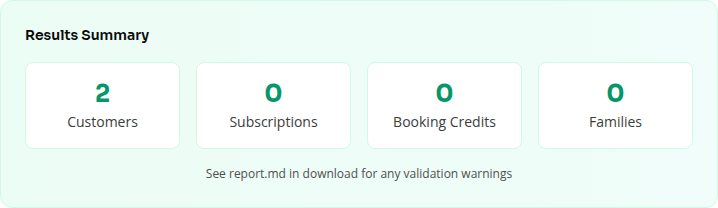
When the converter finishes, check Results Summary and choose Download Results. Extract the ZIP. Read report.md for validation warnings and compare the CSVs with the data you supplied.
Open the matching import tool for each file that contains rows.
| File | Import tool |
|---|---|
customers.csv | Create/update customers |
subscriptions.csv | Create subscriptions for customers |
punch_cards.csv | Issue credits to customers |
families.csv | Create families of customers |
Use the preview in each import tool to check the data again before processing.
Need a hand?
Email our team at support@joinzipper.com and we'll usually reply within a few hours.
Was this article helpful?
Thanks for your feedback.