How to Embed Events on Your Website
Create an Events widget, choose event and location filters, and share its embed or hosted link.
How to Embed Events on Your Website
Use an Events embed to display your studio’s events on a website or share a hosted widget link. Choose the events, hosts and locations to show, then review the customer-facing display before publishing.
Create the Embed
-
Open Website + App > Website Embeddings (Beta) and choose New embed.
-
Give it a name and choose Events under Type.
-
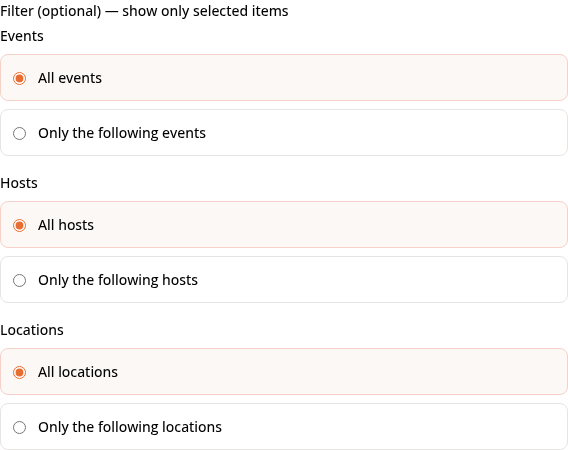
Under the optional filter, leave All events, All hosts and All locations selected, or choose Only the following in a section and select the items you want. Check your selections: clearing the last selection removes that filter and returns it to all items.
-
Review Theme and the display settings. For example, Hide price and Hide register button change what visitors see. Set the time zone, thumbnail and phone-number options as appropriate.
-
Switch between desktop and mobile in Live preview. Check the events, dates, location and registration controls.
-
Choose Active and select Save when ready.
Add It to Your Website
On the saved embed, choose Copy snippet and paste the complete code into your site’s HTML or code-embed area. Publish the page and check it on desktop and mobile. Choose Copy link instead to share a hosted widget page.
Use Edit on the saved embed to change its settings. Edits apply to pages using that instance without replacing the snippet, so check the affected pages after saving. A disabled embed is unavailable to visitors.
Programs in the Events Embed
An Events embed can also show public programs. Check the event, host and location filters and the program’s Visibility setting if a program is missing. A program appears as a single card when it is active and still has at least one session that has not ended. If no program qualifies, the widget lists individual program sessions instead, which can include sessions of programs that are not active. Sessions that have ended are never shown. Where program registration is available in the widget, visitors can review the dates and register for the whole program. See How to Register for a Program from a Website.
If an Event Is Missing
Check the selected event, host and location filters, as well as the event’s date and availability. Review the preview and the published page separately. An event shown in an embed still follows its own registration and payment rules; displaying it does not confirm a registration.
To put one-off events alongside recurring classes, see How to Embed the Class Schedule Widget on an External Site.
Need a hand?
Email our team at support@joinzipper.com and we'll usually reply within a few hours.
Was this article helpful?
Thanks for your feedback.