How to Embed the Class Schedule Widget on an External Site
Add a saved schedule widget to your website and choose whether it includes one-off events.
How to Embed the Class Schedule Widget on an External Site
An embed displays your Zipper schedule inside another website. A saved embed controls what appears there; the website snippet points to that embed.
Create or Edit a Schedule Embed
- Open Website + App > Website Embeddings (Beta).
- Click New embed, or Edit an existing schedule embed.
- Choose Class / booking schedule as the widget type and give it a useful name.
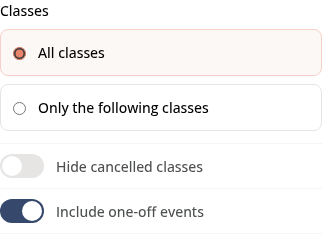
- Review the Classes settings:
- All classes or Only the following classes controls which recurring classes appear.
- Hide cancelled classes controls cancelled occurrences.
- Include one-off events includes standalone events in the schedule. Turn it off to exclude standalone one-off events. Programs can still appear.
- Review the other filters and display settings, make sure the embed is Active, then Save.
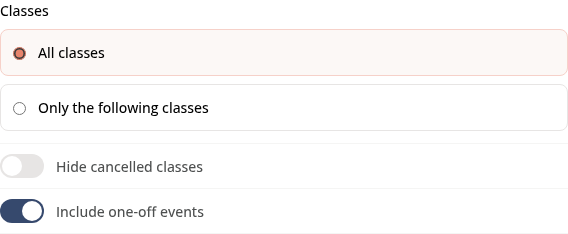
One-off events and recurring classes are different records. Including one-off events does not turn them into recurring classes or change their own registration rules.
Add It to Your Website
- On the embed list, click Copy snippet for the saved embed.
- Paste the complete snippet into your website’s HTML or code-embed area.
- Save that website page and preview it on desktop and mobile.
Use the copied snippet as provided; it includes the widget loader and the saved instance. Copy link gives a direct hosted view when available, rather than the code to paste into a page.
Edits to a saved embed update its settings without replacing the snippet on your website. Saving those edits affects every page using the same embed instance.
On Mobile
Open the same embed editor and scroll through its filters before saving.
Existing Direct Links and Embeds
Direct Links & Embedding is another available setup area. If your website already uses an embed from there, edit that existing configuration rather than assuming it is the same instance as a Website Embeddings (Beta) widget.
Troubleshooting
A one-off workshop is missing. Check Include one-off events, the event date and the other filters.
The embed says it is missing or disabled. Check that the saved instance exists and is active, and that you copied its current snippet. An unsaved styling preview does not prove the saved instance is available.
The external website shows the code as text. Use the website’s HTML/code-embed area and check whether it allows the script in the snippet.
A booking is unavailable. The embed still respects the booking’s own opening window, capacity and eligibility. Showing a session does not override those rules.
Need a hand?
Email our team at support@joinzipper.com and we'll usually reply within a few hours.
Was this article helpful?
Thanks for your feedback.