How to Edit or Deactivate a Discount Rule
Update a customer-tag discount, choose eligible purchases, or turn the rule off and back on.
A discount rule automatically applies to eligible purchases by customers with its assigned tag.
-
Open Products & Services → Coupons, then select Discount Rules on the Coupon Codes page. Only admin users see this button.
-
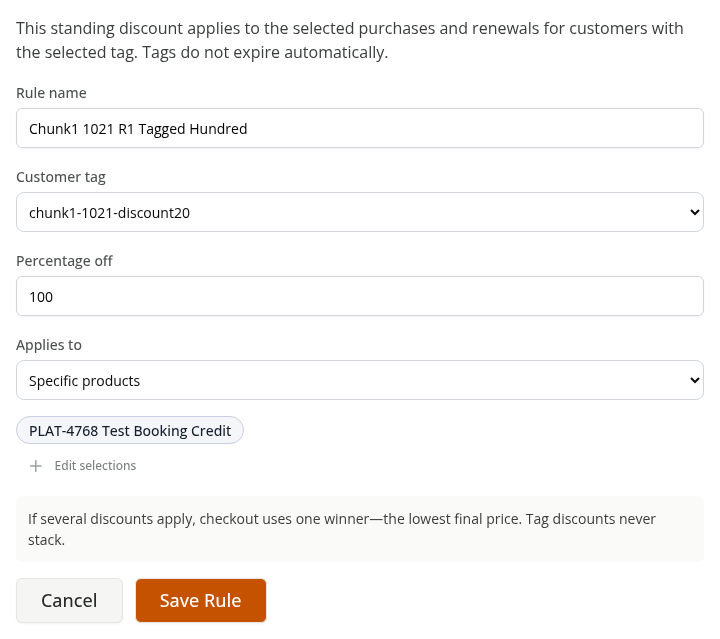
Find the rule and select Edit. Update the name, Customer tag, or Percentage off. Enter a whole percentage from 1 to 100.
-
Under Applies to, choose All purchases, Specific products, or Specific classes & events. For a limited rule, select Add selections or Edit selections. Choose the eligible items and select Save selections to return to the rule.

-
Select Save Rule.
To turn the discount off for everyone, choose Deactivate on the rule’s row. Choose Activate when you want the same rule to apply again. Activate works only while the rule’s customer tag still exists. Deleting a tag turns off the rules that use it.


To remove eligibility for one customer, remove the rule’s tag from that customer’s profile. For a new rule, see How to Create Coupon Codes and Discount Rules.
Need a hand?
Email our team at support@joinzipper.com and we'll usually reply within a few hours.
Was this article helpful?
Thanks for your feedback.