How to Create a Booking Credits Product
Create a visit pack with a price, included services and an expiry rule.
How to Create a Booking Credits Product
A booking credits product gives a customer visits they can use for selected services. For example, a ten-class pack can issue ten visits with an expiry rule.
Before You Start
You need permission to manage products. Connect Stripe before offering a paid product, and create the services you want the credits to cover.
Set Up the Product
Open Products & Services > Manage Plans and choose Create product. In Category & Type, choose the Credit Pack category and One-time product type for a one-time pack. Use Next to enter its name in Details and set its price in Pricing.
Choose the product type carefully. An existing product’s type cannot be changed.
Configure the Credits
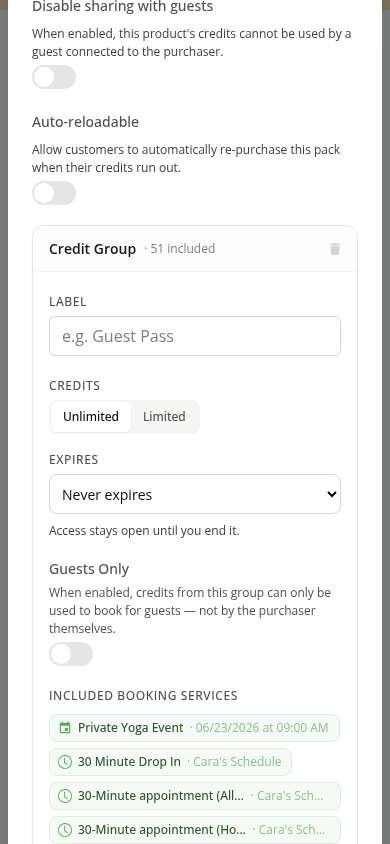
Open Booking Credits and turn on Enable Booking Credits to add a credit group. Choose Limited for a set number of visits, or Unlimited for access without a fixed visit count. Select the Included booking services.
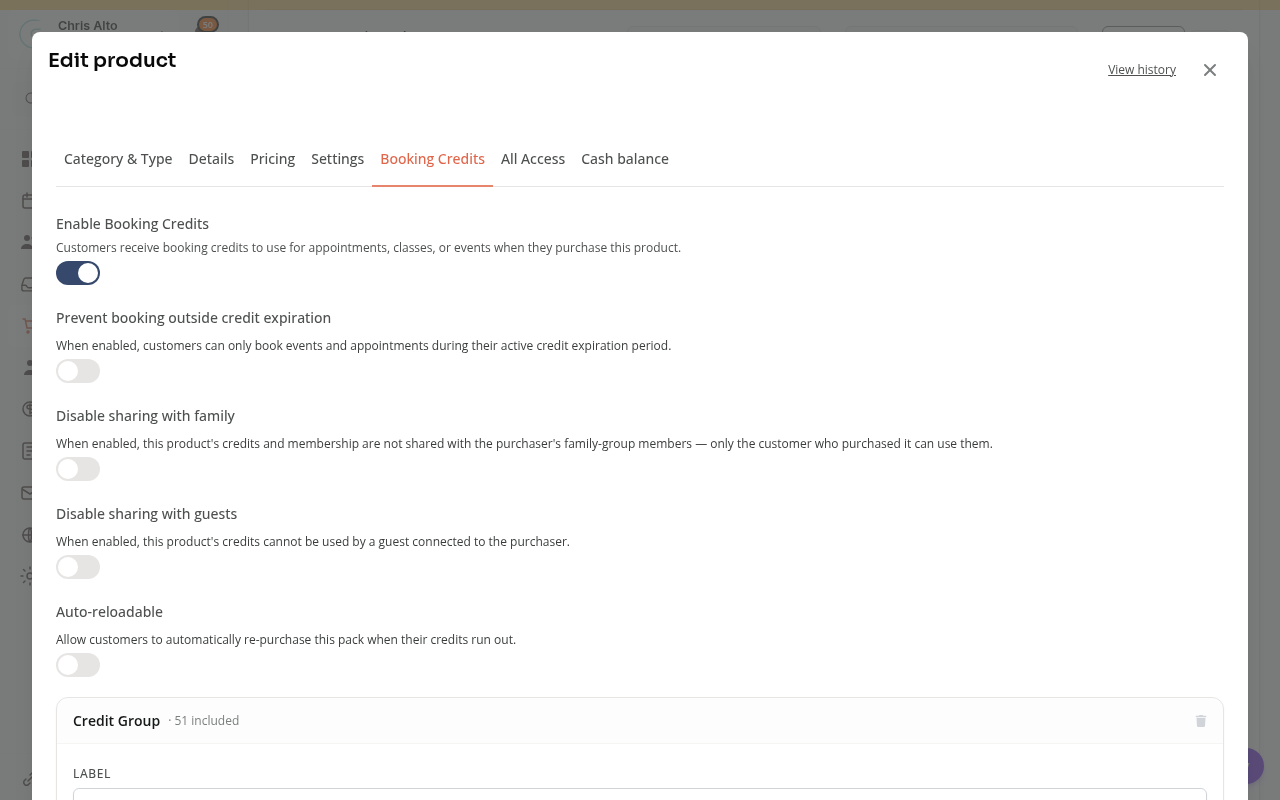
Choose an expiry rule:
- Expires after uses the number of days you set.
- Never expires leaves unused credits without a set expiry.
- Expires after first attended class starts the clock at the first attended class using the pack. This option is for a limited one-time pack.
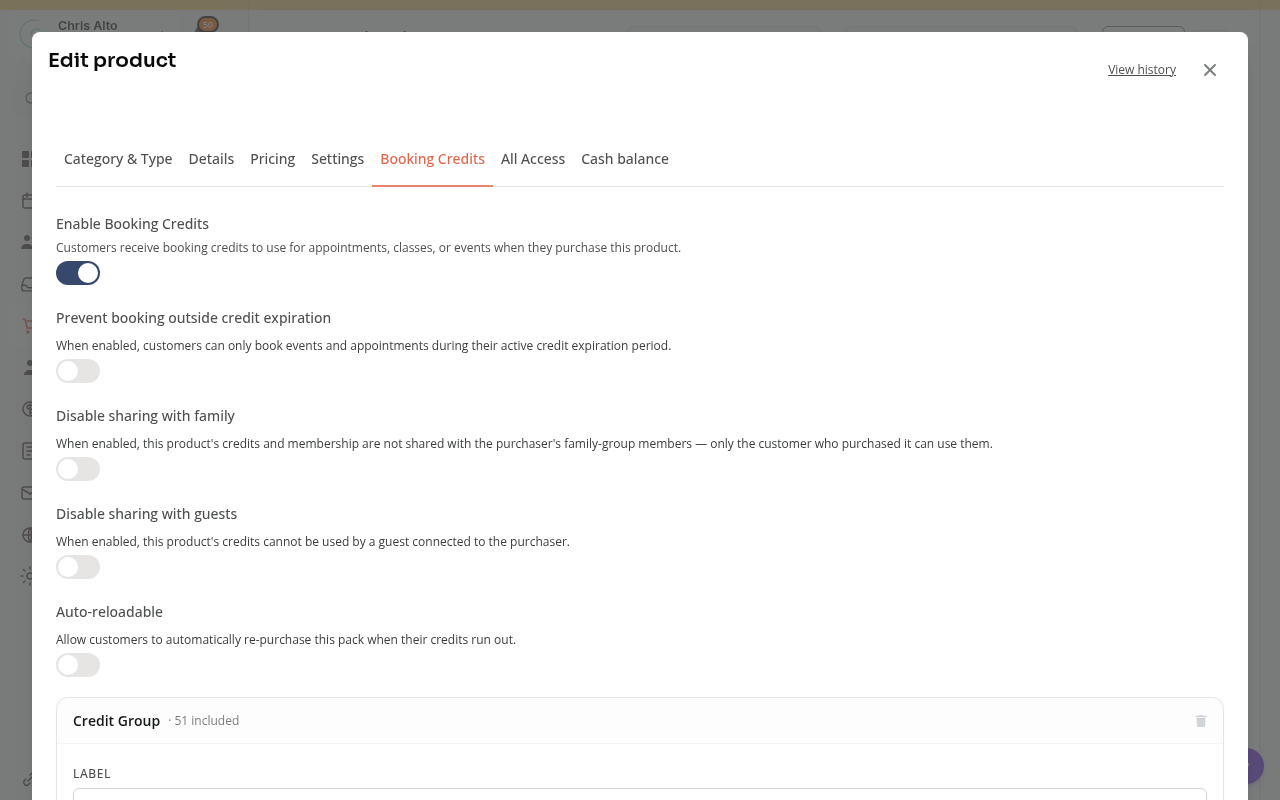
Review family and guest sharing, purchase availability, forms and shop visibility. Continue through the remaining steps with Next, then choose Create product when the required fields are complete. If you are editing an existing product, use Save.
Check Where It Works
The credit group must include the service the customer wants to book. Owning the product alone does not make it valid for every class or appointment.
See Booking Credits and All Access Explained for sharing, reserved visits and expiry.
On Mobile
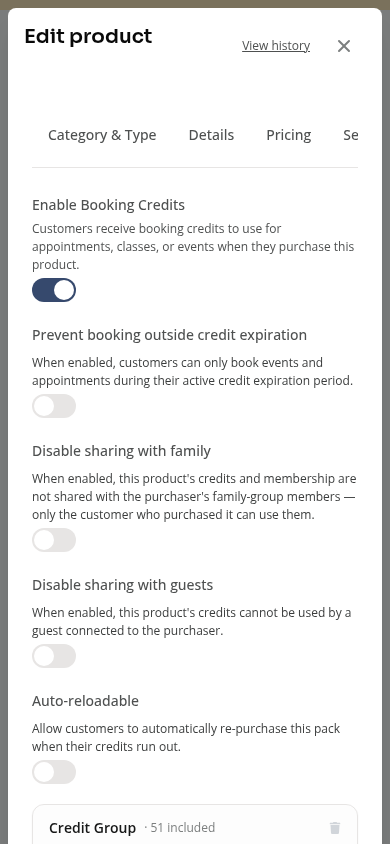
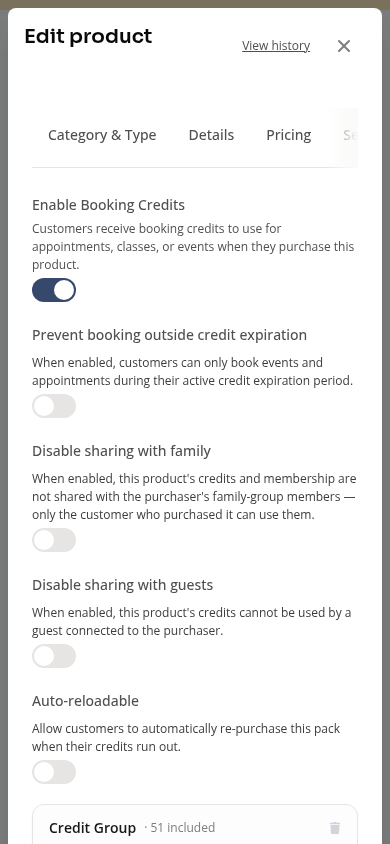
The same controls stack in the editor. Scroll below the credit count to find expiry and included services.
Troubleshooting
A customer cannot use the pack. Check the included service, start and end dates, available visits and sharing rules.
First-attendance expiry has not started. Booking alone does not start it. Record the customer’s class check-in.
Need a hand?
Email our team at support@joinzipper.com and we'll usually reply within a few hours.
Was this article helpful?
Thanks for your feedback.