How to Control Where System Email Notifications Go
Zipper has two levels of notification settings: org-wide defaults and individual staff preferences. Here's how to configure both.
Studio Settings and Personal Preferences
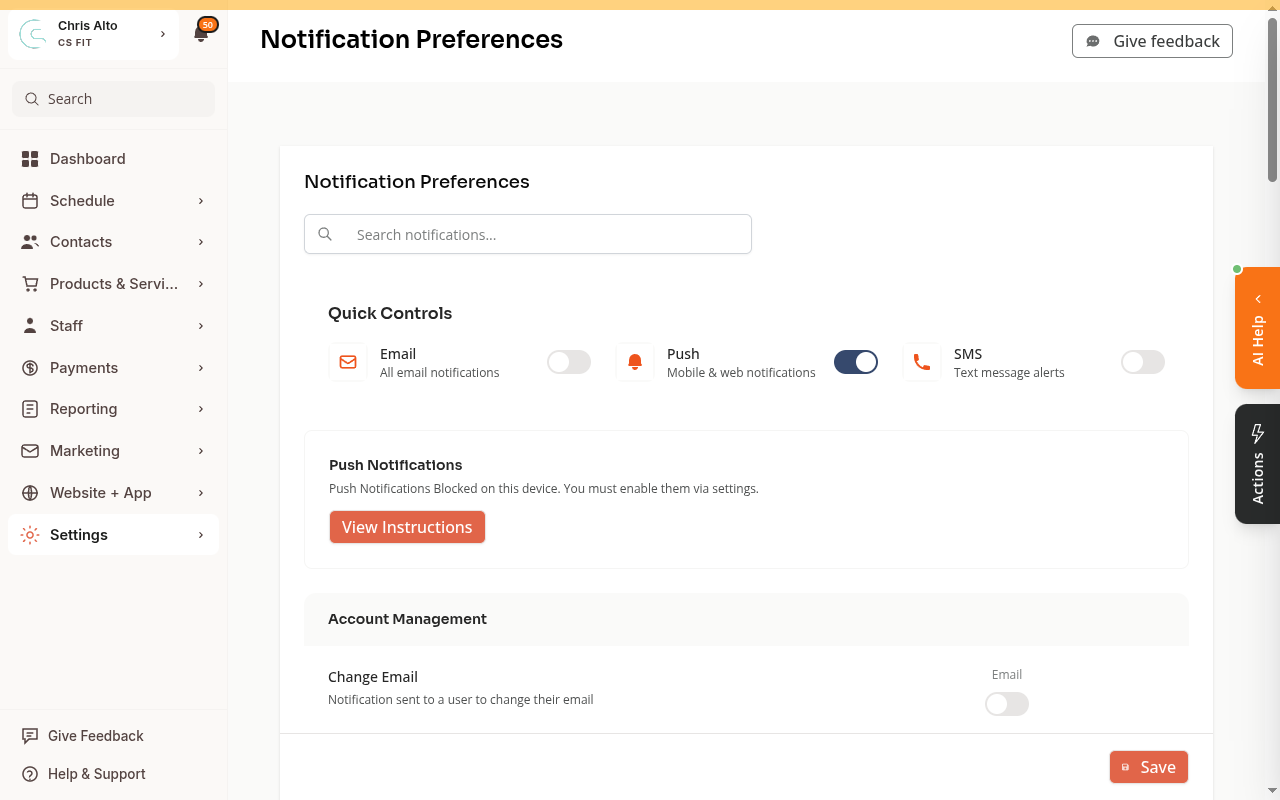
Use Settings > Organization Notifications for studio-wide events and allowed channels. Use Settings > My Notifications for your own staff preferences. Search the actual event, choose an available Email, Push or SMS channel, and Save after reviewing changes.
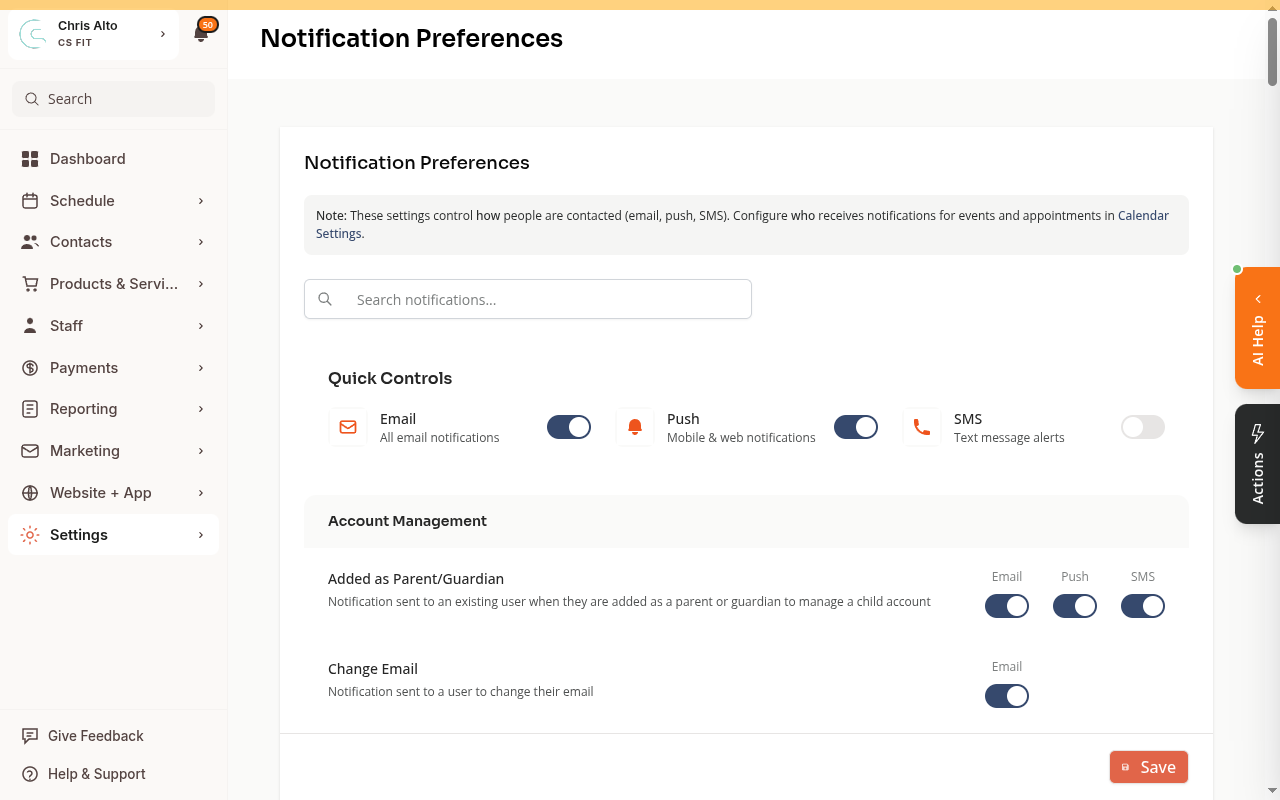
Personal preferences do not override an organization-disabled event or channel. A personal opt-out can stop a permitted alert; both layers do not have to be disabled. A blank channel cell is not a switch. Required account/security messages may stay on.
Staff Recipients and Cancellation Events
Open Calendar Settings from Notification Preferences and review Team members to notify for supported appointment and class-registration notices.
- Appointment Cancelled (Team) alerts staff about an appointment cancellation.
- Registration Cancelled (Team) concerns a customer canceling a class/event registration.
- Event Cancelled (Customer) concerns the entire class/event and targets registered customers.
There is currently no team preference for cancellation of the entire class. Notify assigned instructors manually when canceling that session. Choosing staff recipients or registration-cancellation preferences does not create a whole-class team alert.
On My Notifications, the team rows omit the audience suffix. Channel switches control delivery preferences; they do not establish that an email was delivered.
Troubleshooting
A supported staff email is missing. Check the organization row, personal preference, recipient list, email address and spam folder. Give support the cancellation time and intended recipient for delivery investigation.
See How to Configure Notification Settings for the complete event and channel guide.
Need a hand?
Email our team at support@joinzipper.com and we'll usually reply within a few hours.
Was this article helpful?
Thanks for your feedback.