How to Connect Quo for SMS and Calls
Connect a Quo account, review outbound SMS routing, and check inbound messaging setup.
How to Connect Quo for SMS and Calls
Connect a Quo account to use its number for SMS in the unified Inbox and to show call history in customer communications. You can connect more than one account, but only one connected number can send outbound texts.
Add a Quo Account
- In the staff dashboard, open Settings > Integrations.
- Find Quo — SMS & Calls and choose Add account. If an account is already connected, choose Manage, then Add Quo Account.
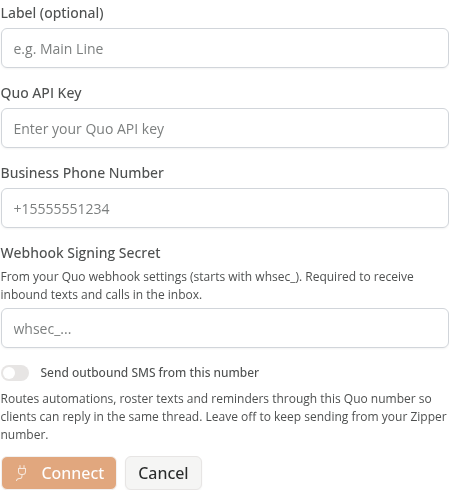
- Enter the Quo API Key and Business Phone Number for the account. Add a Label (optional) if it will help your team recognize the number.
- Enter the Webhook Signing Secret from the Quo webhook settings. The form says this is required for inbound texts and calls to reach the Inbox. Keep the API key and signing secret private.
- Review Send outbound SMS from this number. Leave it off to keep outbound texts on the Zipper number, or turn it on to route automations, roster texts, and reminders through this Quo number. Turning it on for this number turns it off for every other connected number. If you turn it on, an optional Monthly outbound SMS limit appears; leave it blank for no limit or enter a nonnegative whole number.
- Choose Connect and check that the account appears as Connected. If you need help configuring the Quo webhook, contact Zipper support.
Review a Connected Number
Return to Quo — SMS & Calls > Manage to review the account and its signing-secret status. You can change Send outbound SMS from this number without re-entering the API key. When outbound routing is on, review or change the Monthly outbound limit and save the limit if you edit it.
The Remove action removes a connected account. Review which number and workflows depend on it before removing it.
Troubleshooting
- The account did not connect. Check the displayed error, API key, and business phone number with the account owner, then try again.
- Inbound texts or calls are missing. Check the signing-secret status and webhook setup with your team or support. A missing or invalid secret can prevent inbound events from reaching the Inbox.
- A text went out from another number. Review the account’s outbound switch and the relevant workflow before sending again. See How to Message Customers from Inbox.
Test messaging only with a contact and phone number you control. Review the connected account and routing before using it for customers.
Need a hand?
Email our team at support@joinzipper.com and we'll usually reply within a few hours.
Was this article helpful?
Thanks for your feedback.