How to Configure Class and Appointment Pay Rates
Set which classes and appointments a pay rate covers, then choose per-attendee pay, a flat payout, or a revenue split.
How to Configure Class and Appointment Pay Rates
Use an event-based pay rate when compensation depends on the session someone teaches or the appointment they provide.
Choose Which Sessions the Rate Covers
- Go to Staff > Pay Rates > Add new pay rate, enter a Label, and select Event/Appointment Based.
- Under Events, classes & appointment types, select Manage event and class selections or Manage appointment type selections to choose specific offerings. Use Apply to all events and sessions or Apply to all appointment types if the rate should cover everything in that group.
- Under Exclude bookings made with these products, select Choose products (or Change products once products are selected) to leave eligible booking products out of attendance-based or revenue-based calculations. Changes apply to periods whose reports haven’t been sent.
- For calculations that depend on revenue, use Revenue per attendee to review the values for subscriptions or Booking Credits used to book a session.
Choose the Payout Method
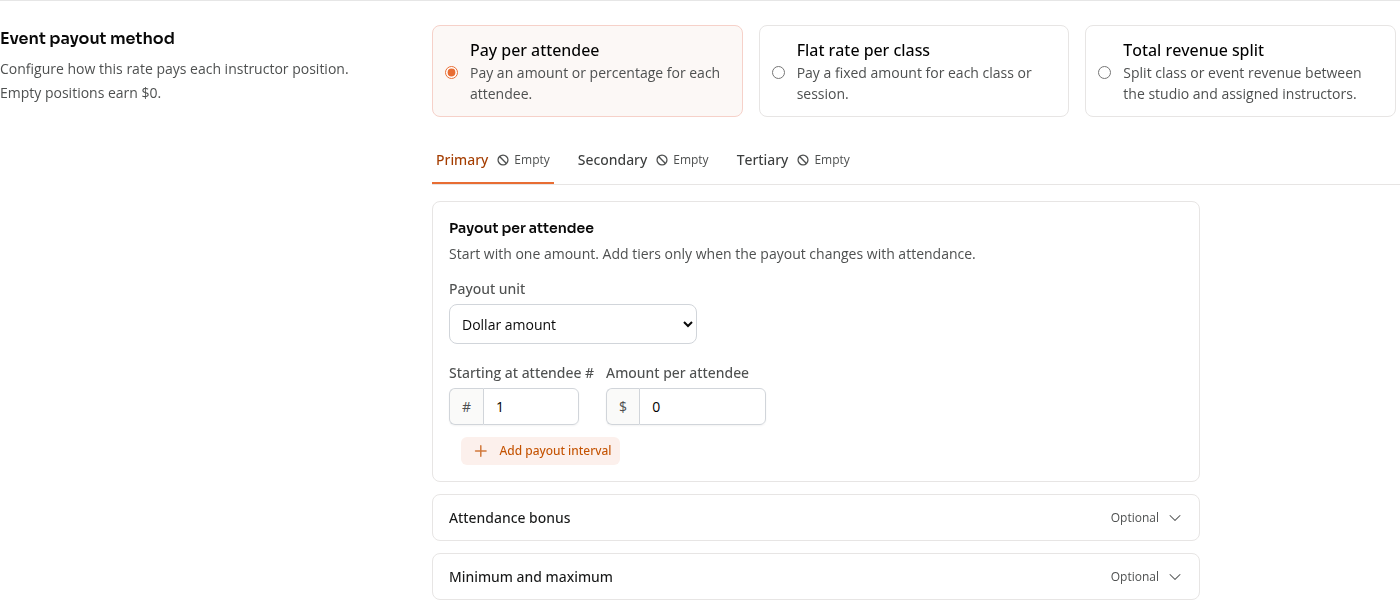
- Pay per attendee pays a dollar amount or a percentage of attendee revenue. Under Payout per attendee, set the amount and the attendee number at which it starts. Use Add payout interval when payout changes at a different attendance level.
- Flat rate per class sets a fixed payout per class or session.
- Total revenue split splits class or event revenue between the studio and assigned instructors. Enter percentages for each instructor combination. Each combination must total 100% to save.
For per-attendee or flat pay, use the Primary, Secondary, and Tertiary tabs to configure each instructor position you pay. Positions without a configured amount earn zero on this rate.
Save and Assign the Rate
Select Save, then select the rate in the staff member’s Pay rates tab. See How to Set Up Pay Rates for the assignment steps and How to Run a Payroll Report by Instructor to review the resulting pay.
Need a hand?
Email our team at support@joinzipper.com and we'll usually reply within a few hours.
Was this article helpful?
Thanks for your feedback.