How to Run a Payroll Report by Instructor
Generate a breakdown of what each instructor is owed for a specific pay period.
Steps
- Navigate to: Reporting > Reports, then choose the Staff category.
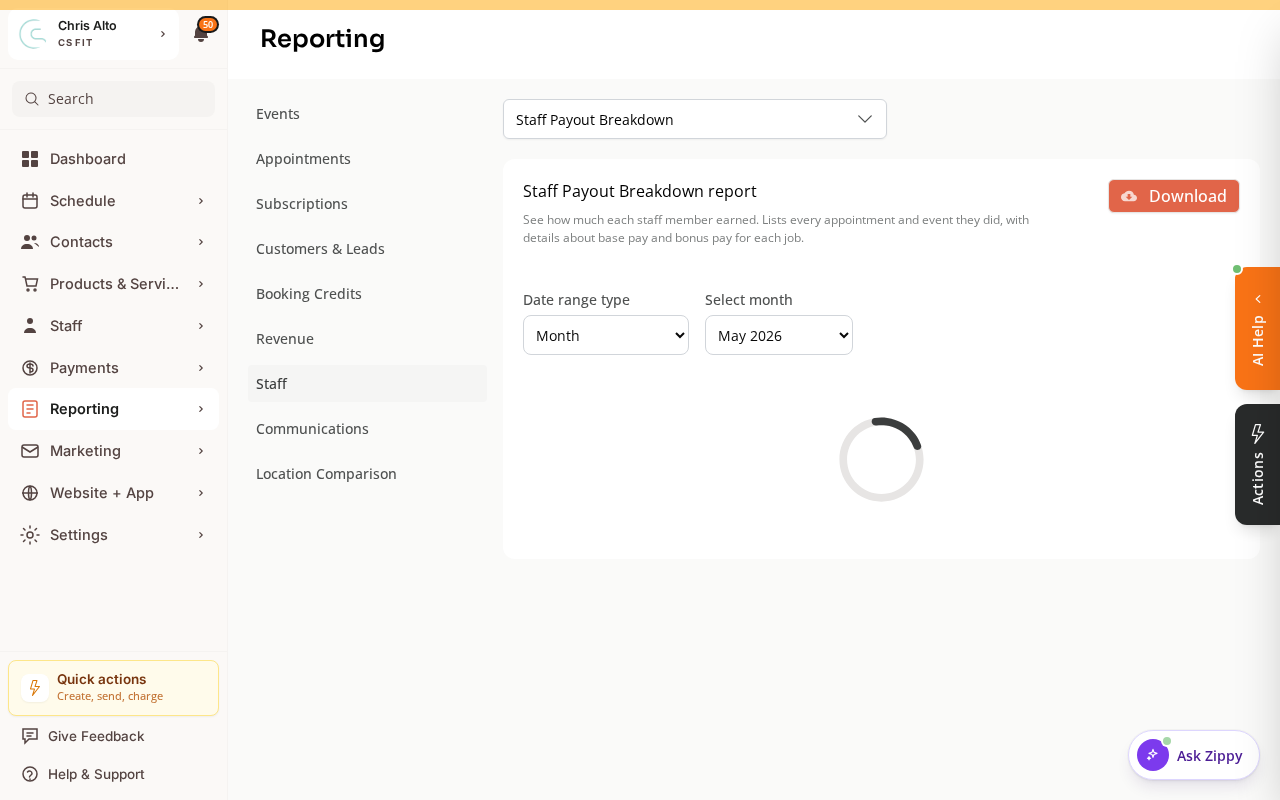
- Select the payroll report.
- Set the date range: your pay period (e.g., May 1–May 31)
- Click: Run or Generate
What the Report Shows
| Column | What it means |
|---|---|
| Instructor name | Staff member |
| Sessions taught | Number of classes/appointments in the period |
| Pay rate | Their configured rate |
| Total earned | Calculated payout for the period |
Exporting the Report
- Click: Export or Download CSV
- Open in Excel/Google Sheets for further processing
- Import into your external payroll tool (Gusto, QuickBooks, etc.)
On Mobile
Same steps — reporting works on mobile browser.
Tips
- Run it before paying: Always generate and review the report before paying instructors — catch any sessions that were miscounted or at the wrong rate.
- Keep a record: Save the exported CSV for each pay period as your payroll record.
Troubleshooting
An instructor’s sessions aren’t showing. Check: (1) they were assigned as the instructor on those class/appointment sessions, (2) the date range covers the sessions, (3) sessions were marked as completed/ended.
The earnings amount looks wrong. Verify the instructor’s pay rate is set correctly: Staff > Pay Rates.
Need a hand?
Email our team at support@joinzipper.com and we'll usually reply within a few hours.
Was this article helpful?
Thanks for your feedback.