How to Comp a Class or Free Session
Two ways to give a customer a free class or session: add a booking credit to their account for future use, or register them right now through the Point-of-Sale at $0.
Which method should I use?
| Use Add Booking Credits when… | Use Point-of-Sale at $0 when… |
|---|---|
| You want them to book themselves later | You want to register them right now |
Method A: Add a Booking Credit to Their Account
Step 1: Open the customer’s profile
- Navigate to: Contacts > Customers → search for the customer → click their name
- Click the Billing & Payments tab
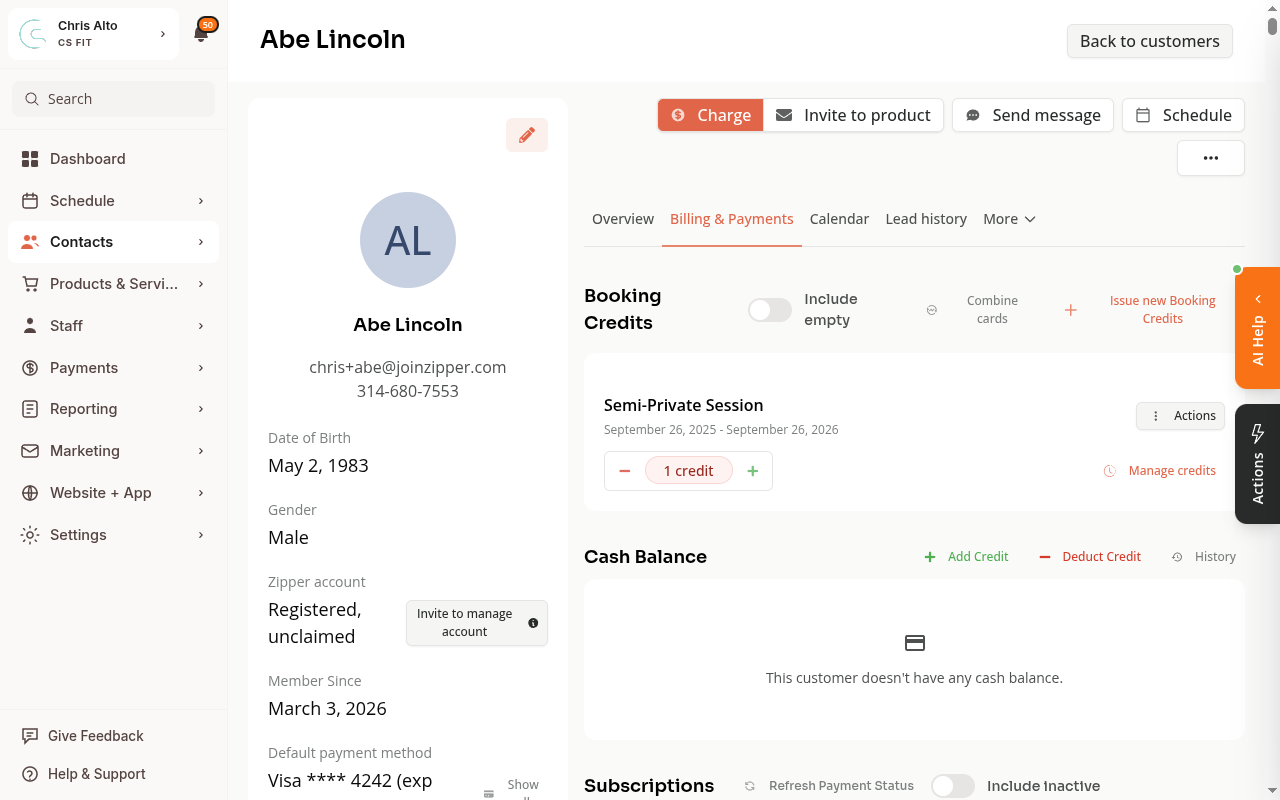
Step 2: Issue a free booking credit
- Click: Issue new Booking Credits
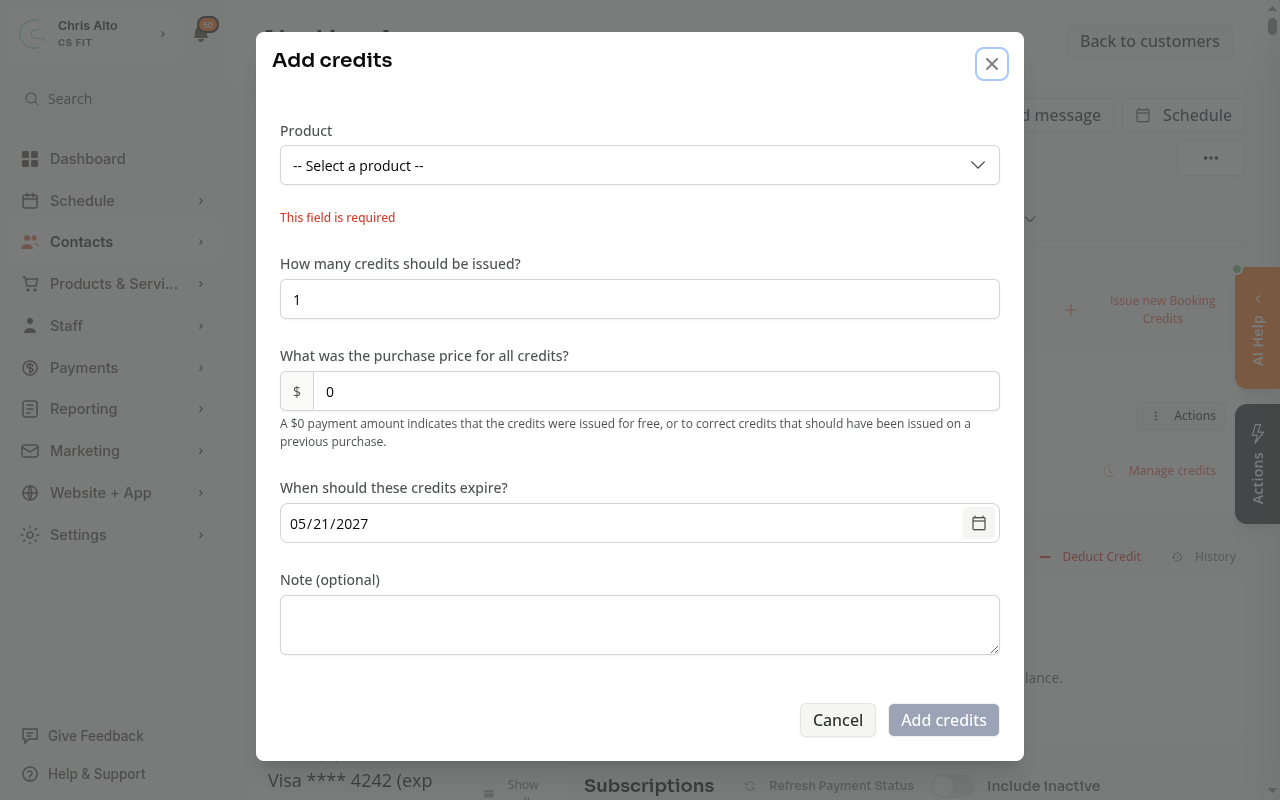
- In the modal:
- Product: Select the product type (e.g., “Class Drop-in” booking credits, or a specific appointment type)
- Credits: Enter 1 (or however many to comp)
- Purchase price: Enter $0 — this marks it as a free comp
- Expiry: Set an expiration date if needed, or leave blank
- Note: Optional — add an internal note like “complimentary for new member”
- Click: Add credits
Method B: Register Them Right Now at $0 via Point-of-Sale
Step 1: Open the Point-of-Sale and add a product
- Navigate to: Payments > Point-of-Sale
- Select the customer, then add the class or session product
Step 2: Apply a 100% discount
In the product configuration, find the Discount section:
- Select: Percentage off discount
- Enter: 100 in the Amount off field
- Click: Add to Cart
Step 3: Complete checkout at $0
- Click: Calculate total
- Cart shows Total Due Today: $0.00 — no payment method needed
- Click: Charge customer / complete checkout
The customer is registered for the class or session with no charge on their account.
On Mobile
Both methods work on mobile. Use the hamburger menu to reach Point-of-Sale or Contacts.
Both flows work for appointments and group classes. For a retroactive comp (customer already paid), issue the credit and process a refund on the original transaction separately. For recurring staff comps, see How to give staff free class access.
Troubleshooting
Customer can’t see the credit when booking. Check that the credit’s product type matches the class or appointment they’re trying to book. Credits are product-specific — a “Classes” credit won’t apply to an appointment booking.
Need a hand?
Email our team at support@joinzipper.com and we'll usually reply within a few hours.
Was this article helpful?
Thanks for your feedback.