How to Clone a Class Timeslot
Use an existing recurring timeslot as the starting point for another schedule within the same class.
Clone a timeslot when you want a second recurring schedule for the same class with similar settings. You can change the days, time, instructor, or location before saving the new schedule.
-
Open Schedule → Classes and choose Edit for the class.
-
Find the original schedule and select the copy icon marked Clone on its row. The Add time slots dialog starts with the original day and time.
-
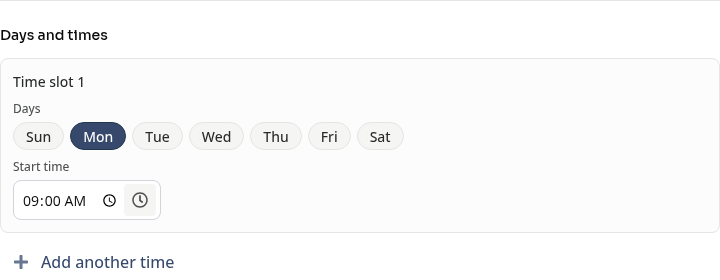
Under Days and times, select the days and enter the start time for the new schedule. Use Add another time if you want an additional row with a different start time.
-
Review the recurrence, first class date, end setting, instructor, and location. Check especially that the new schedule starts on the intended date.
-
Choose Save all, then check the timeslot list for the new schedule.
To use an existing class as the basis for a separate class, see How to Duplicate (Clone) a Class.
Need a hand?
Email our team at support@joinzipper.com and we'll usually reply within a few hours.
Was this article helpful?
Thanks for your feedback.