How to Duplicate (Clone) a Class
Zipper doesn't have a one-click duplicate button, but you can create a new class and copy the payment and registration settings from an existing one — which handles most of the setup work.
What Gets Copied (and What Doesn’t)
Copied:
- Payment tiers and pricing
- Linked booking credits / package products
- Registration form (intake questions, waiver)
- Cancellation policy and reminder settings
Not copied (you enter these fresh):
- Class name
- Schedule (days, times, timeslots)
- Capacity
Steps
Step 1: Start creating a new class
- Go to Schedule > Classes
- Click: Create → Class
- Select Create manually (not “Create with AI”)
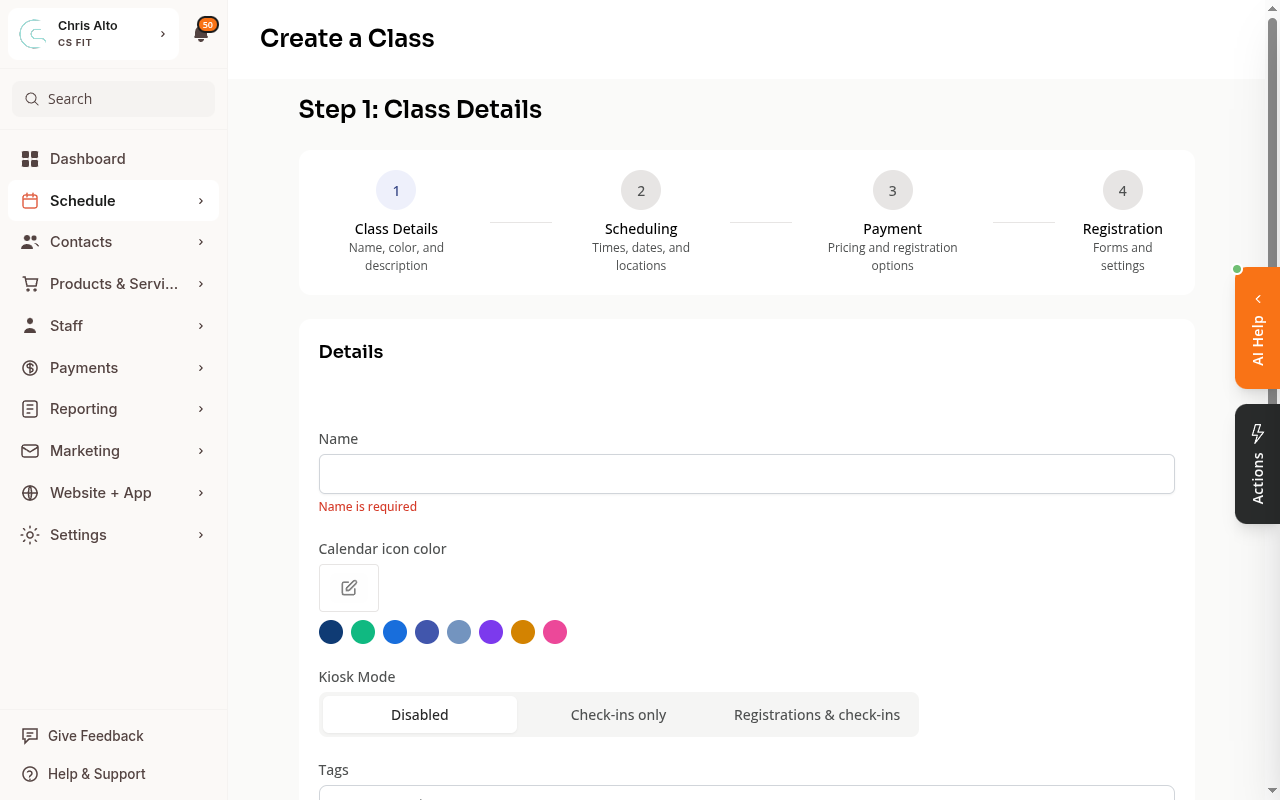
Step 2: Enter the basic details and schedule
- Enter the class Name
- Click: Next to advance to Scheduling (Step 2)
- Add at least one time slot with a day and time
- Click: Next to advance to Payment (Step 3)
Step 3: Copy payment settings from an existing class
On the Payment step:
-
Look for the Copy settings from existing class section
-
Click: Copy from [class] button (with a duplicate icon)
-
Search for or scroll to your source class
-
Click the class name to select it
-
Review and adjust the imported settings as needed
-
Click: Next
Step 4: Copy registration settings from an existing class
On the Registration step:
-
Look for the same Copy settings from existing class section
-
Click: Copy from [class] button
-
Select the same class (or a different one if you want different registration settings)
-
Review and adjust as needed
-
Click: Next → complete the wizard → Save
Step 5: Review the new class
Check that payment tiers match the source class, the registration form is correct, and the schedule and capacity are set correctly (these were entered manually, not copied).
On Mobile
Same steps — the class creation wizard is accessible on mobile browser via the hamburger menu.
Tips
- No “Copy from” button appearing? The button only shows if there are existing classes with payment settings configured. If your source class has no payment settings, set those up first.
- Want to update multiple existing classes at once? Look for the Sync Settings option on an existing class — this pushes settings from one class to others, rather than copying when creating.
- Copied settings are a starting point — you can edit the imported pricing, form, or policies before saving.
Troubleshooting
The copied pricing looks wrong. The copy imports what was configured at the time of copying. If the source class was recently updated, make sure you saved it before using it as a copy source. You can also edit the imported tiers directly in the wizard before saving.
“Copy from [class]” isn’t showing on the Payment step. This option requires at least one class with payment settings to exist. If you’re setting up your first class, you’ll need to configure payment settings manually — then you can use this class as a source for future ones.
Need a hand?
Email our team at support@joinzipper.com and we'll usually reply within a few hours.
Was this article helpful?
Thanks for your feedback.