How to Change the Price of One Subscription
Review and change the recurring price for one eligible Stripe subscription.
Use Update price to change the recurring price of one existing Stripe subscription. The new price takes effect on the customer’s next billing date.
-
Open Products & Services → Products. Open the recurring product’s Actions menu and select View subscribers.
-
Find the customer’s subscription, open its Actions menu, and choose Update price.

-
Enter the New Amount. If you want to apply a discount with the price change, choose the discount type and enter its amount.
-
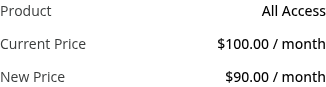
Select Next. On Review Changes, compare the current and new price and check the billing interval.
-
Select Confirm Update and check the result.
You can also use Update price from the customer’s subscription in Billing & payments. To make the same change for several subscribers on one product, see How to Update Existing Subscription Prices in Bulk.
Need a hand?
Email our team at support@joinzipper.com and we'll usually reply within a few hours.
Was this article helpful?
Thanks for your feedback.