How to Change Calendar Views and Filters
Choose a calendar view, jump to a date, and filter sessions by type, provider, class, location, or tag.
Use the staff Calendar to see a single day, a week, or a month, and narrow the display to what you want to review.
Choose a date and a view
-
Open Schedule → Calendar.
-
Select the date range at the top to open the calendar date picker. Pick a date to move the view there. Use Today to return to the current date.
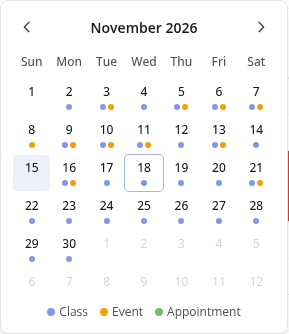
-
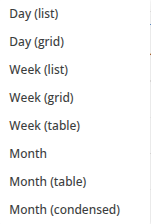
Open the view menu, for example Week (grid). Choose a day, week, or month view. Use Week (table) for columns such as Date, Name, Staff, Location, and Attendees.

Narrow the display
Open Filters. On very wide screens, the groups appear as buttons in the toolbar instead. Choose from available groups such as Types, providers, classes, locations, and tags. For example, turn off Appointments under Types when you want to focus on events and classes. The calendar updates as you change the selections.
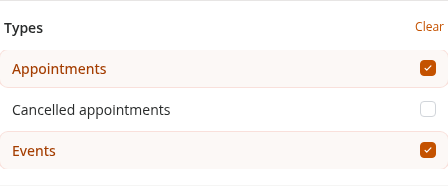
Use Clear to clear selections in a filter group. Use Reset all (or Clear all on very wide screens) to restore the default filters. If a session is missing, check the displayed date and filters. When you find the class, select it to open the roster.
Need a hand?
Email our team at support@joinzipper.com and we'll usually reply within a few hours.
Was this article helpful?
Thanks for your feedback.