How to Branch an Automation with a Condition
Use a condition to route an automation based on customer activity or membership.
How to Branch an Automation with a Condition
Use Check Condition to send an automation down different paths based on a customer’s information or activity at that step. For example, you can check whether someone is an active member before choosing a follow-up.
Add a Condition
- Open your workflow from Marketing > Automations, or create an automation.
- Select the + beneath the last step of the path where the check should happen and choose Check Condition. The + appears only beneath a path’s last step, not beneath a condition. Open the condition card if its settings do not appear.
- Choose a Condition Type, then choose an Operator and enter any requested value. The available operators and fields depend on the type.
- Connect the Yes and No paths to the actions you want. Yes follows the path when the condition is true; No follows the false path if one is connected. If you do not connect a path, there is no following action on that path.
- Review the canvas for disconnected steps. Configure or remove any step flagged by the builder before saving.
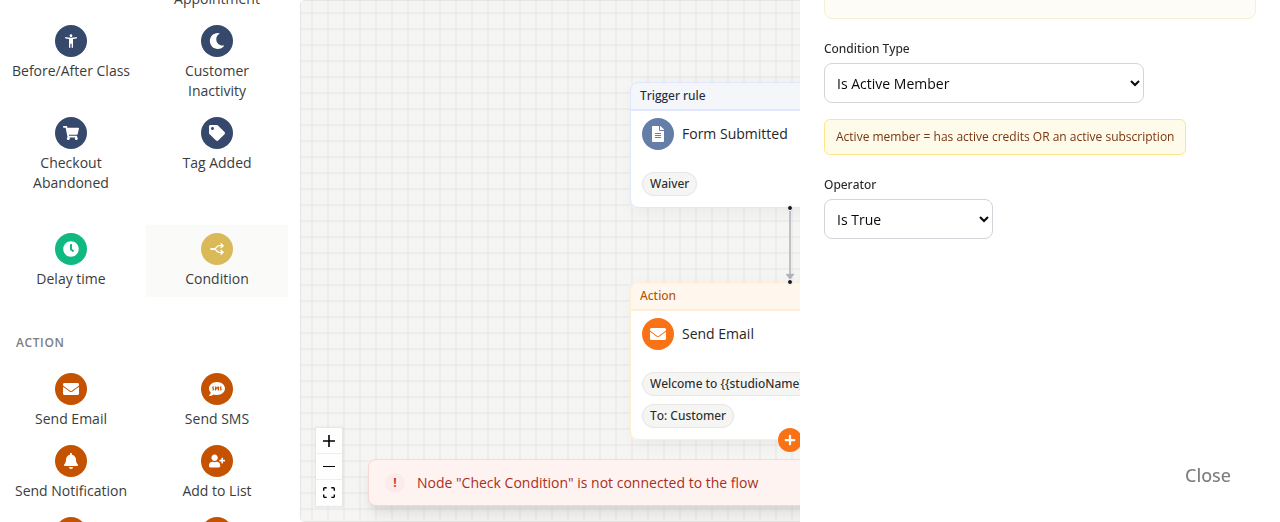
You can also choose Condition from the builder palette. A step added separately can be disconnected, so check its connections before saving.
Choose the Right Check
The condition list includes customer workflow status, attendance, upcoming event bookings, product purchases, last visit, booking or purchase activity, customer record creation date, active membership, and active subscription. Choose a check that matches the decision you want to make and review its operator carefully.
For example, Is Active Member checks whether the customer has active credits or an active subscription. Has Active Subscription checks subscriptions instead; it does not count credits alone. Read the helper text in the builder for details before relying on either rule.
Review and Test
Use Save options > Save draft while you work. Review both paths, their actions, and any message recipients before publishing. Testing an automation can send real messages, so use contact details you control. Test the outcomes you need with suitable customer records, and check automation history for the condition and action results.
Need a hand?
Email our team at support@joinzipper.com and we'll usually reply within a few hours.
Was this article helpful?
Thanks for your feedback.