How to Add Size and Color Variants to Merchandise
Set up options and variants, then give each version of a merchandise product its own price and SKU.
Use options such as size and color to sell several versions of one product. Each version is a variant.
-
Open Products & Services → Products. For a new item, select Manage → Create merchandise. For an existing merchandise item, open its Actions menu and select Inventory. Create merchandise and Inventory appear only when the retail catalog is turned on for your studio.

-
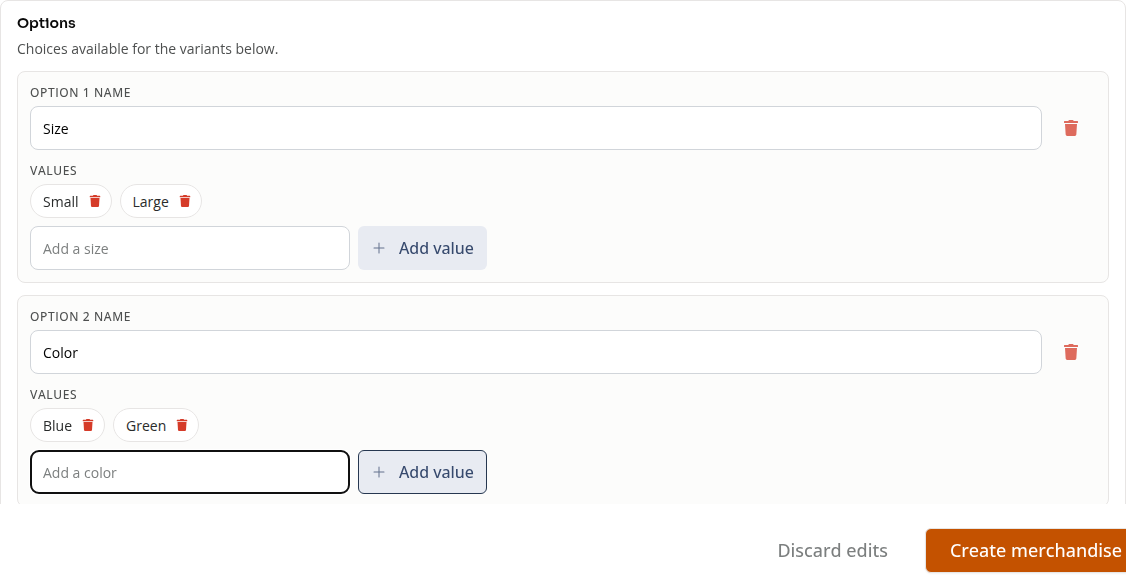
In Variants and stock, select Add options if options are not already set up. Name the option, such as Size. Enter each choice and select Add value. Use Add another option for a second set of choices, such as Color.
-
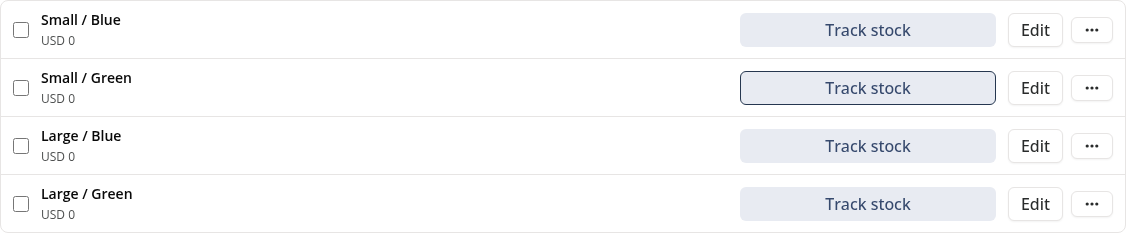
Open Variants. Choose Generate all variants from options for every combination, or Add variant to add one combination at a time.

-
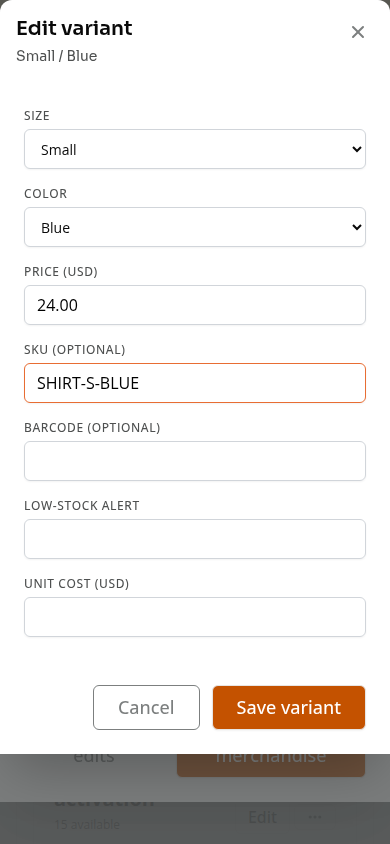
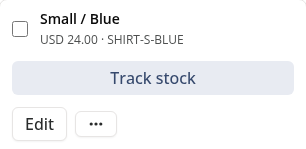
Select Edit for each variant that needs a price or an SKU. Enter the details, then select Save variant.
-
Finish with Create merchandise for a new product, or save your inventory edits for an existing product.
To record an opening count or adjust an existing count, see How to Count and Adjust Retail Inventory.
Need a hand?
Email our team at support@joinzipper.com and we'll usually reply within a few hours.
Was this article helpful?
Thanks for your feedback.