How to Count and Adjust Retail Inventory
Start tracking stock for an item, enter a physical count, record changes, and find stock history.
Track how many of each item you have. If a product comes in sizes or colors, each option has its own stock count.
-
Open Products & Services → Products. Find the merchandise product by name, SKU, or barcode.
-
Open its Actions menu and select Inventory.

Start tracking an option
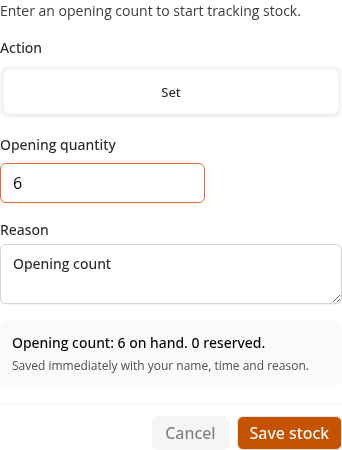
Find the right size or color and select Track stock. Enter the Opening quantity you counted, including zero if the item is out of stock. Review the Reason, then select Save stock.

Change a tracked count
-
Find the option and select Update stock.

-
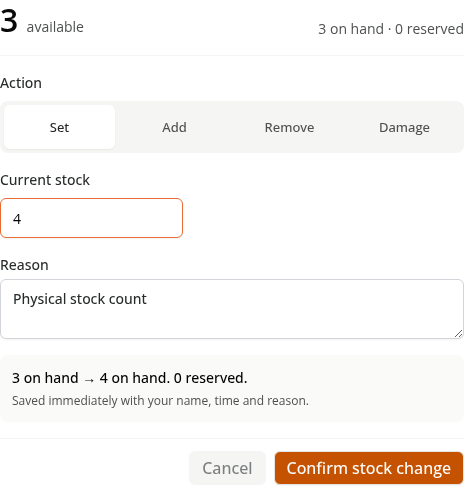
Choose an action:
- Set: Enter the total you physically counted.
- Add: Enter the number of units to add, such as a shipment.
- Remove or Damage: Enter the number of units to take out of stock.
-
Check the Reason and the new total. Select Confirm stock change to save.
To see past changes, open the option’s actions and select Stock history.

Need a hand?
Email our team at support@joinzipper.com and we'll usually reply within a few hours.
Was this article helpful?
Thanks for your feedback.